
The Android operating system, used by 78% of mobile devices in Brazil, is characterized by its connectivity and compatibility with various other devices, systems, and applications. This brings visible benefits to the daily work routine. However, as with everything in corporate life, there is a catch: the incorrect use of these types of devices can be costly for the company.
Recent research has revealed that one in eight smartphones in Brazil is infected with malware, which can cause data leaks and even complications for companies under the General Data Protection Law, which can even punish companies that act negligently with the data under their responsibility.
It is important for companies to be careful and seek to prevent the misuse of corporate devices.
Considering this scenario, in this text we present 3 tools that, together, can add an extra layer of protection to Android devices, making access more secure and protecting user and company data. These are:
- Password Manager: LastPass
- Antivirus: Avast
- Web content filter: Lumiun DNS
In the following lines you will see the characteristics of each one and how the tools work together to establish effective protection on Android devices and more:
A step-by-step guide on how to install each of them on your Android device.
1. LastPass: Manage and protect your passwords
Protecting passwords seems extremely simple, easy, and even a little "silly," but according to research by Kaspersky, it's very important and has caused a lot of headaches for small and medium-sized businesses in Brazil when neglected.
Research indicates that password theft has increased by 143% over the past year in Brazil, specifically among small and medium-sized businesses. Within this same business environment, an internet security company reports that Brazil leads the ranking of cyberattacks.
These data clearly demonstrate the reasons for using an account and password manager like LastPass.
LastPass is a password manager that protects your passwords and personal information by encrypting the characters entered in the username and password fields .
With it, you can store passwords and logins, create online shopping profiles, generate strong passwords through suggestions or the app's own generator, and securely locate personal information.

For the company, the benefits are extremely significant:
- Eliminate password reuse by employees – With LastPass's password generator, you eliminate the continuous use of passwords for multiple logins by employees, increasing the security of company passwords.
- Manage your passwords in one place – Don't rely on spreadsheets and oversee everything with a complete administration dashboard.
- Protect confidential data – In addition to passwords and credentials, notes and information can be protected by adopting a LastPass security model.
- It makes password sharing easy and secure – Share credentials with employees and affiliates, manage access, and securely manage passwords.
Maintaining strong and secure passwords is the first step towards effective security for Android devices in businesses. If you have this concern, consider using tools like LastPass immediately. The solution is simple and comprehensive.
See below how easy it is to install LastPass on your Android device:
- Step 1: Access the Play Store on your Android device
- Step 2: Search for “LastPass” in the search box

- Step 3: Click "Install" and wait for the installation process to complete

- Step 4: Click on “Open”

- Step 5: Register by clicking the “Register” button and manage your accounts and passwords

Fill in the requested information and create your master password. The steps for password management are simple and intuitive. Furthermore, the entire application is in Brazilian Portuguese.
2. Avast Antivirus
Another item that seems basic but is really important: using antivirus software on mobile devices, especially Android, where there are more users and, consequently, more attempted attacks.
Avast Mobile Security for Android is a good free antivirus alternative for users of this operating system.
In addition to basic protection against malware, ransomware, and spyware, Avast performs an automatic security check on Wi-Fi networks, protecting your device from potentially dangerous public networks.

For business users working on external networks, there is also the functionality to lock and erase device data in case of theft or loss.
Furthermore, the software developers are careful not to interfere with the device's performance, allowing the application to run in the background without excessively consuming battery power.
Here's a step-by-step guide to installing Avast on your Android device.
- Step 1: Access the Play Store on your Android device
- Step 2: Search for “Avast” in the search box

- Step 3: Click "Install" and wait for the installation process to complete

- Step 4: Click on “Open”

- Step 5: Make your first access and scan

Right from the start, Avast performs a complete scan of your device in order to find malicious files or applications.
The system is simple and very intuitive, and it's entirely in Brazilian Portuguese.
3rd Web content filter with Lumiun DNS
Lumiun Lumiun DNS is a DNS request filtering and content classification service that can be easily used on the internet by Android devices.
Its benefits and features are numerous, ranging from basic and automatic protections such as blocking adult content and piracy, to even blocking child sexual abuse content and blocking ads and trackers.
In a business and remote environment, where employees access public networks, for example, Lumiun DNS works proactively and effectively to protect the device and information.
Here are some advantages of using Lumiun DNS on Android devices for remote employees:
- Safe browsing on public networks
- Protection of remotely accessed data and systems
- Blocking harmful websites and applications, preventing access by remote employees
- Secure search on Google, Bing, and YouTube
- Statistics on access and connections from remote devices
- Fully remote management of filters and settings in the cloud
- Support in Portuguese
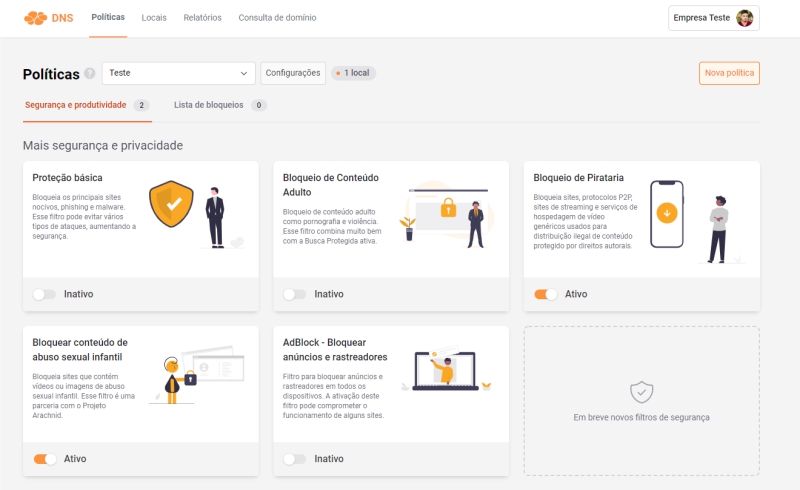
In a business setting, Lumiun DNS can add a third layer of internet protection, working in conjunction with the others mentioned previously.
Now, here's a step-by-step guide to installing Lumiun DNS on your Android device.
First, make sure your operating system is Android version 9.0 or higher.
- Step 1: Create an account on Lumiun DNS
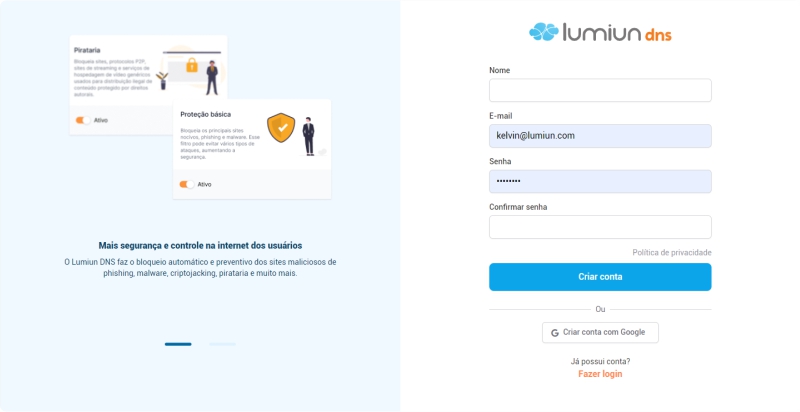
- Step 2: Confirm registration via email
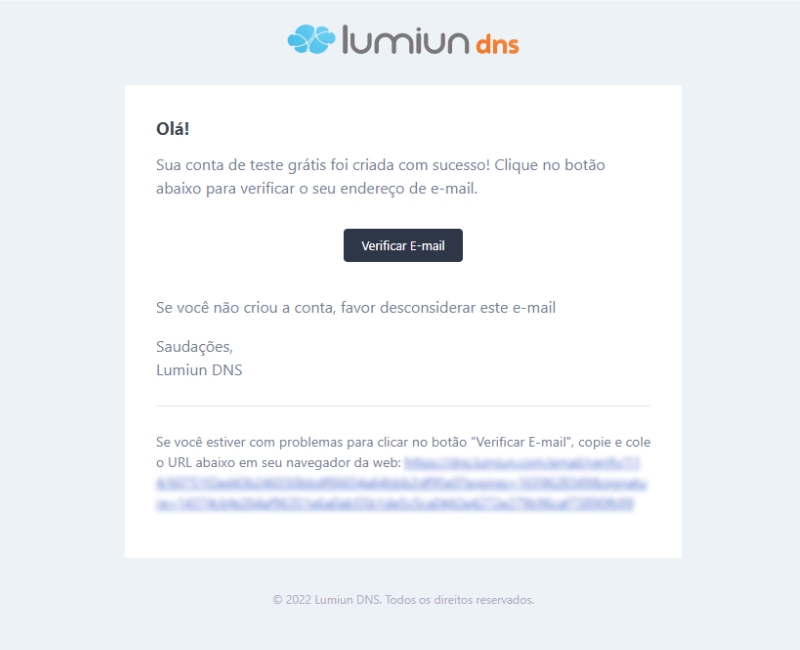
After registering, confirm your account by clicking the “Verify your email” button in the email that was sent to you. If the email is not in your inbox, check your Spam folder and mark it as “Not Spam” to receive future emails.
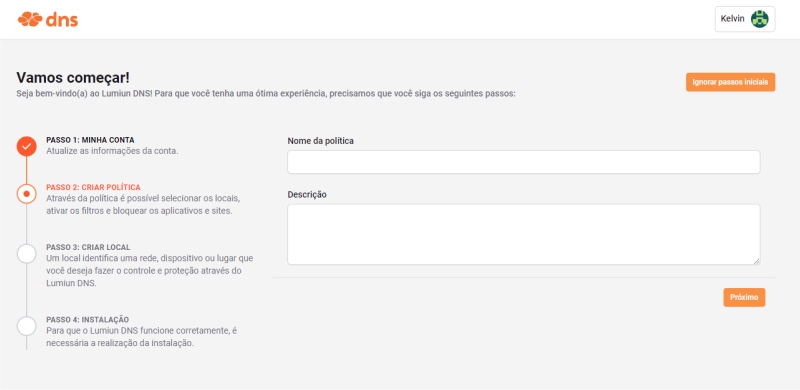
- Step 3: Create a new policy
After clicking the confirmation link, you will be redirected to the Lumiun DNS. To make the experience easier, a page with 3 initial steps is displayed.
The first step is to create a policy. Through the policy, it's possible to select locations, activate filters, and block applications and websites.
- Step 4: Register a new location
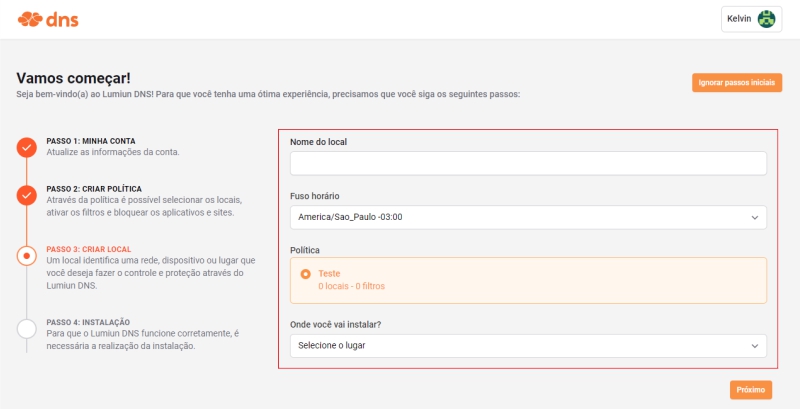
In Lumiun DNS a location identifies a network, device, or place that you want to control and protect.
To register a location, fill in the "Location Name" field, select the "Time Zone", check the "Policy" created in the previous step, select the location in the "Where will you install it?" field, and click the "Next" button.
- Step 5: Installing Lumiun DNS on Android
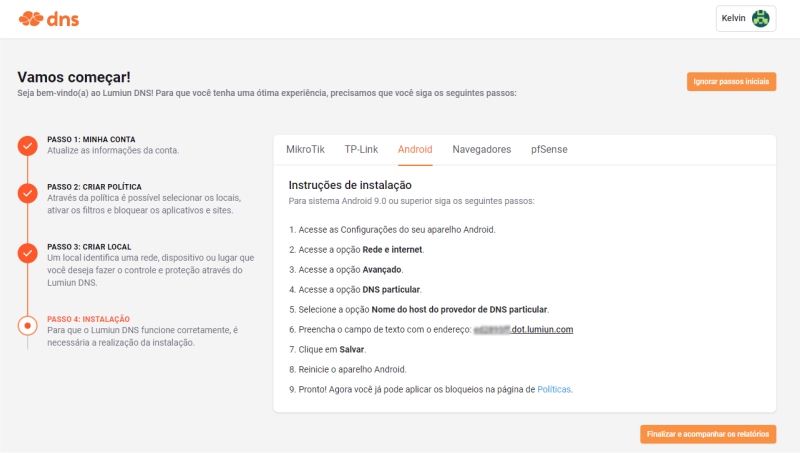
After creating the location, you will have access to the installation page. Select the “Android” tab and we will follow the installation instructions for this new location.
- Step 6: Access the “Settings” on your Android device

- Step 7: Access the “Network and Internet” or “Connections” option

- Step 8: Access the “Advanced” or “More connection settings” option

- Step 9: Access the “Private DNS” option

- Step 10: Click on “Private DNS provider hostname” or “Private DNS provider hostname”

Fill in the text field with the address provided in step 6 of the installation page. Click "Save".
- Step 11: Restart your Android device
After restarting your device, you can manage filters and policies by logging in at https://dns.lumiun.com/login.
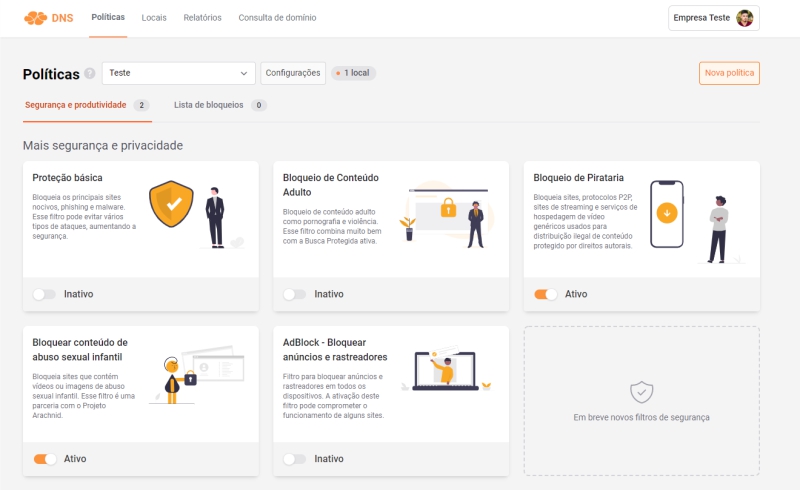
The entire dashboard is extremely simple, and filters can be applied in just a few clicks. In addition to security and privacy filters, the solution includes blocking options aimed at productivity and focusing on specific tasks.
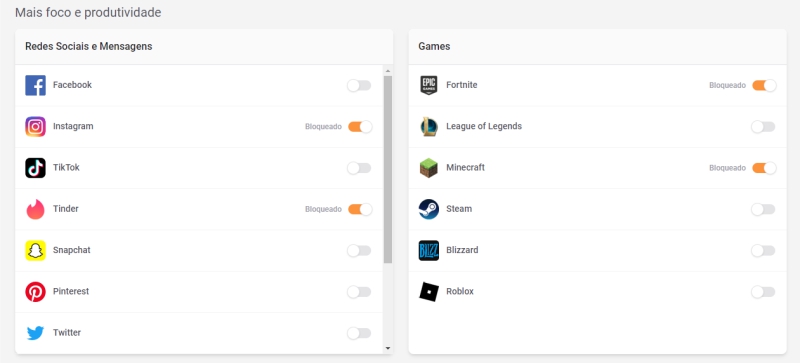
You can try the solution for free for 14 days; simply register and configure the solution by following the steps mentioned above.
Your company's internet security is in your hands
You may not have realized it, but all three tools mentioned above work to prevent unprepared or uninformedfrom accessing, downloading, clicking on, and ultimately browsing the internet in a dangerous way, posing risks to themselves and especially to the company.
In our articles and materials, we provide guidance and rich content so that business owners and IT professionals can inform their employees in order to avoid any kind of internet security problems. But, as we know, this task is not so simple, and even with extensive training it may not work.
That's precisely why it's important to use tools that do this for you. Avoid unprotected password use with LastPass, protect your mobile devices with Avast Antivirus, and block access to harmful websites and content with Lumiun DNS.
I hope I've helped you keep your company's Android devices more secure and your company's data safer.
Until later!