


This question is common among network administrators who use MikroTik to control internet access. After all, blocking pornography and violence websites helps prevent children from being exposed to explicit content on home networks and in schools, for example, or from wasting employees' time on corporate networks.
Regardless of the environment, this topic is always discussed in forums and groups, and therefore, we decided to list 3 ways to block pornography and violence websites with MikroTik, along with the advantages and disadvantages of each.
- Tip 1: Keyword blocking using the Layer 7 protocol with WebFig
- Tip 2: Integration with OpenDNS
- Tip 3: Integration with Lumiun DNS
Tip 1: Keyword blocking using the Layer 7 protocol with WebFig
In this first tip, we'll show you how to block pornography and violence websites using the Layer 7 protocol through the MikroTik management software known as WebFig.
Step 1: Access the WebFig panel
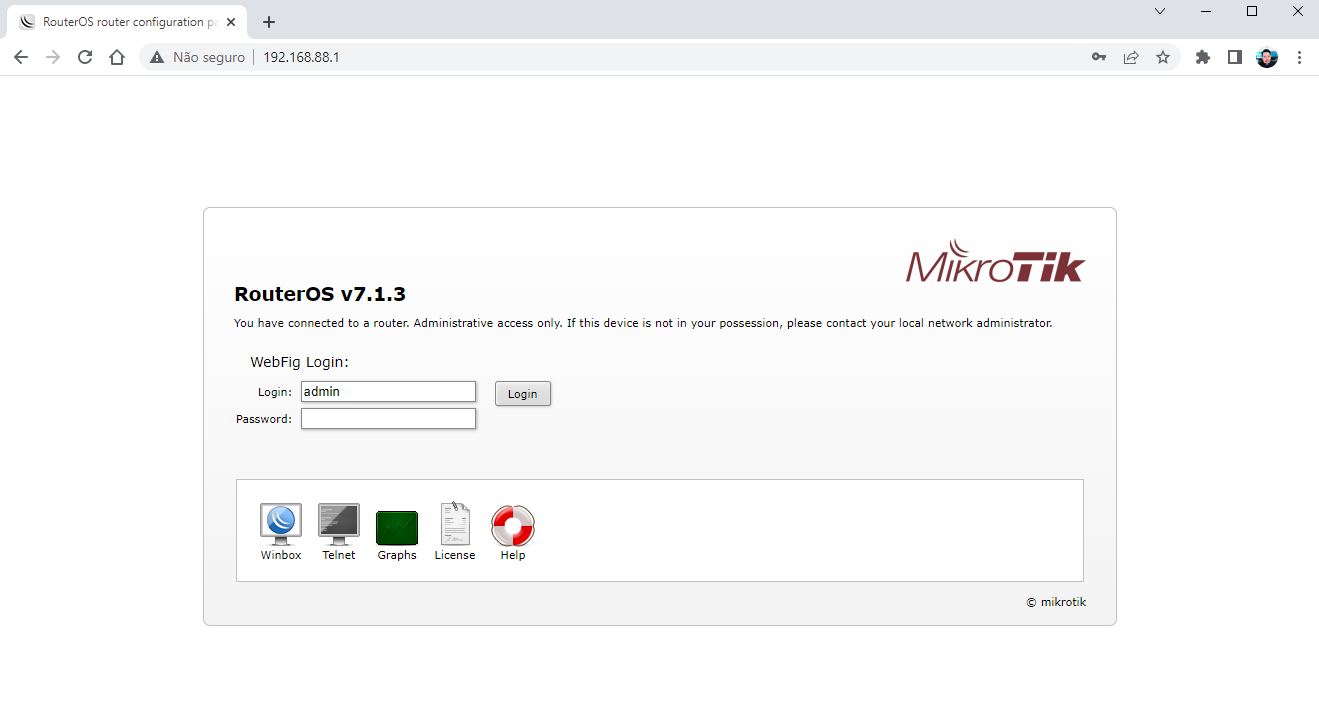
Access your MikroTik router's web interface in your browser, for example http://192.168.88.1 , and log in.
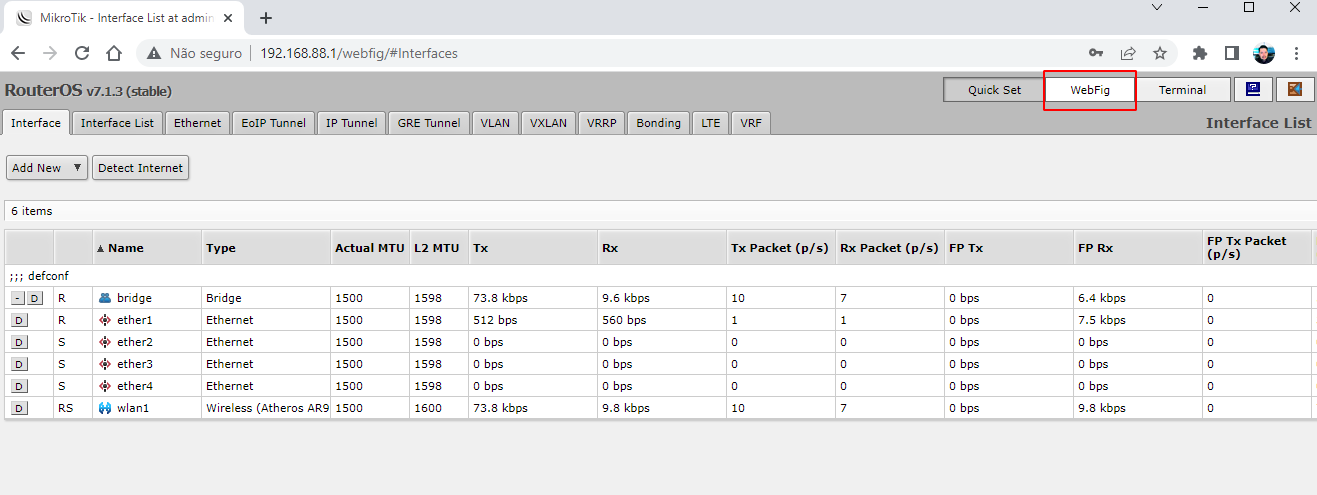
Step 2: At the top of the page, click the WebFig button.
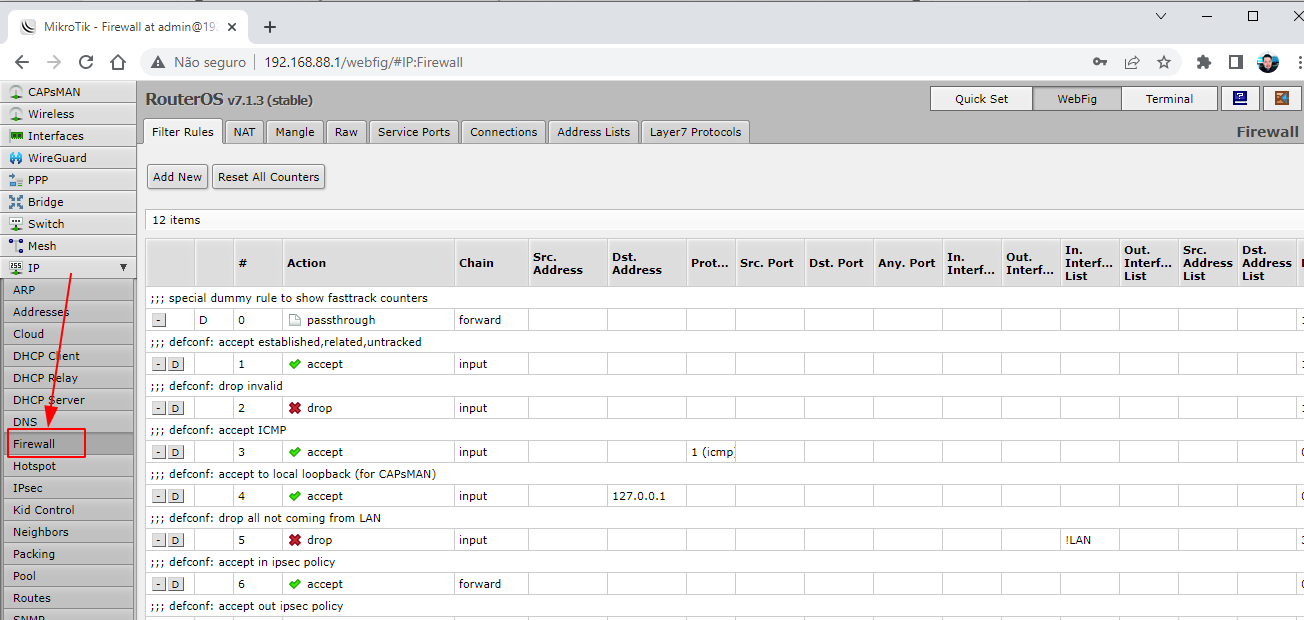
Step 3: Access the Firewall settings page.
Access the IP menu → Firewall
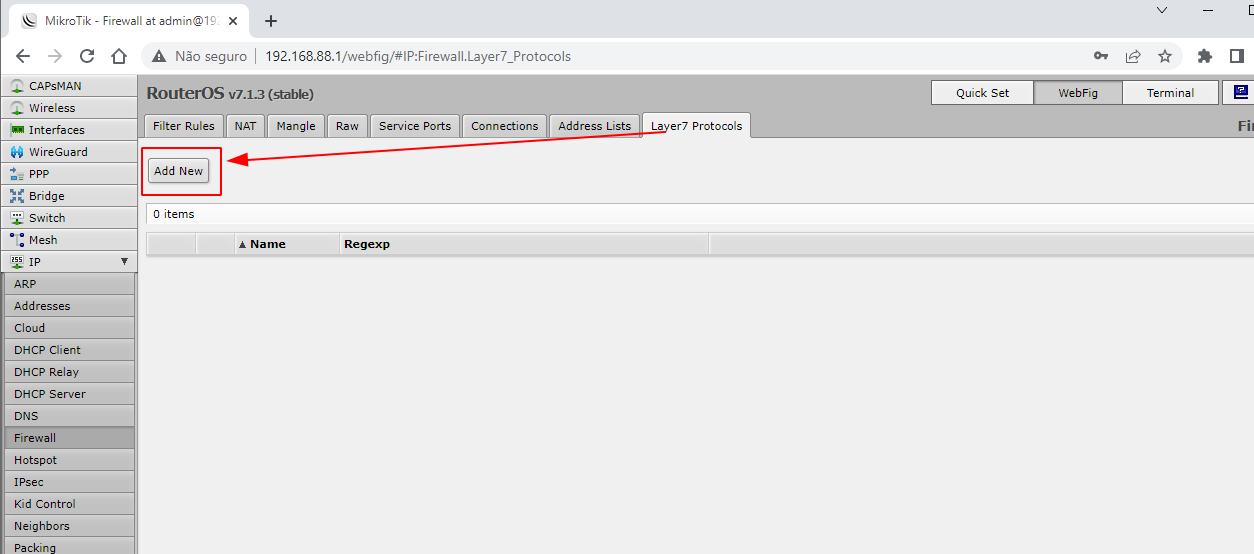
Step 4: Access the form to create layer 7 protocol rules.
Go to the “Layer7 Protocols” tab and click the “Add New” button to display the form.
Step 5: Create rules with keywords
In the “Name” field, enter a name for the rule, and in the “Regexp” field, we will add a regular expression containing the main keywords from pornography websites.
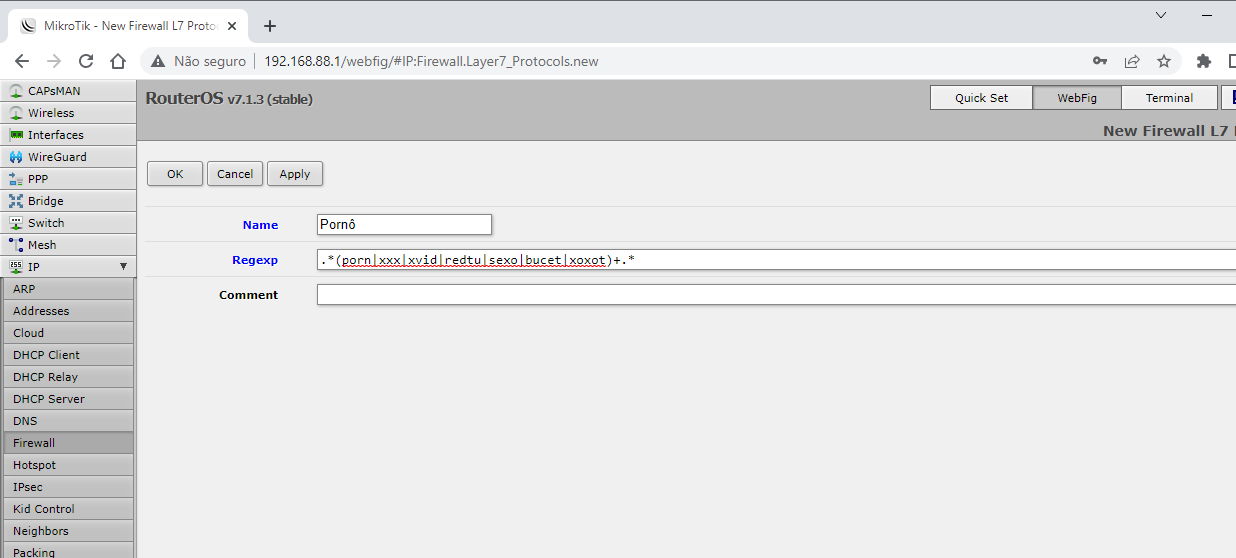
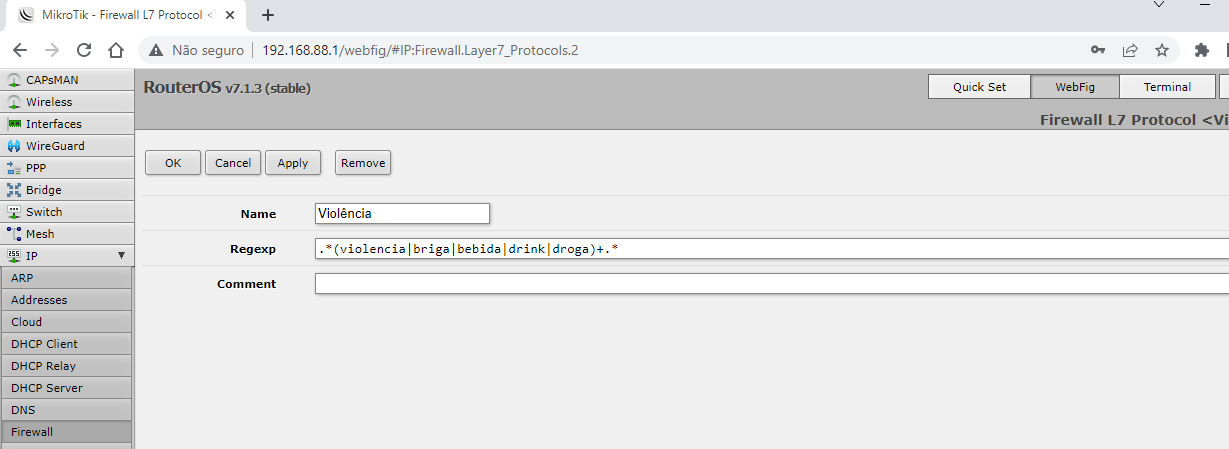
Step 6: Creating URL filtering rules
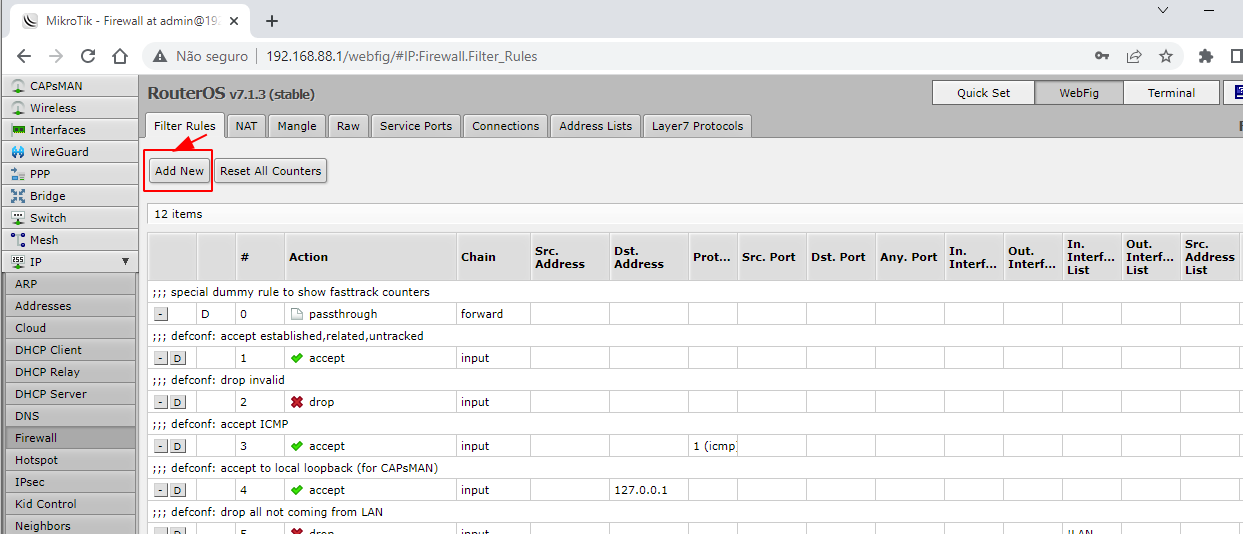
In this step, you will create the filter rule to apply the blocking to the rules added in the previous step.
Go to the “Filter Rules” tab and click the “Add New” button.
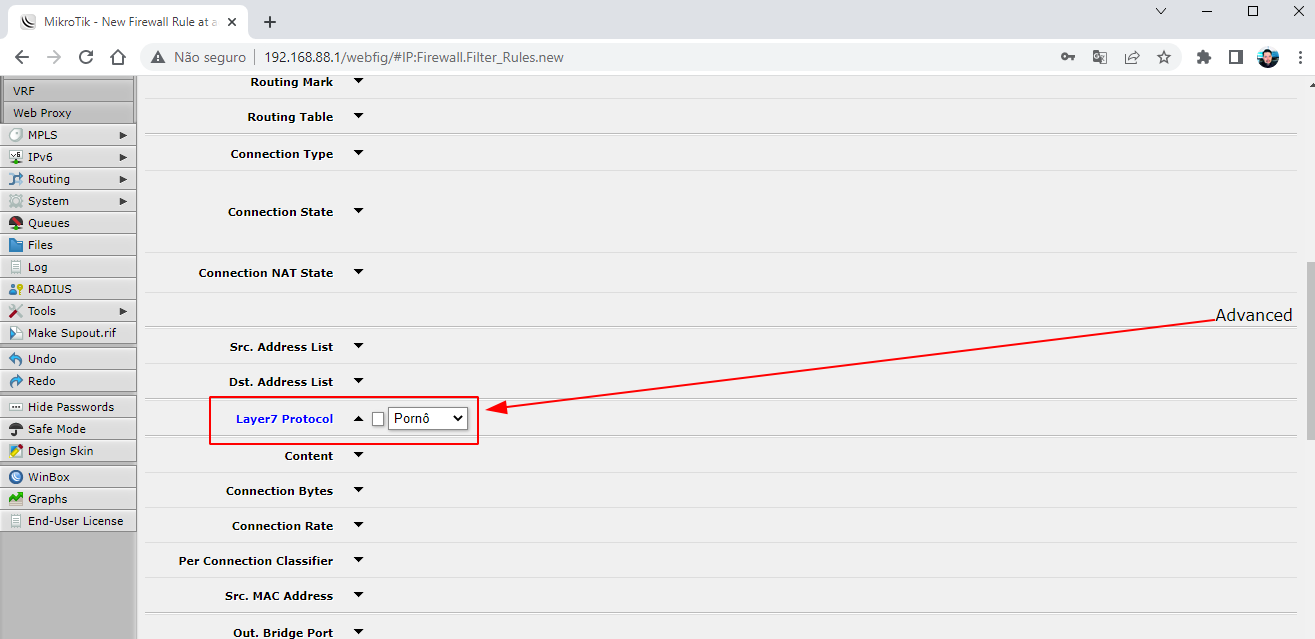
On the new rule registration page, find the “Layer7 Protocol” field in the “Advanced” section and select one of the rules created in step 5.
Still on the rules registration page, in the “Action” field, select the “drop” option and click the “Apply” button at the top of the page to complete the registration.
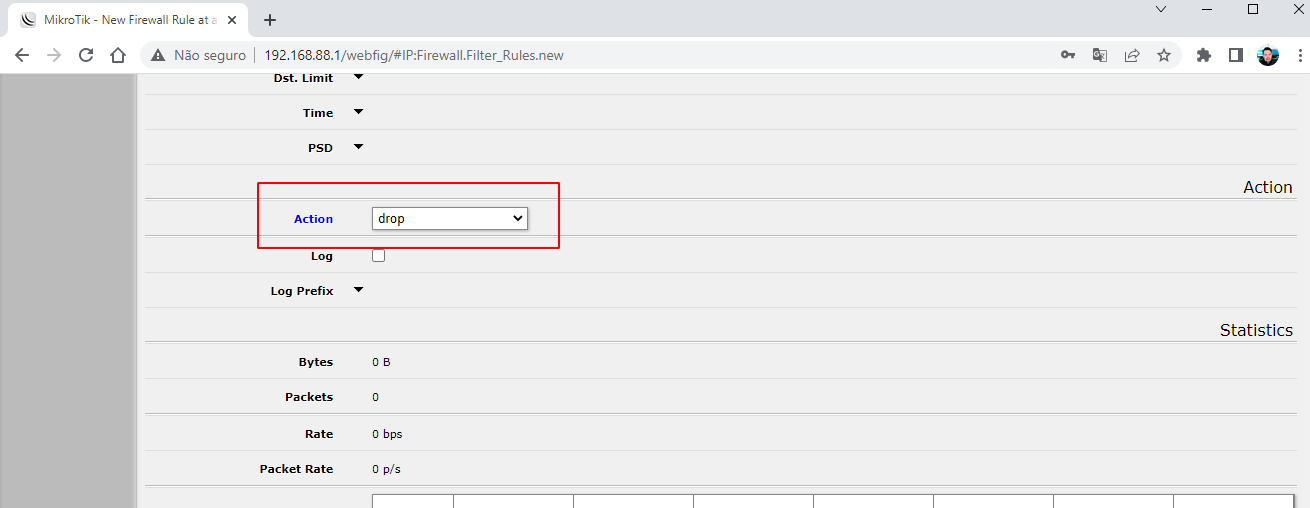
Repeat the action to create a filtering rule for all your Layer7 rules.
Step 7: Test the blocking
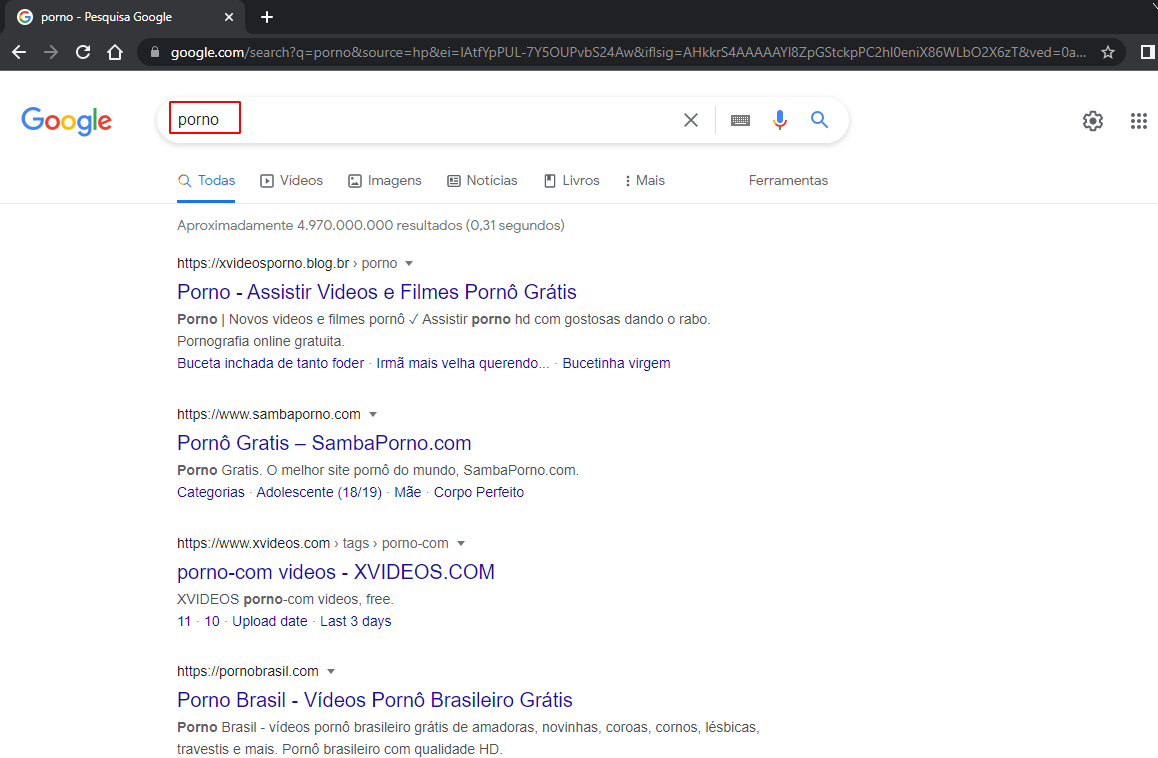
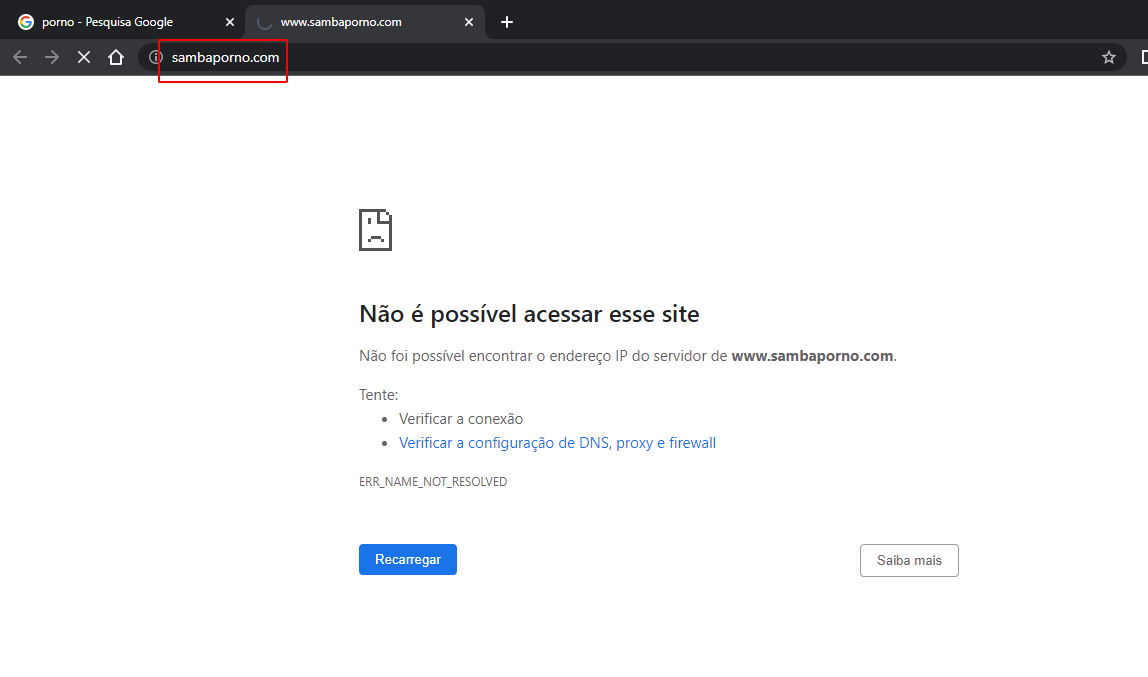
In an incognito tab of your browser, open Google, search for the term "porn," and try to access the websites that appear in the results.
Advantages
- Quick to implement
- No additional cost.
- Low maintenance
Disadvantages
- It can block useful websites.
- You need to access the internal network to change the rules.
- It has no blocking reports.
Tip 2: OpenDNS
OpenDNS is a website filtering and classification service that can be integrated with MikroTik through DNS configuration in WebFig.
Check out the step-by-step guide to using OpenDNS to block pornography and violence websites.
Step 1: Create an OpenDNS account.
For this tip, we'll create a free account on the OpenDNS Home .
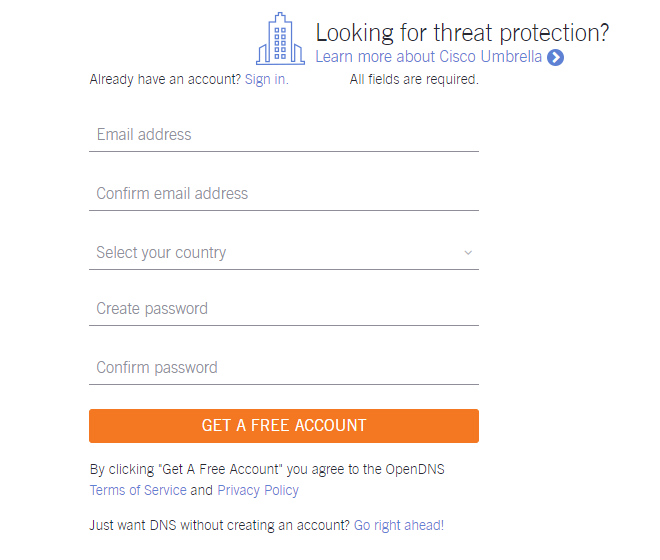
Step 2: Confirm registration via email.
After registering, you will receive an email from OpenDNS with a registration confirmation link. Click this link to confirm and open the control panel.
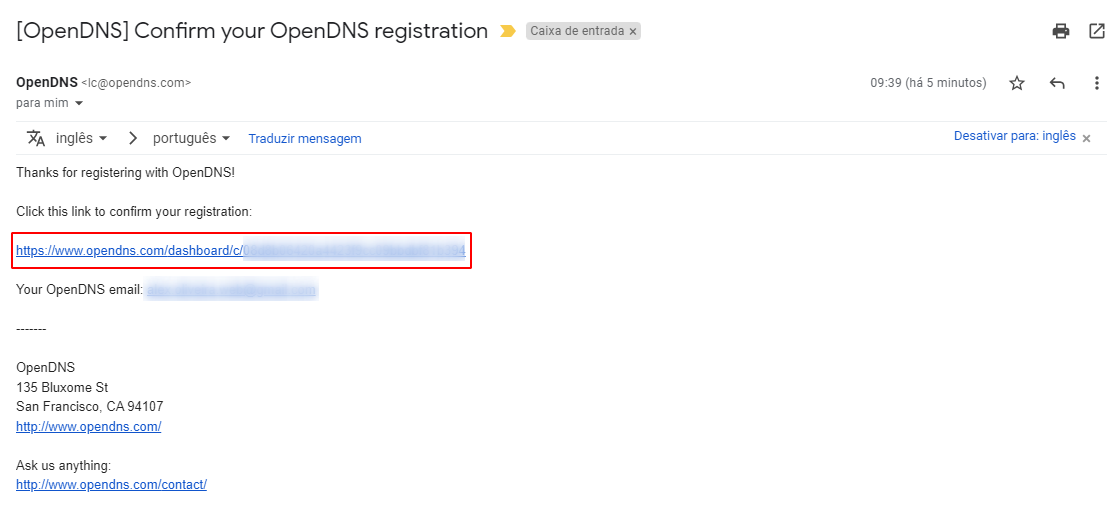
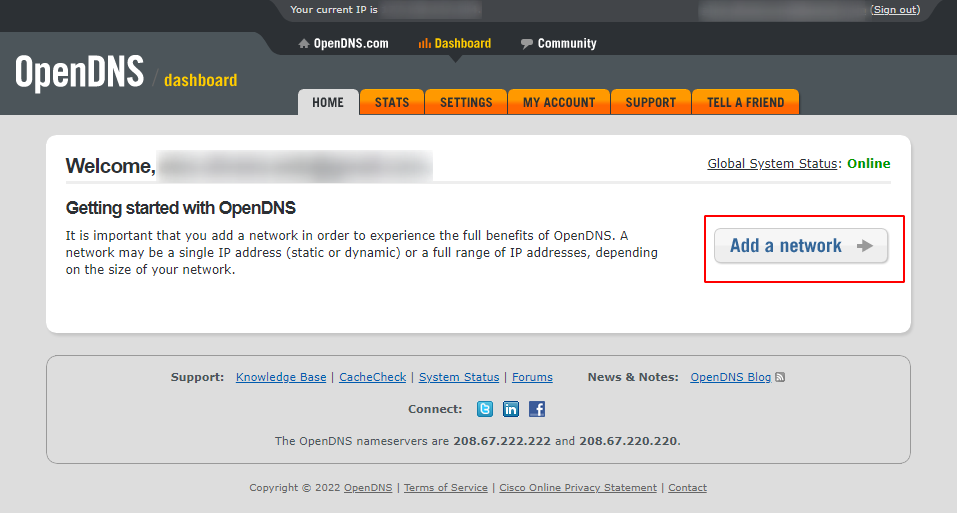
Step 3: Create a new network
After clicking the confirmation link, you will be redirected to the OpenDNS control panel. On this page, we will create a new network using the “Add a network” button.
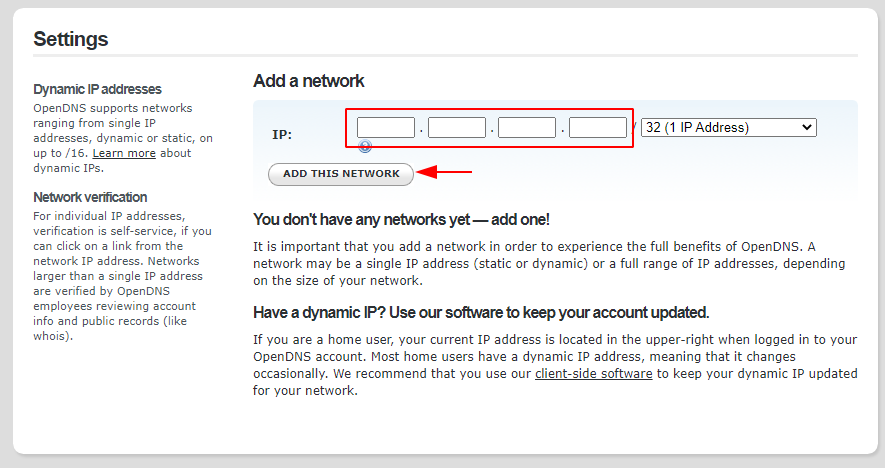
Step 4: Enter the network IP address.
If the system does not automatically fill in the IP address, enter the IP address of the network you want to filter and click the "Add this network" button.
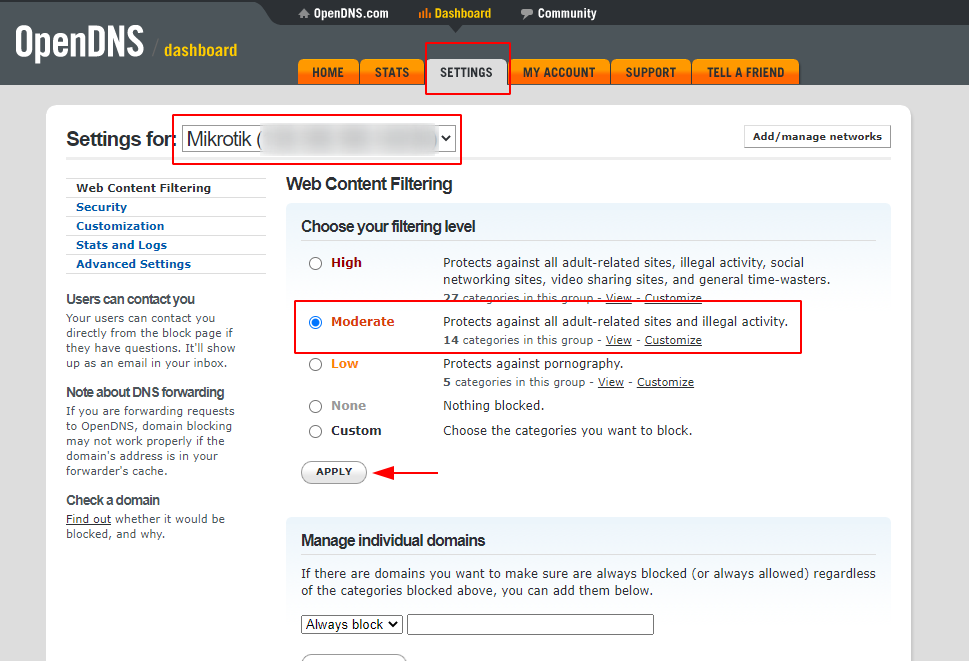
Step 5: Select lock level
After adding the network, click on the “Settings” tab, select the newly created network in the “Settings for” field, check the “Moderate” option which includes the pornography and violence categories, and finish by clicking the “Apply” button.
Step 6: Copy the OpenDNS IPs to apply to the MikroTik.
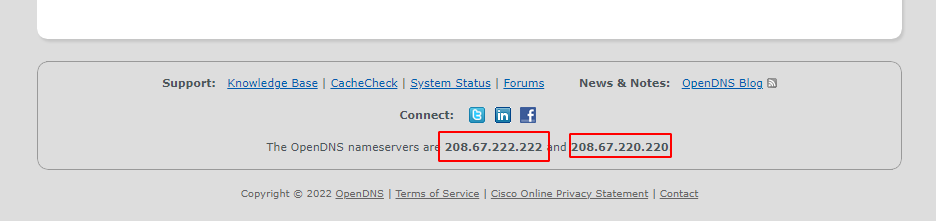
Still in the OpenDNS control panel, at the bottom of the page, copy the two IPs that will be applied in the MikroTik configuration: “The OpenDNS nameservers are 208.67.222.222 and 208.67.220.220 ”.
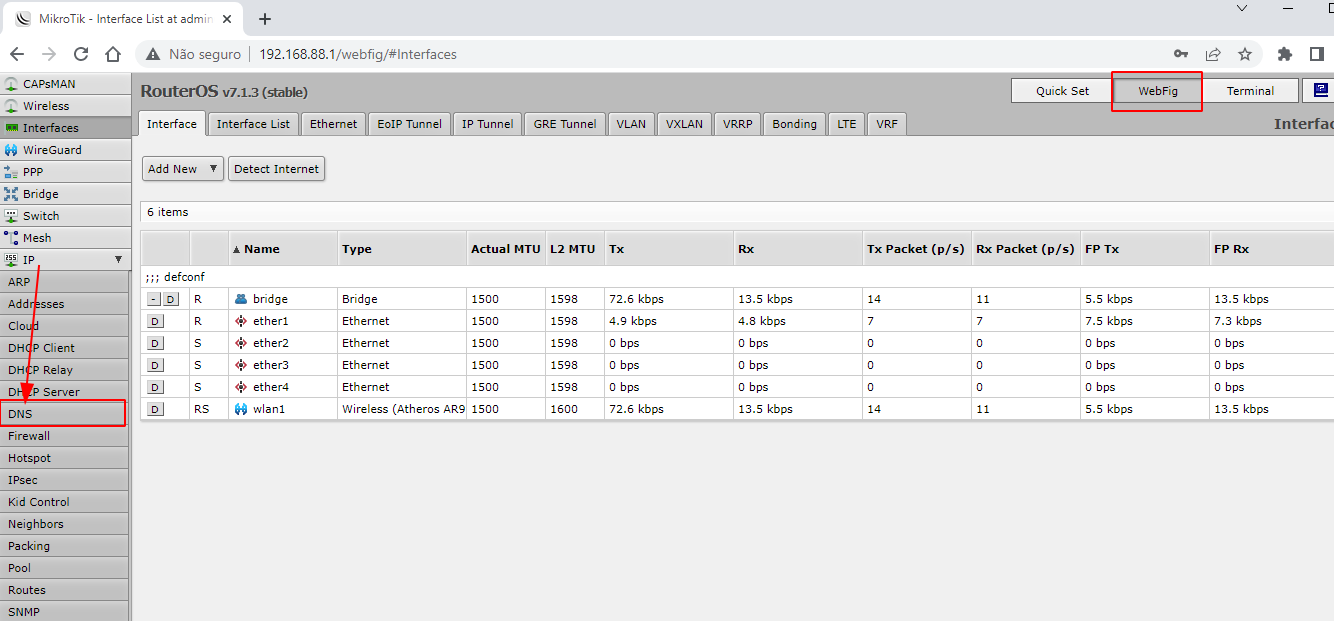
Step 7: Access the DNS configuration page in MikroTik's WebFig.
In the MikroTik WebFig panel, access the IP → DNS menu.
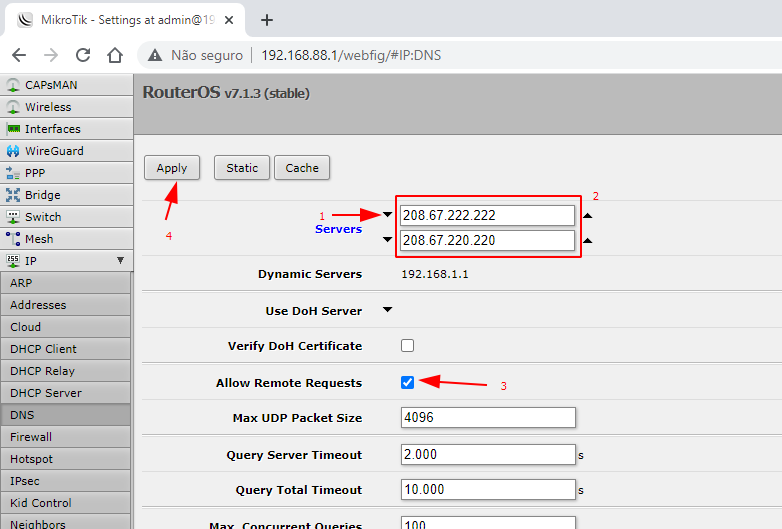
Step 8: Access the DNS configuration page in MikroTik's WebFig.
Double-click the down arrow next to the word "Servers" to open two new fields and enter the OpenDNS IPs, check the "Allow Remote Requests" option, and click the "Apply" button.
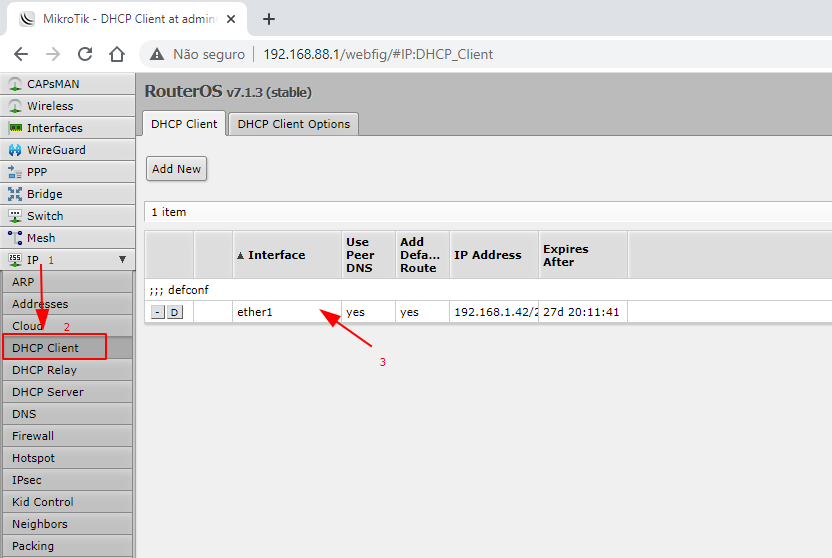
Step 9: Disable the “User Peer DNS” option.
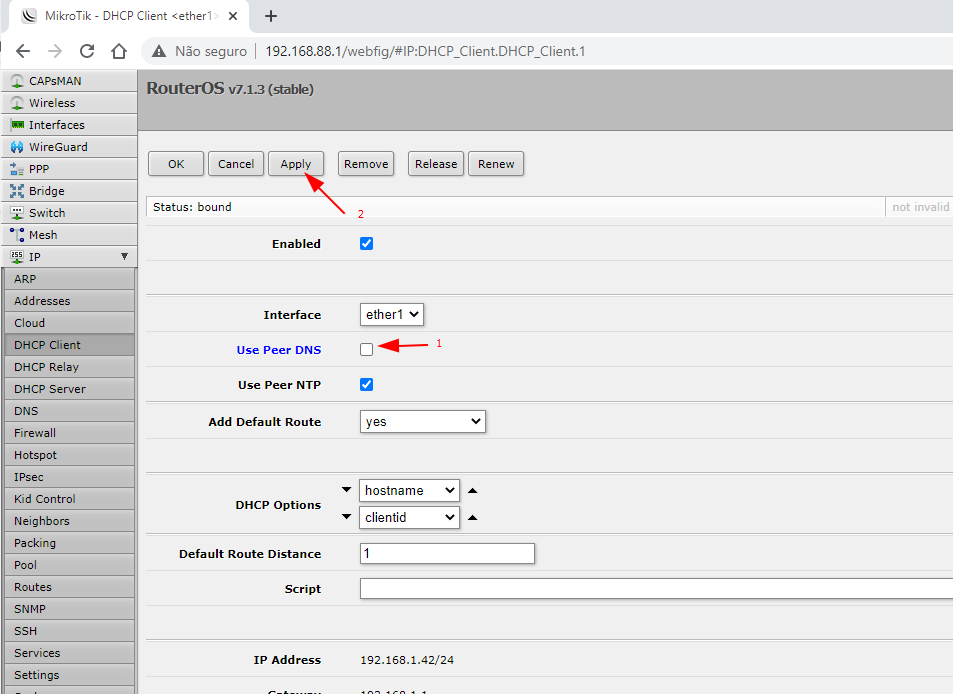
If you are using DNS information from your ISP or another router and information is appearing in the “Dyamic Servers” field on the MikroTik IP → DNS page, access the IP → DHCP Client menu, click on the line with the interface information, uncheck the “User Peer DNS” option and click the “Apply” button.
Step 10: Additional settings
To finalize the integration with OpenDNS, follow the additional security and redirection steps in NAT .
Step 11: Test the lock
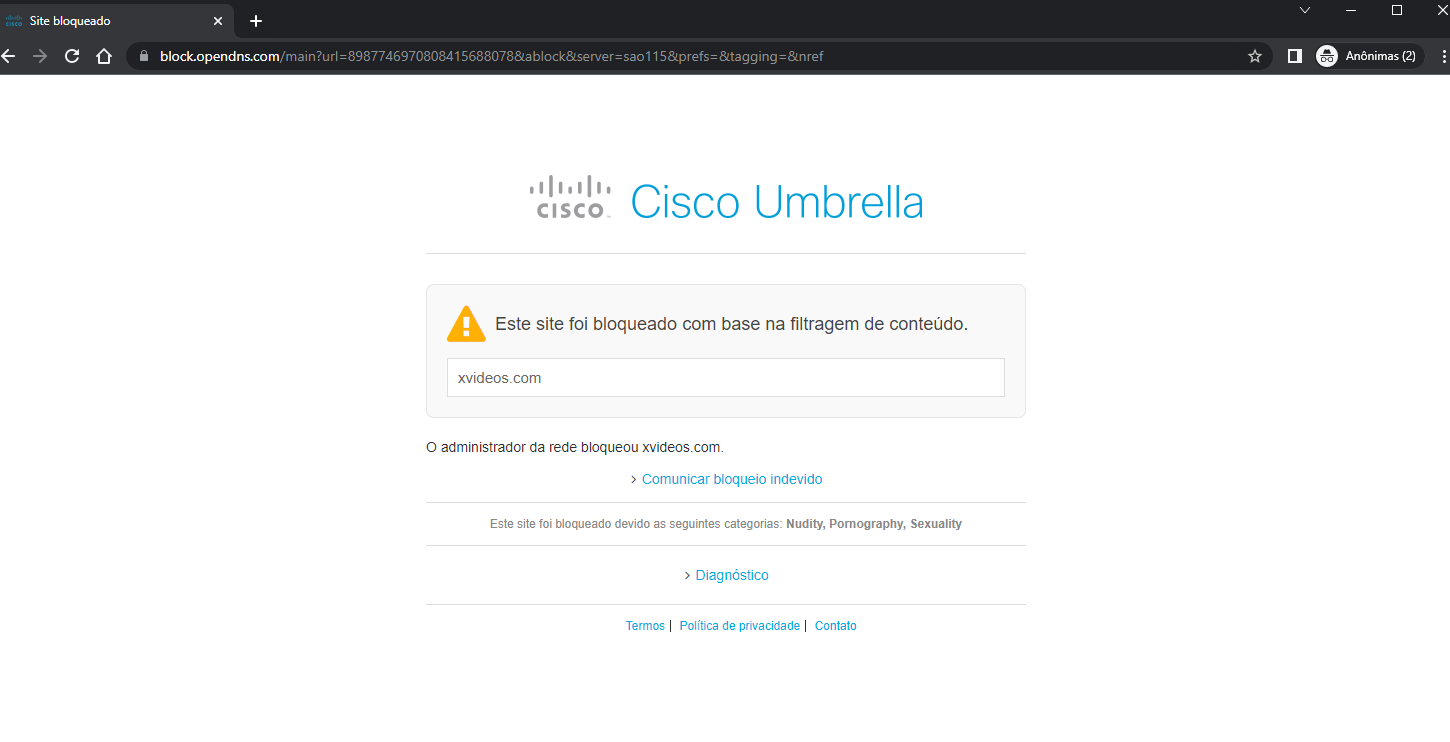
In an incognito tab of your browser, access the website xvideos.com and you will see the OpenDNS blocking screen displayed.
Advantages of OpenDNS
- Free
- No need to maintain lists.
- Managing filters in the cloud.
- No need for extra equipment.
Disadvantages of OpenDNS
- Free version with a limit of 3 networks.
- It does not have support in Portuguese.
- Blocklists are not standardized for the Brazilian public.
- Very basic report
Tip 3: Lumiun DNS
Lumiun Lumiun DNS is a new DNS filtering and content rating service that can be easily integrated into MikroTik via WebFig to facilitate the process of blocking pornography and violence websites.
Check out the step-by-step instructions for installing Lumiun DNS .
Step 1: Create an account on Lumiun DNS
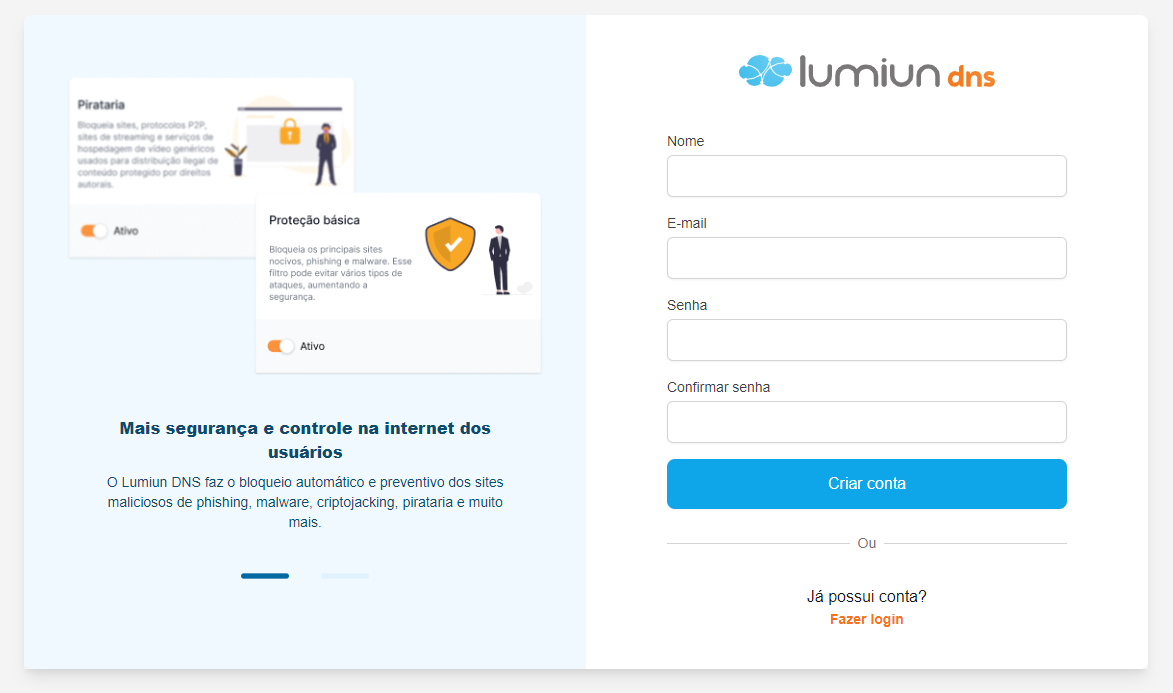
Visit https://dns.lumiun.com/register to create your free account. At the time of writing this article, it is possible to test all features for free 14 days, with the option to extend it to another 30 days by answering a feedback questionnaire.
Step 2: Confirm registration via email.
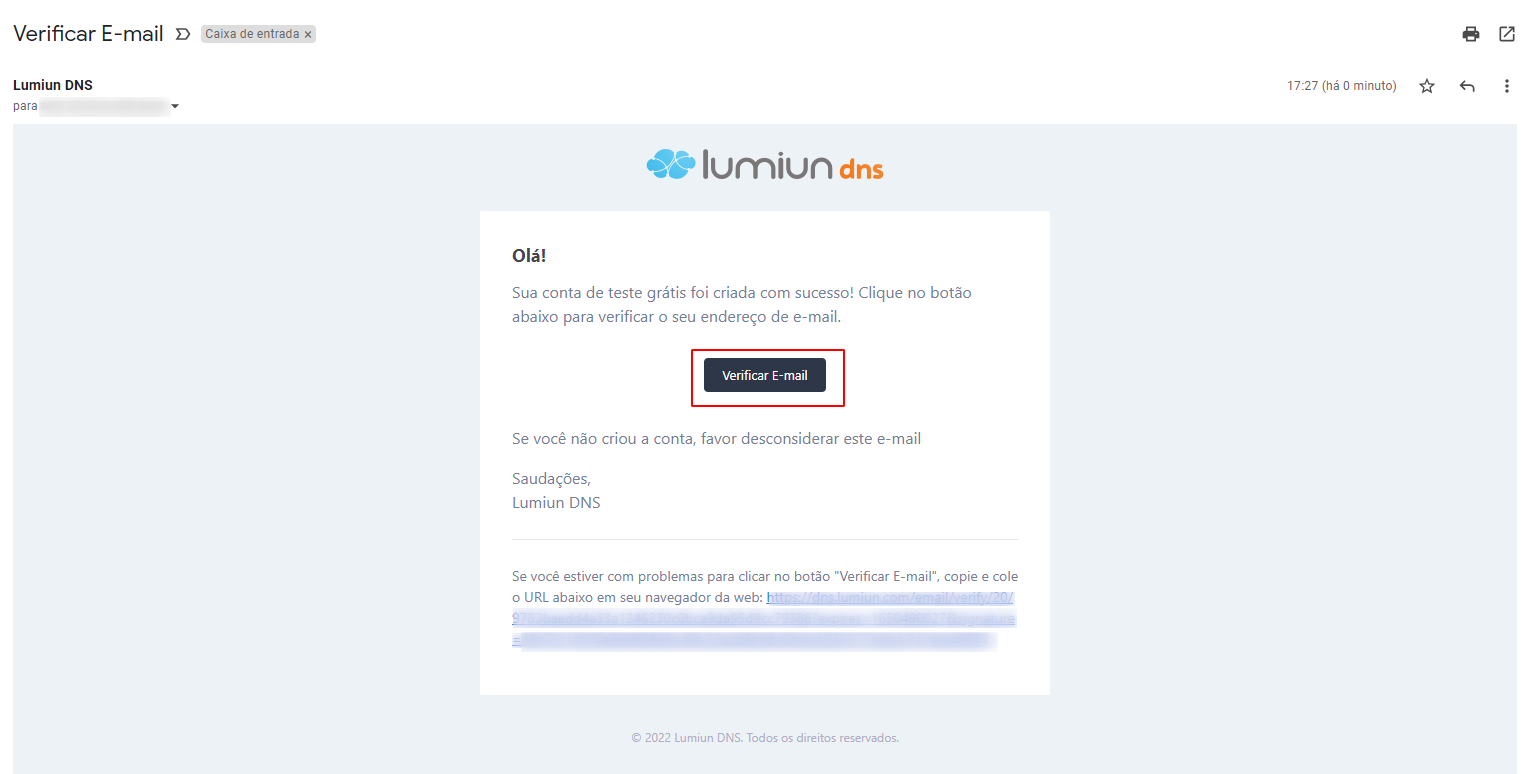
After registering, confirm your account by clicking the “Verify your email” button in the email that was sent to you. If the email is not in your inbox, check your Spam folder and mark it as “Not Spam” to receive future emails.
Step 3: Create a new policy
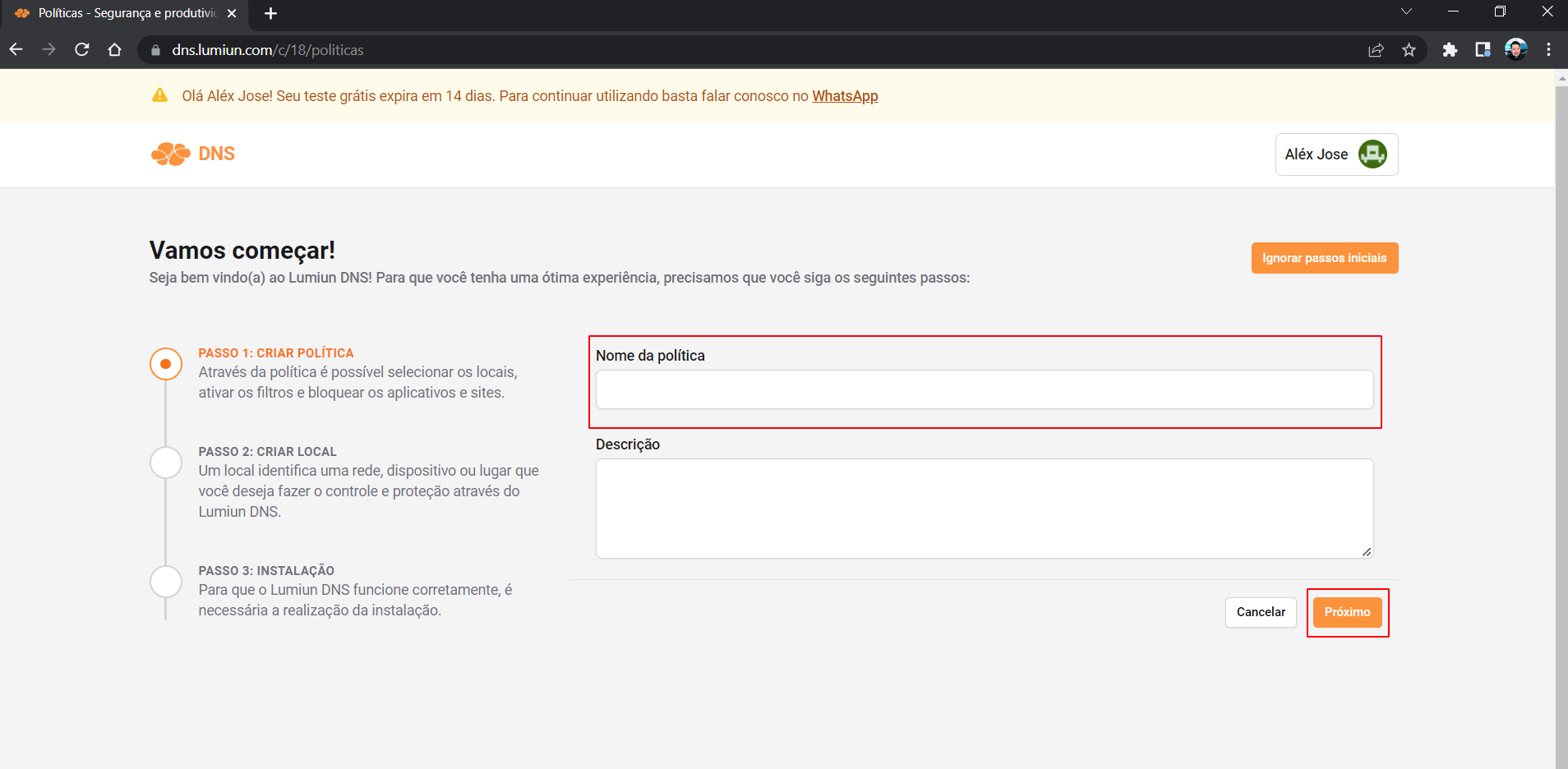
After clicking the confirmation link, you will be redirected to the Lumiun DNS . To make the experience easier, a page with 3 initial steps is displayed.
The first step is to create a policy. Through the policy, it's possible to select locations, activate filters, and block applications and websites.
Step 4: Register new location
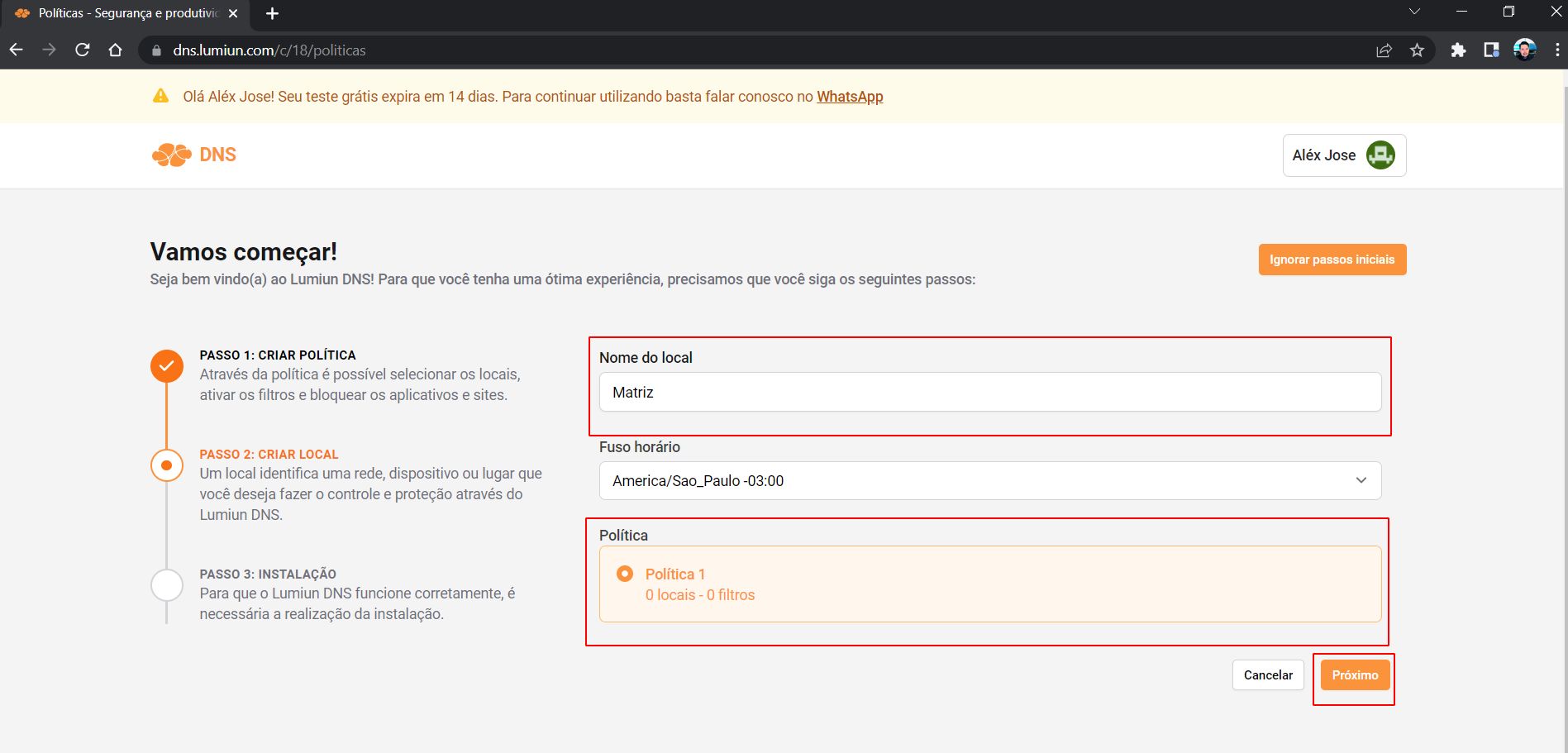
In Lumiun DNS a location identifies a network, device, or place that you want to control and protect.
To register a location, fill in the name field, select the time zone, check the policy created in the previous step, and click the "Next" button.
Step 5: Installing Lumiun DNS on MikroTik
After creating the location, you will be redirected to the installation page. Select the “MikroTik” tab and we will follow the installation instructions for this new location.
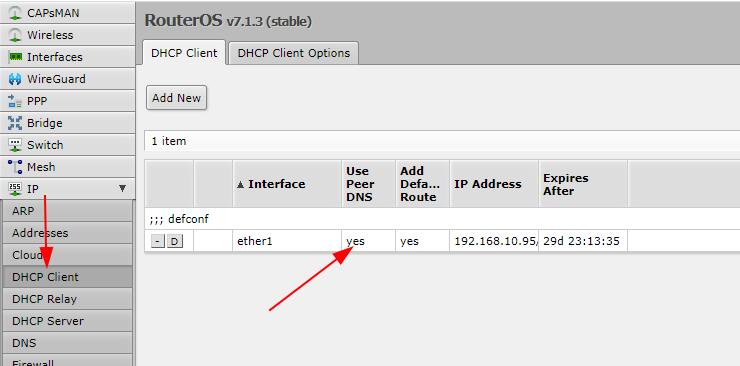
Step 6: Verify that the “Use Peer DNS” option in the DHCP Client is enabled.
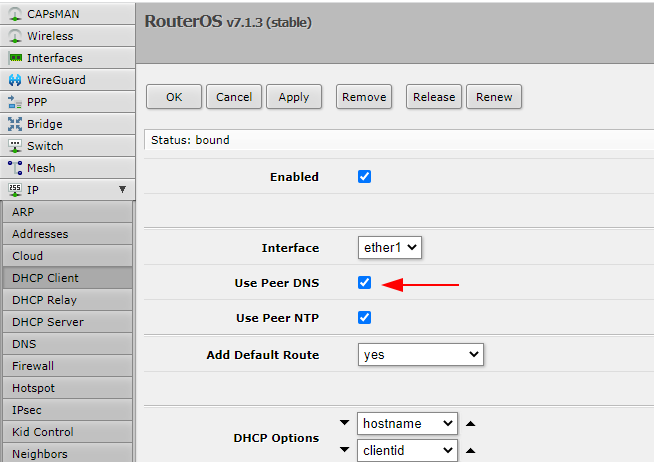
In the MikroTik WebFig panel, access the IP → DHCP Client menu and verify that the “USE Peer DNS” option is enabled for your internet connection interface.
If it's not there, you can click on the line, select the option, and click the "Apply" button.
Step 7: Provide the DoH address.
Copy the DoH address highlighted on the Lumiun DNSinstallation page.

On the WebFig DNS page, click the down arrow in the “User DoH Server” field, paste the address, and click the “Apply” button.
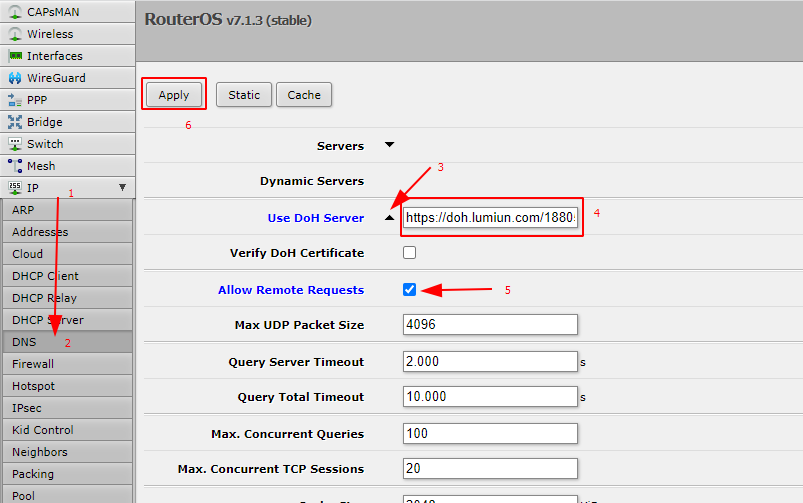
Step 8: Clear cache
Still in the IP → DNS menu, click the “Cache” button and then click “Flush cache”.
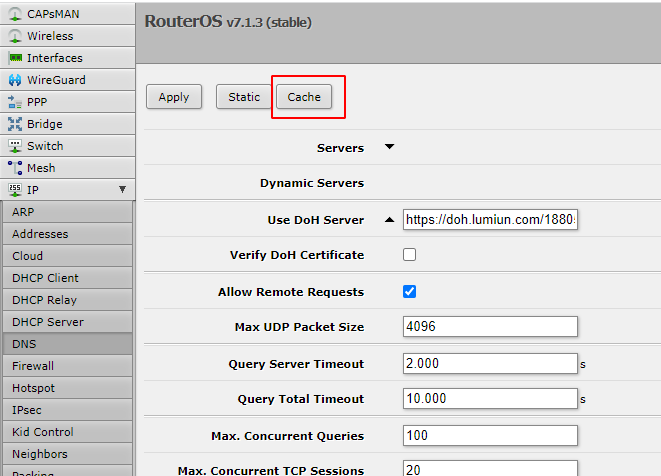
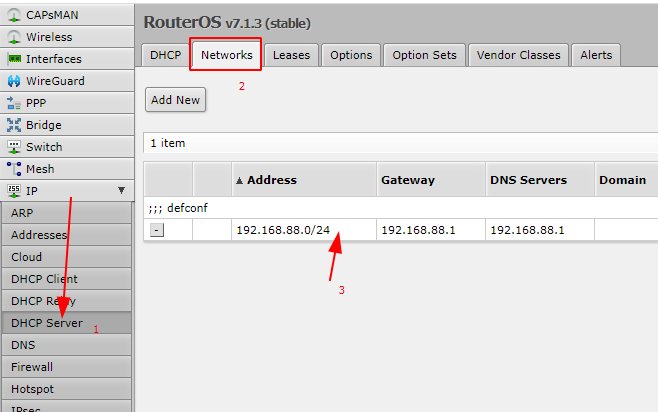
Step 9: DNS Servers
Access the IP menu → DHCP Server. Click on the Networks tab. Click on the network that appears below, for example, 192.168.88.0/24.
Fill in the “DNS Servers” option with the same address found in the “Gateway” option above. Click Apply and OK.
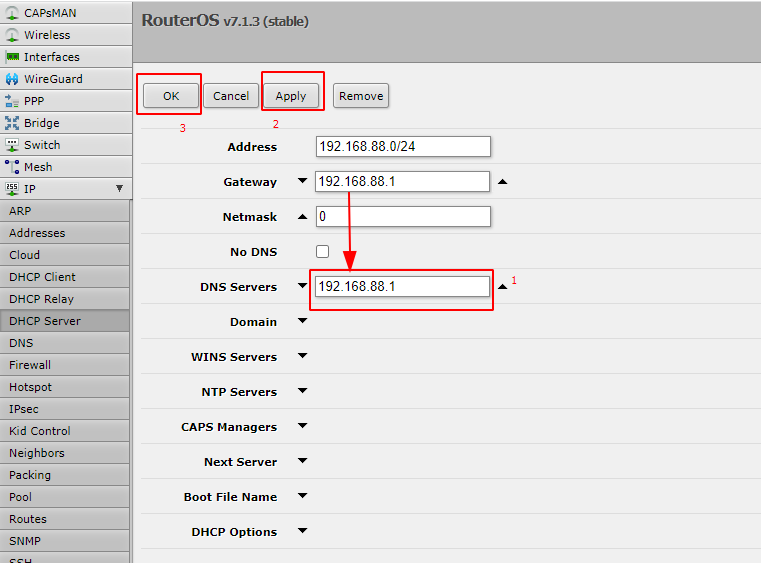
Step 10: Enable blocking filters
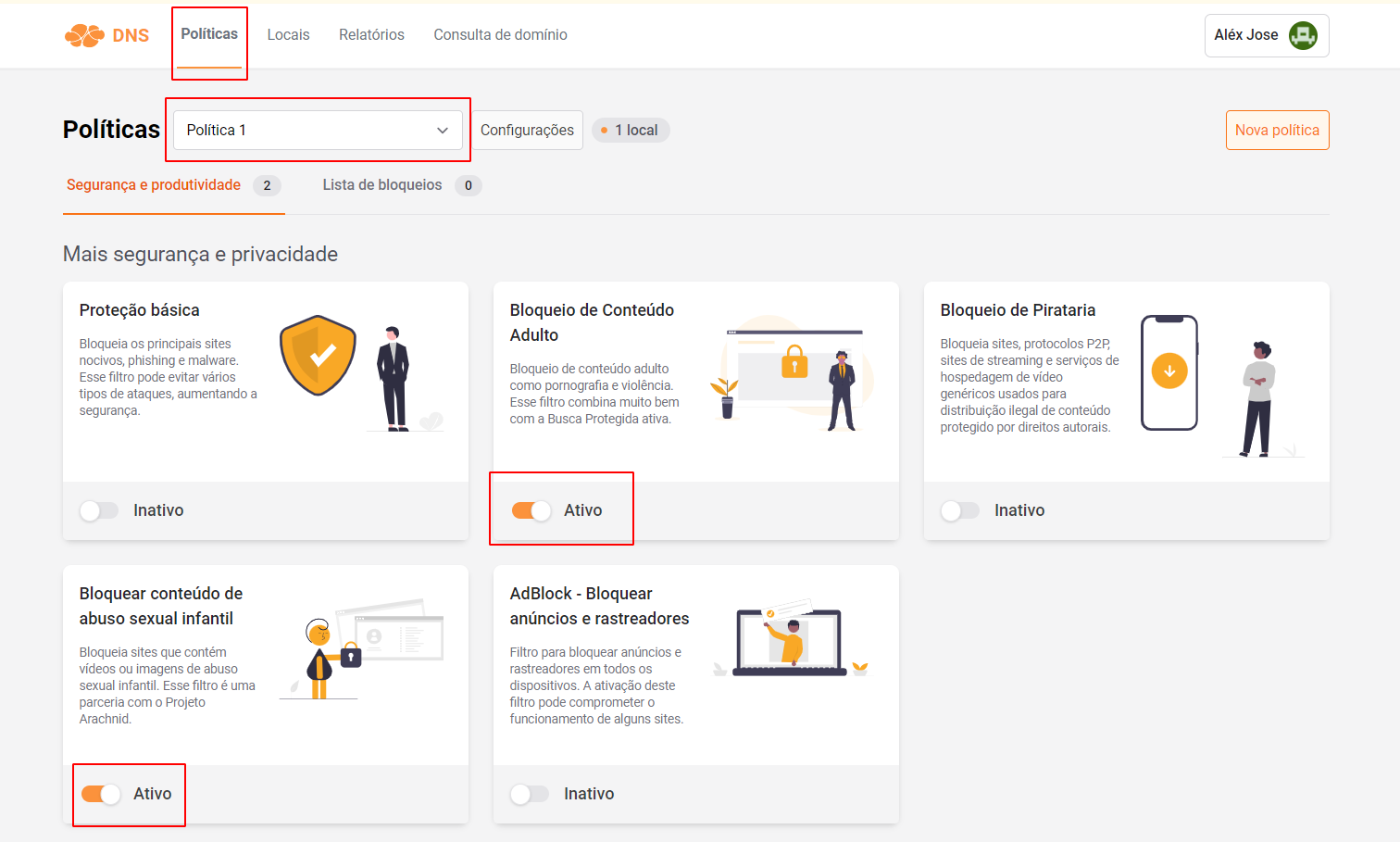
Back in the Lumiun DNSdashboard, click on the “Policies” menu at the top of the page, select the newly created policy, and enable the “Block Adult Content” and “Block Child Sexual Abuse Content” filters.
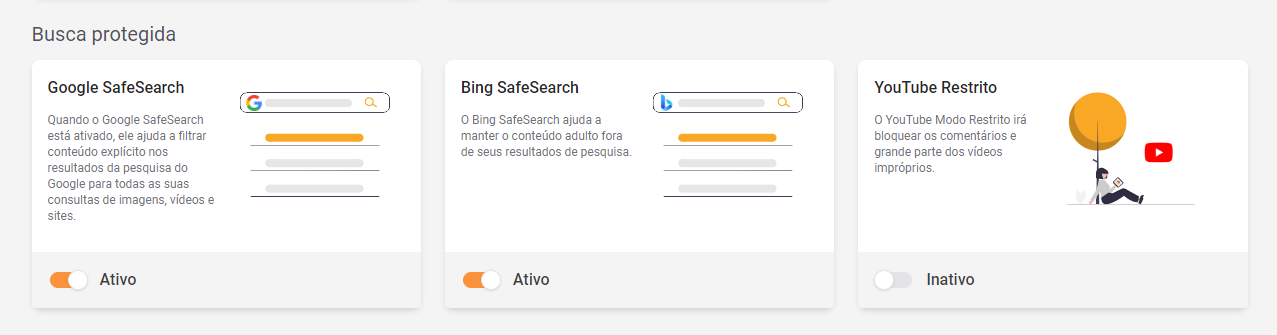
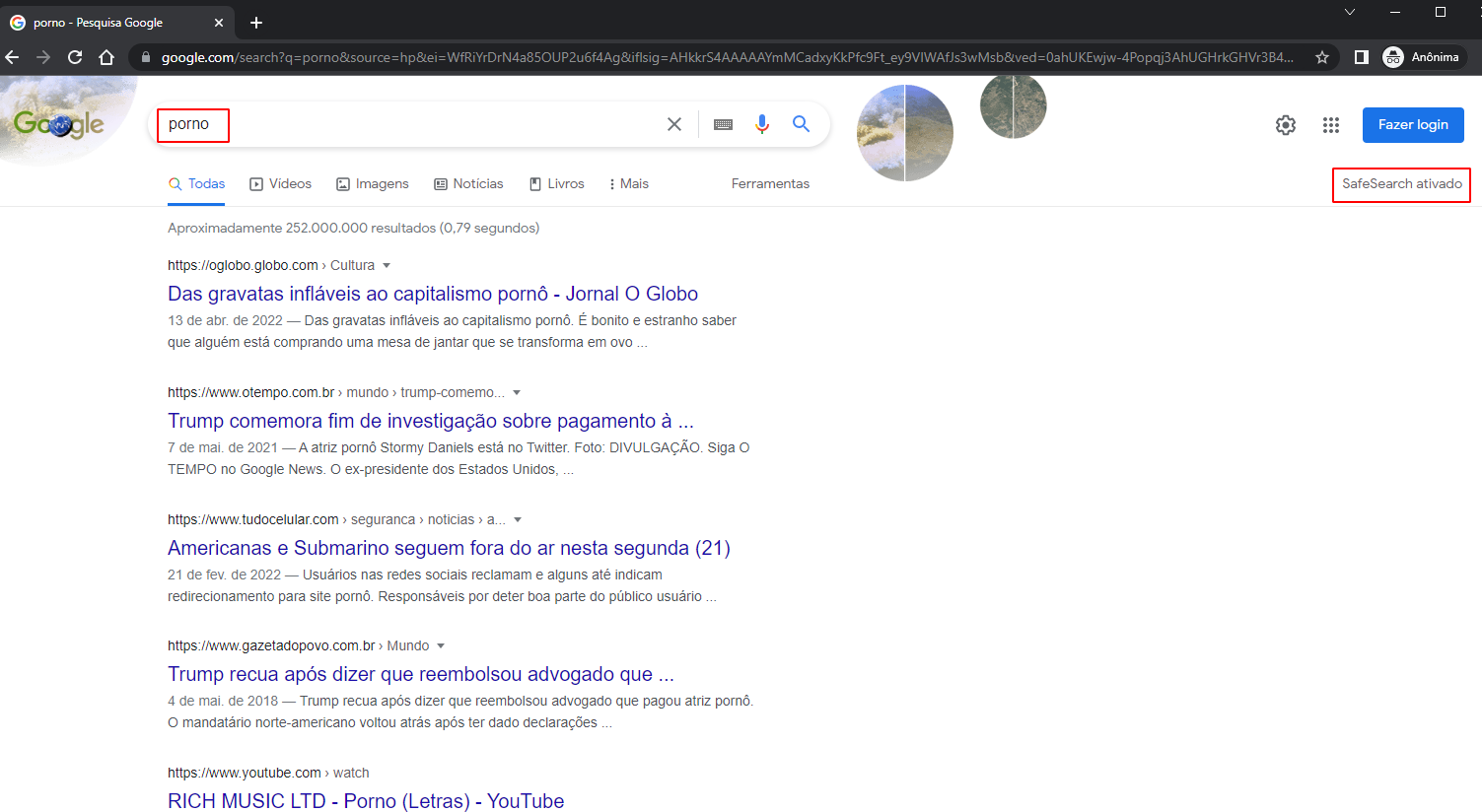
Still on the Policies page, let's activate safe search for Google and Bing. This filter will remove adult content from the search results of these search engines.
Step 11: Additional settings
To finalize the integration with Lumiun DNS security and redirection steps .
Step 12: Test the lock
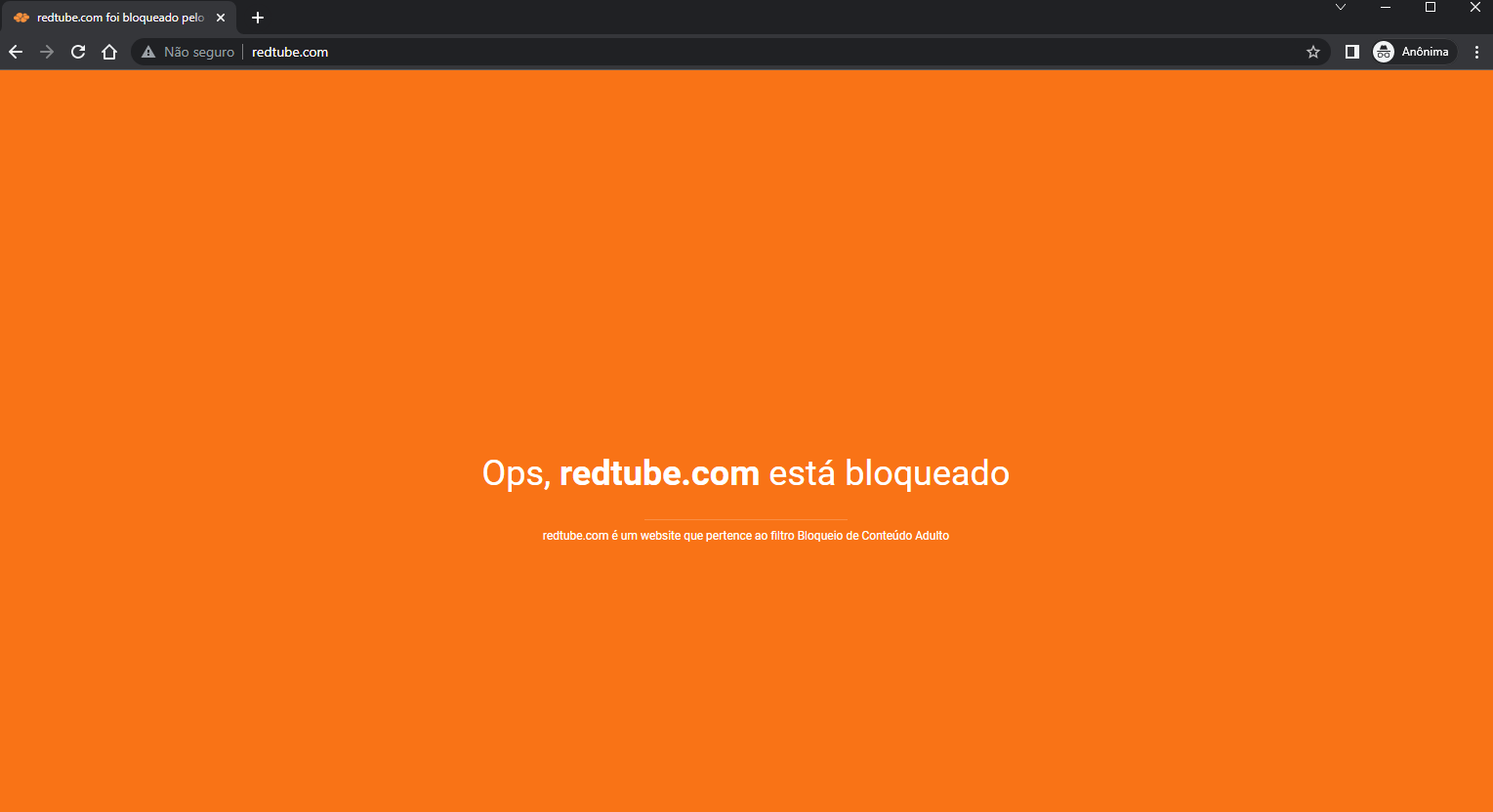
In an incognito tab of your browser, access the website redtube.com Lumiun DNS blocking screen displayed.
Advantages of Lumiun DNS
- No need to maintain lists.
- Managing filters in the cloud.
- Standardized lists for the Brazilian user.
- No need for extra equipment.
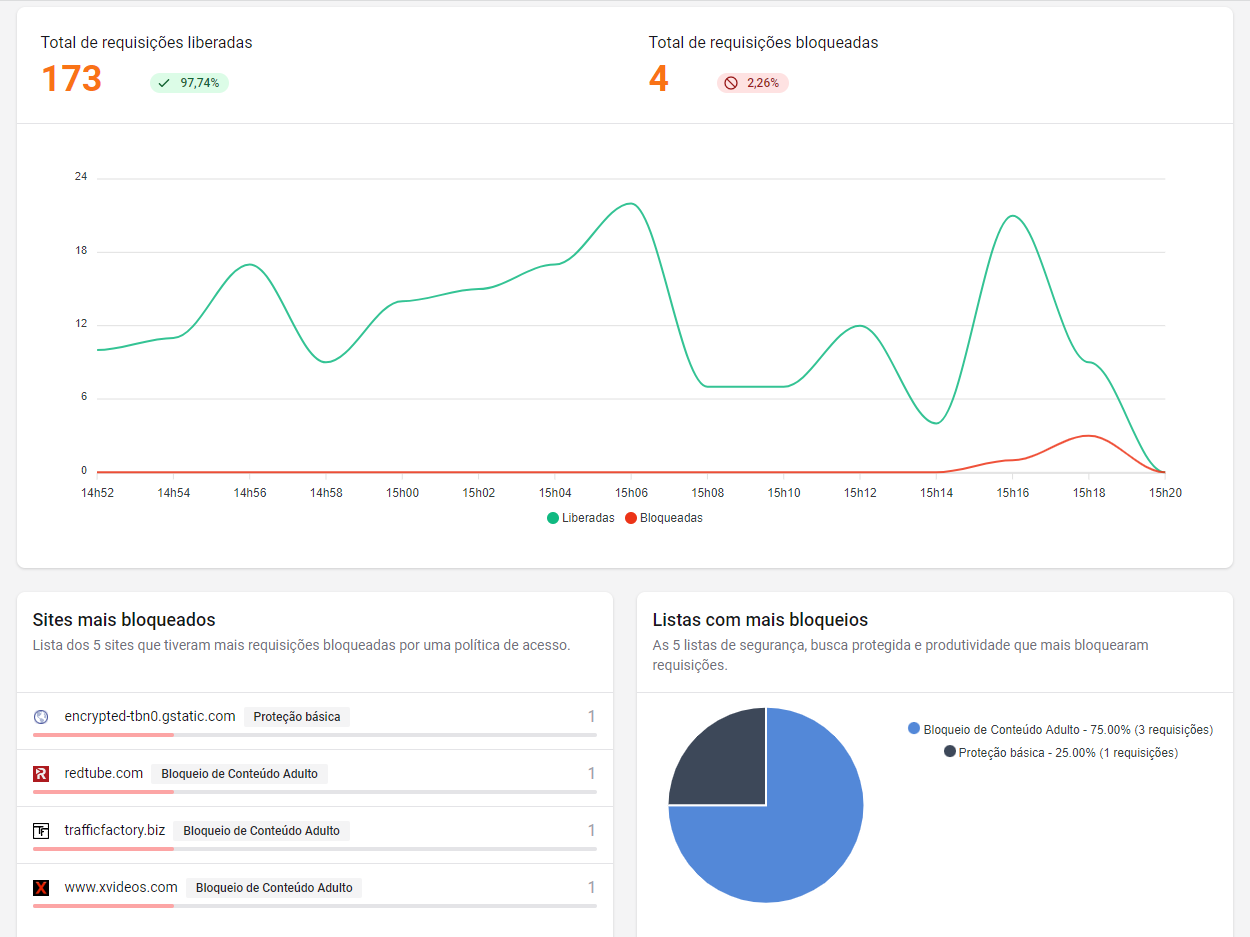
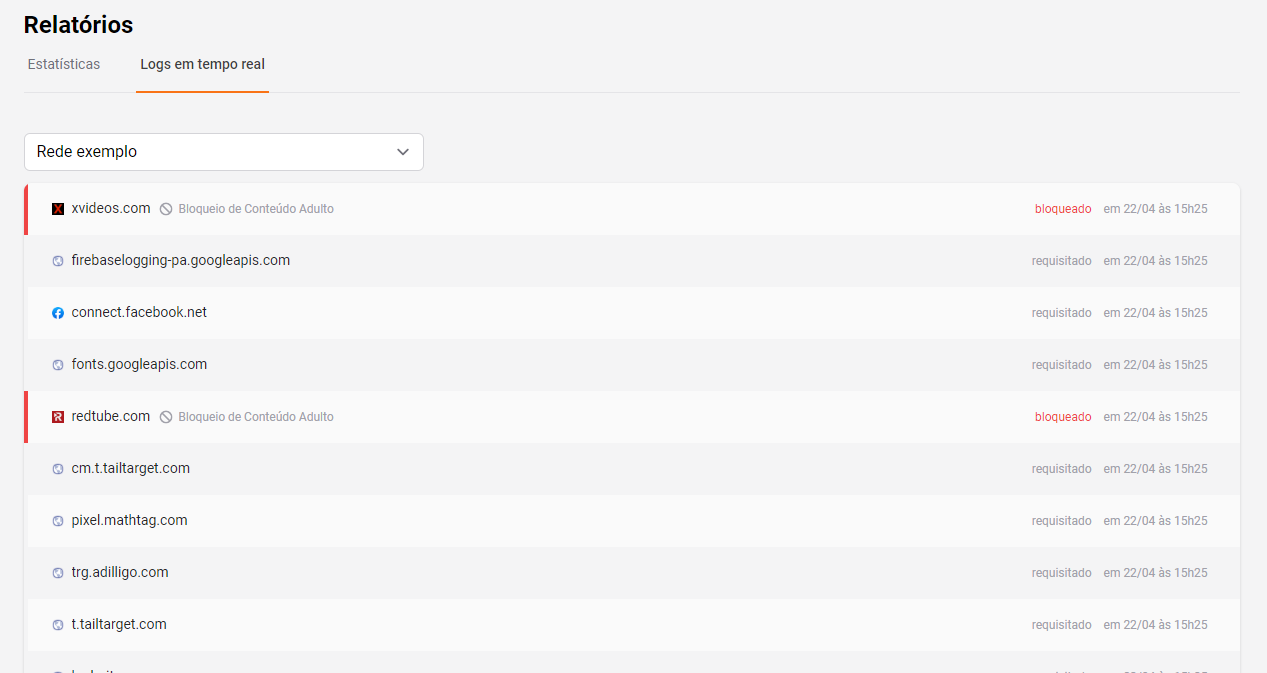
- Graph showing the volume of released and blocked requests.
- Statistics showing the most blocked websites.
- Real-time logs
- Safe search to remove adult content from major search engines.
- Support in Portuguese
Disadvantages of Lumiun DNS
- It does not have complete documentation.
- It is in the testing phase.
Additional security configuration
To prevent attacks from external queries, due to the "Allow Remote Requests" option being enabled in the DNS, we will define new rules in the Firewall.
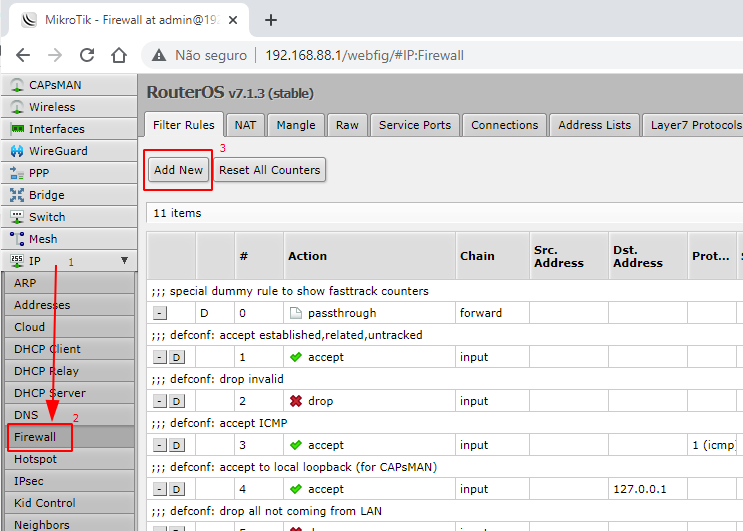
Step 1: Access the Firewall
Go to the IP menu → Firewall and click the “Add New” button.
Step 2: Rule to block external queries via UDP
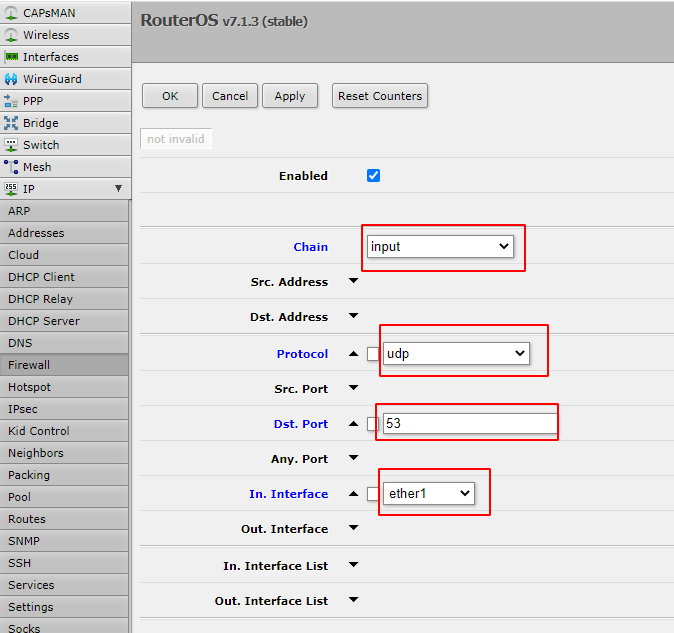
- In the “Chain” field, select the “input” option.
- In the “Protocol” field, select the “UDP” option.
- In the “Dist. Port” field, enter the UDP port number “53”.
- In the “In. Interface” field, select the option that contains your link, for example “ether1”.
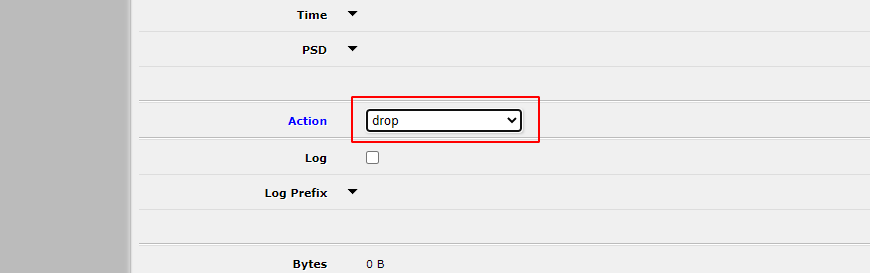
- In the “Action” field, select the “Drop” option.
- Click the “Apply” and “OK” buttons respectively.
Step 3: Rule to block external queries via TCP
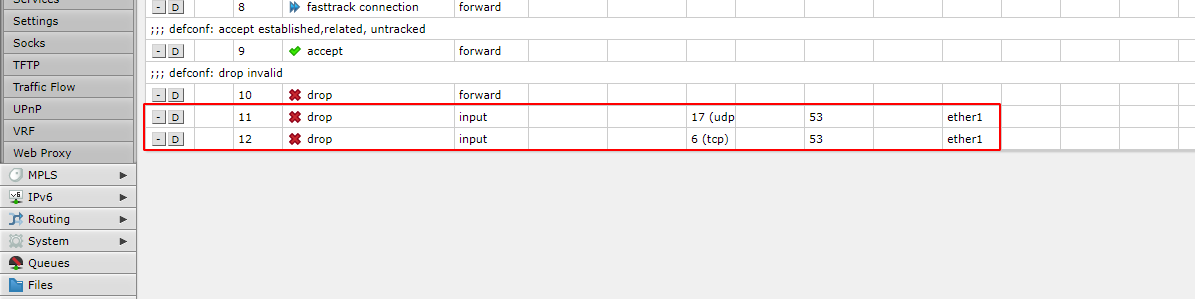
Repeat the steps from the previous step, except for the "Protocol" field, where you should now select the "TCP" option.
In the end, you will have two new Firewall rules, as shown in the image below.
NAT redirection
We're going to perform a NAT redirection to force network devices to query the DNS server configured on the MikroTik router.
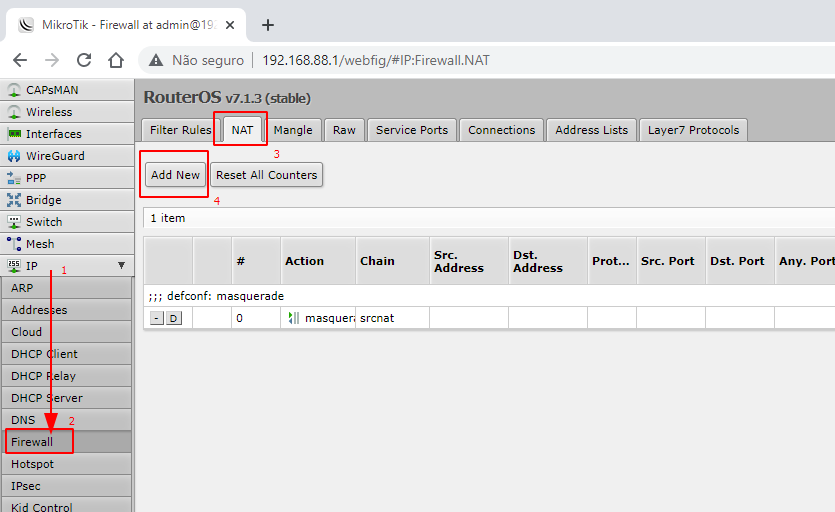
Step 1: Accessing the NAT rules page
To add a new NAT rule, go to the IP menu → Firewall, click on the NAT tab, and then click the “Add New” button.
Step 2: Adding a new NAT rule
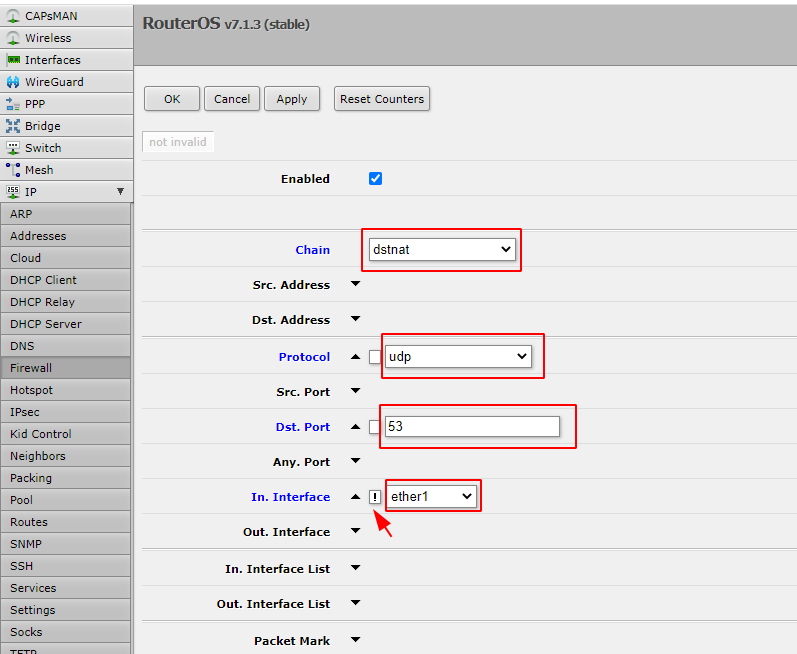
- In the “Chain” field, select the “dstnat” option.
- In the “Protocol” field, select “udp”
- In the “Dst. Port” field, enter port number “53”.
- In the “In. Interface” field, select the option that contains your link, for example “ether1”, and check the box next to it so that the “!” (exclamation mark) appears.
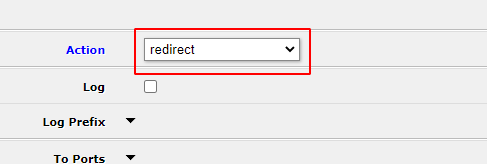
- In the “Action” field, select the “redirect” option.
- Click the “Apply” and “OK” buttons respectively.
What is the best solution for my network?
It will depend on your needs and time .
If you have the time and don't need to monitor the blocks, tip 1 would be the most suitable, as it's free. However, it requires periodic reviews of the regular expression and also the addition of exceptions and false-positive domains.
Tip 2 (OpenDNS) is ideal for those who don't have time to maintain lists, don't require many details about blocking, need to manage up to 3 different networks, don't have the financial resources to invest, and don't mind if Brazilian adult content sites remain unblocked.
Finally, tip 3 ( Lumiun DNS ) is recommended for those who don't have time to manage lists, need stricter blocking of Brazilian and international websites, need to filter results from major search engines, want to view real-time blocking logs and statistics, and want to control the internet of multiple home or corporate networks from a single control panel.

