In this guide, you will learn how to control internet access in the office and gain focus in 7 days, without becoming a slave to IT.
Let's get straight to the point: if your SME has people working on computers in the office, the internet is a work tool... and it's also the biggest source of "cheap" distraction in the world .
And it's not just about "wasting time." Uninterrupted internet access, as it comes "from the factory," increases:
- risk of clicking on phishing and malicious websites,
- chance of malware/ransomware entering through a careless login,
- And that feeling that "the company has no rules at all" (which always turns into chaos).
The good news: you don't need to become a large company or hire an IT team to get things in order. With a well-written policy and simple technical controls, you can see results in 7 days .
In this article, you will learn:
- What to block (without halting the work),
- How to create an Internet Usage Policy that no one finds absurd.
- How to set up quick control with Lumiun DNS (by category, with exceptions and reports).
- and how to adjust with common sense (because no tool solves it 100% on its own).
Honest spoiler: there's no "magic" solution that transforms everyone into ultra-productive individuals. What exists is reducing distractions + increasing clarity + having data + communicating when necessary .
Why this has become more urgent (and it's not paranoia)
The volume and complexity of internet traffic are only growing, and along with it comes more "junk" and more attacks.
In their Year in Review 2025 report, Cloudflare Radar points out that global traffic grew by 19% in 2025 and that 6.2% of global traffic was mitigated (blocked/filtered by security mechanisms due to attacks or policy violations). This gives an idea of the scale of the problem.
The goal in 7 days
In 7 days, the realistic goal is:
- Define simple (and communicateable) rules.
- Block content that drains your focus and increases risk.
- Create exceptions based on function (marketing cannot exist without social media, for example).
- Measure with reports and adjust without disrupting operations.
Lumiun Lumiun DNS comes into play here as an execution tool: it's a DNS management and security that combines cybersecurity, control, and monitoring , with policies to block content and reports to track usage.
Before configuring anything: 15 minutes to map out your scenario
You don't need to be a technician, but you need to answer two questions:
1) Where does the internet "rule" in the office?
In most SMEs, it's one of these:
- common router (TP-Link, Intelbras, etc.)
- firewall (Fortinet, pfSense, etc.)
- internal DNS server (Windows DNS Server, Linux)
2) What are the 3 biggest "sinks" in focus today?
Don't try to take on the world. Choose 3 to start with. Examples:
- social media and short videos,
- betting sites,
- streaming/music/video
- online shopping,
- Endless entertainment/news.
📌 Practical tip: Ask 2 leaders (or yourself): "If I were to cut 3 things that are most disruptive, what would they be?" This becomes your first filter.
The winning combination: Politics + tools (and common sense in between)
Technical tools alone, without policy, turn into a "cold war": everyone trying to circumvent the rules.
Policy alone, without tools, turns into a forgotten PDF.
Usage policy: why it's indispensable
Because she:
- defines what is acceptable and what is not,
- reduces noise ("I didn't know I couldn't"),
- and protects the company in terms of governance.
You can speed things up with ready-made materials:
- Internet Usage Policy Document Template: https://hub.lumiun.com/modelo-documento-uso-internet
- Mobile phone usage policy document template: https://hub.lumiun.com/modelo-documento-uso-celular-empresa
It's a truth that few people talk about:
Internet control is never 100% "technology." If someone doesn't want to follow the rules, they'll try to circumvent them using their mobile 4G, VPN, etc. The key is: clear rules + culture + conversation .
What to include in your Internet Usage Policy (without legalese and without exaggeration)
Use the templates as a base and adapt them. Here's a simple (and functional) skeleton:
1) Objective (1 paragraph)
"Ensuring the proper use of the internet for work purposes, increasing security, and reducing distractions."
2) What is allowed (very clearly)
- Sites and services necessary for the company's activities.
- Quick personal access during break times (if you agree to this).
3) What is prohibited (direct list)
- adult content,
- betting/gambling,
- illegal downloads,
- malicious websites,
- streaming/entertainment (or time-limited),
- social networks (with exceptions by area).
4) Function-based exceptions
- Marketing: social media is now open.
- HR: LinkedIn enabled.
- Customer service: WhatsApp Web enabled.
5) Transparency regarding monitoring
Explain what is being monitored (e.g., domains accessed, categories, blocked access attempts) and why (security and productivity). And proceed with common sense: restricted access, clear purpose, and adequate retention.
"If you are going to collect/view access data, have a written policy, communicate it to the team, limit access to reports, and use it only for work purposes (security and productivity)."
6) Consequences (without threats, but firmly)
Examples: warning, formal conversation, disciplinary measures according to internal policy.
7) Science/Signature
Politics is not just for show. It needs to be communicated and documented.
"It's not about surveillance. It's about protecting everyone's jobs, company, and time."
Controlling internet access in the office: 7-day plan (practical tutorial)
Here's a more realistic version for SMEs: the basics can be done quickly . So let's concentrate the setup into 2 days and use the rest of the week to calibrate.
Day 1 — Policy ready + alignment with the team (as agreed)
Today is the day to make it clear what is and isn't allowed. This avoids endless complaints later.
- Adapt the Internet Usage Policy (use the templates above).
- Define the "starter package" of what will be blocked (e.g., betting, adult content, piracy, and games).
- Combine exceptions by function (e.g., Marketing may need social media).
- Communicate the change and, if it makes sense, obtain acknowledgement/signatures from employees.
Practical tip: let them know there will be an "adjustment week." This reduces resistance and makes it clear that the goal is productivity and safety (not harassment).
Day 2 — Controlling internet access in the office with Lumiun DNS (configuring and installing)
With the free account created on Lumiun DNS, you can now do all the technical aspects: create the policy, activate the essential filters, and apply it to the network (or devices).
Step 1) Create the "Office - Default" policy
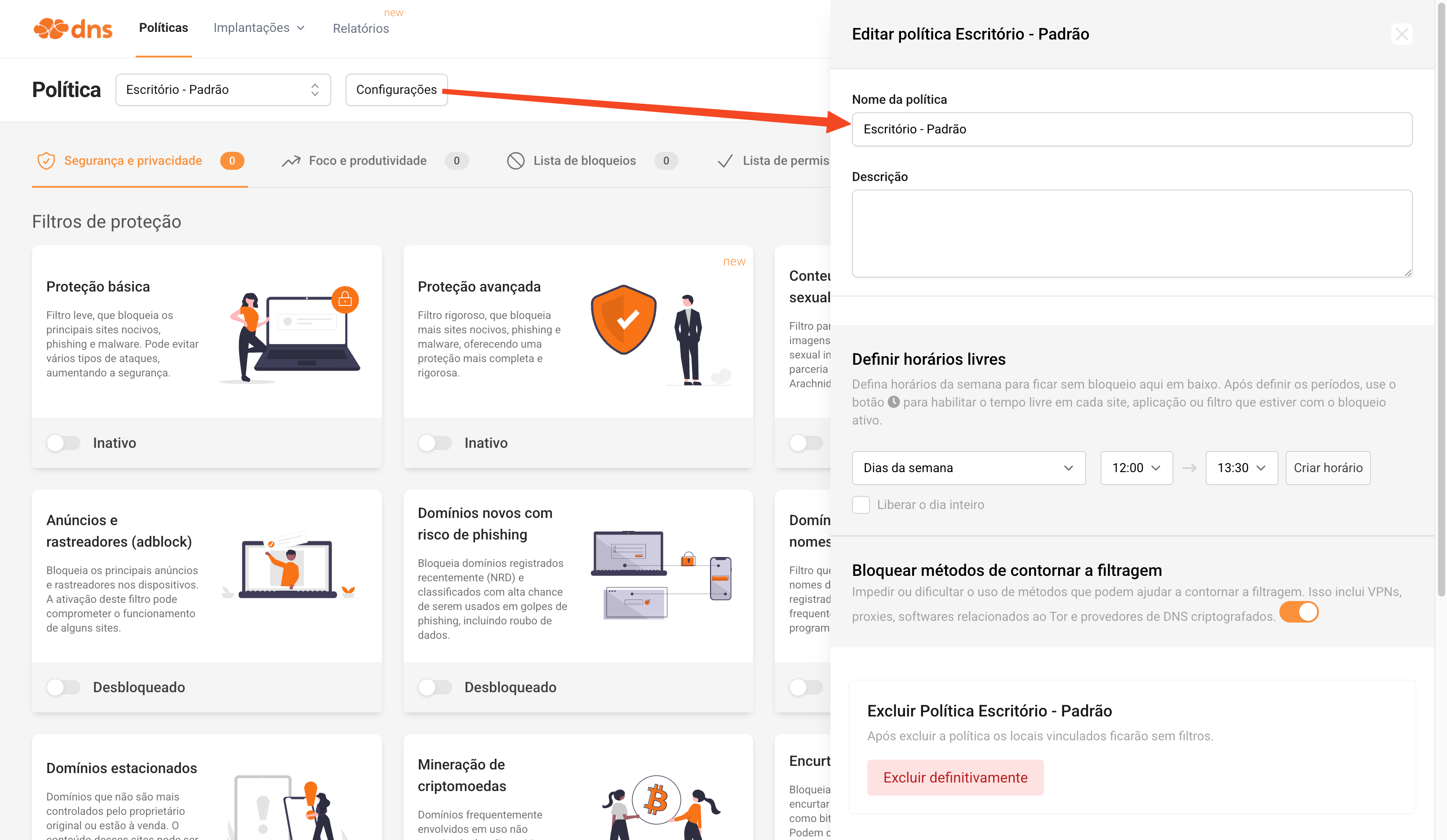
Policies menu , click on New Policy .
- Policy name: Office – Standard
- Description (optional): Standard office policy to reduce distractions and increase security.
- After creating it, you can click the Settings button to set free times .
Step 2) (Recommended) Activate contour lock
Still within the policy settings block methods of bypassing filtering (e.g., VPN, proxy, Tor, encrypted DNS).
Step 3) Activate essential security filters
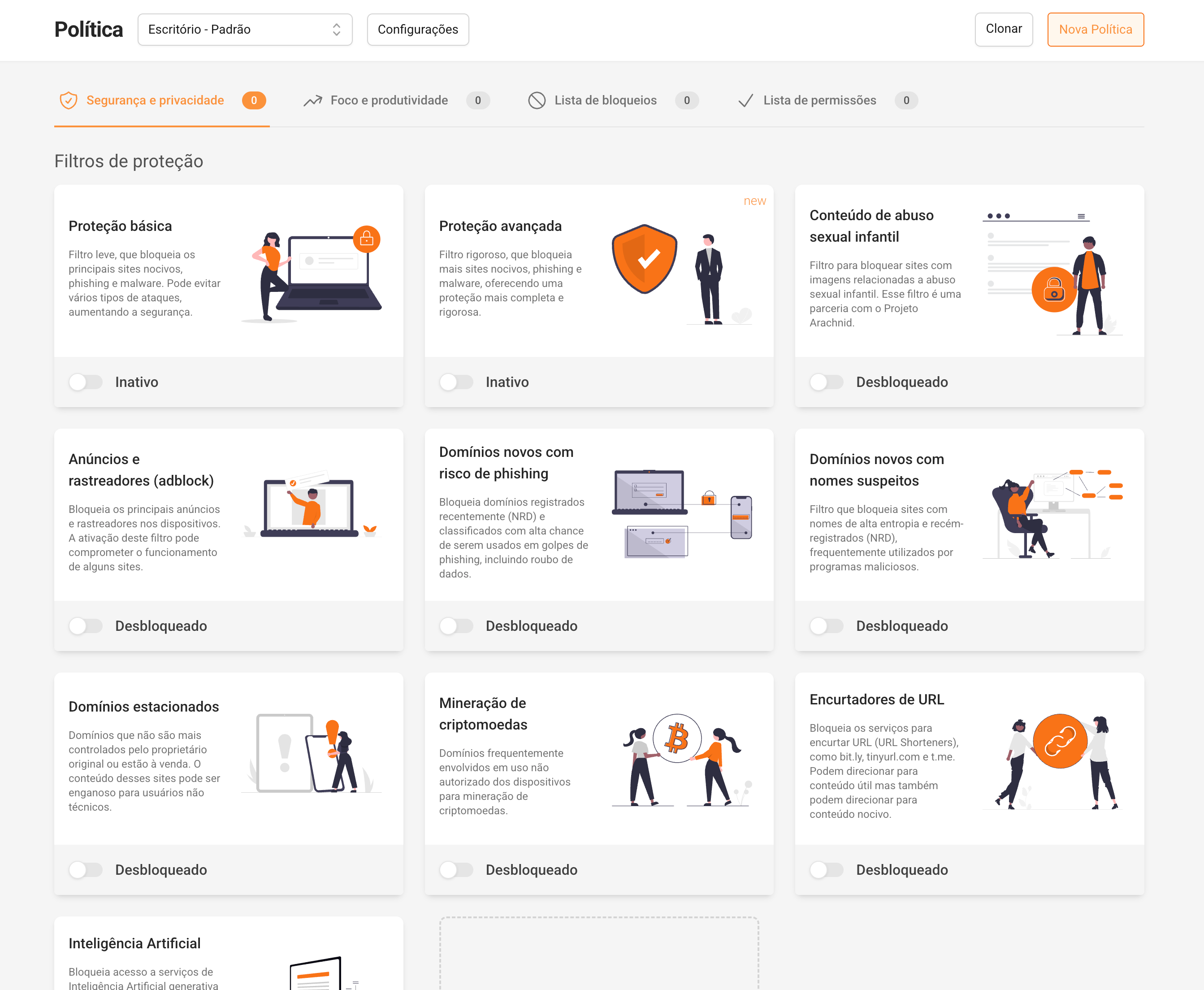
Security and Privacy tab , enable the essential package:
- ✅ Basic protection
- ✅ New domains at risk of phishing / suspicious names
- ✅ Cryptocurrency mining
- ✅ Content about child sexual abuse
Step 4) Activate essential productivity filters
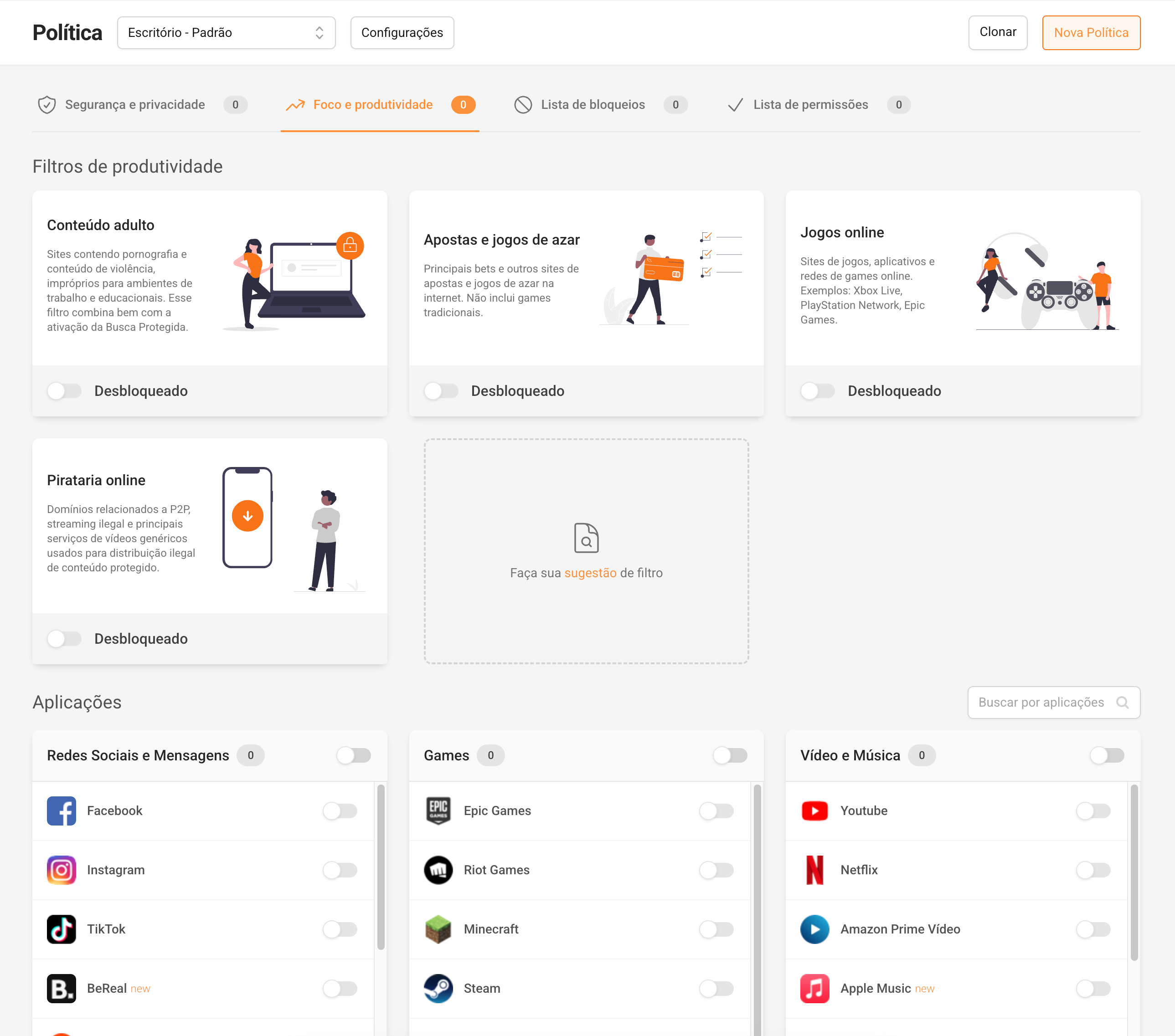
Focus and Productivity tab , activate the essential package:
- ✅ Betting and gambling
- ✅ Online games
- ✅ Online piracy
- ✅ Adult content
And in the Applications section , choose only the ones that are most time-consuming (to avoid creating chaos):
- ✅ Social media and messaging (for most areas)
- ✅ Video and music (if that's a time drain for you)
Important: If your company has a Marketing/Content team, you'll likely open up social media to this group on days 3-6. Today the idea is to build the foundation.
Step 5) Create a "Local" application and apply it to the network (without modifying each PC individually)
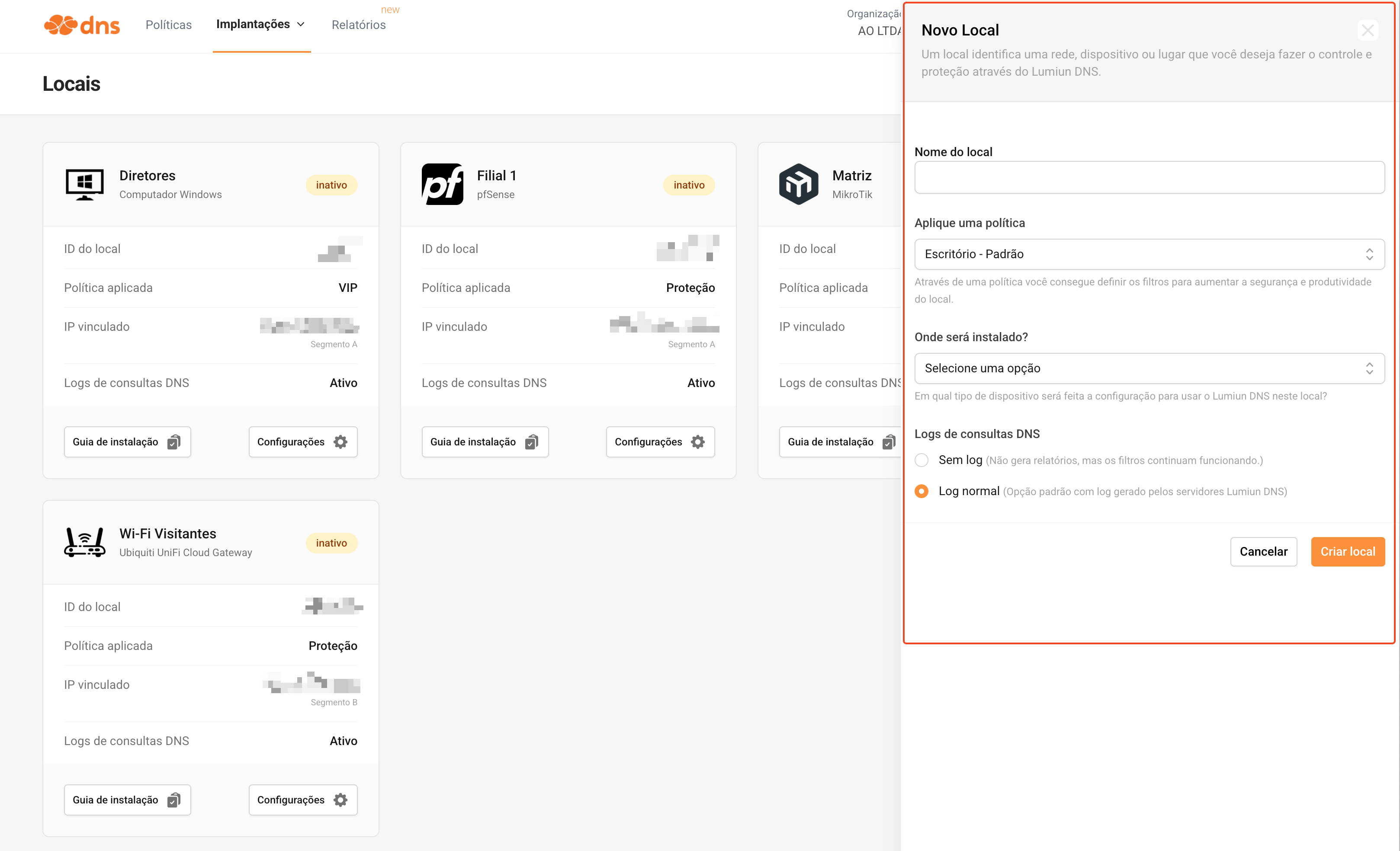
In Deployments > Locationscreate a New Location and fill it out:
- Location name:
Main Office(orBranch 1,Visitor Wi-Fi) - Apply a policy: select Office – Default
- Where will it be installed? Choose the type (e.g., MikroTik Router , pfSense , Windows Computer , Ubiquiti , etc.)
- DNS query logs: leave normal log (recommended, because it generates reports)
Practical tip:
- Matrix (internal network) with "Office - Standard" policy.
- Wi-Fi for visitors with a more lenient (or even unproductive) policy.
Step 6) Apply to the router/firewall using the “Installation Guide”
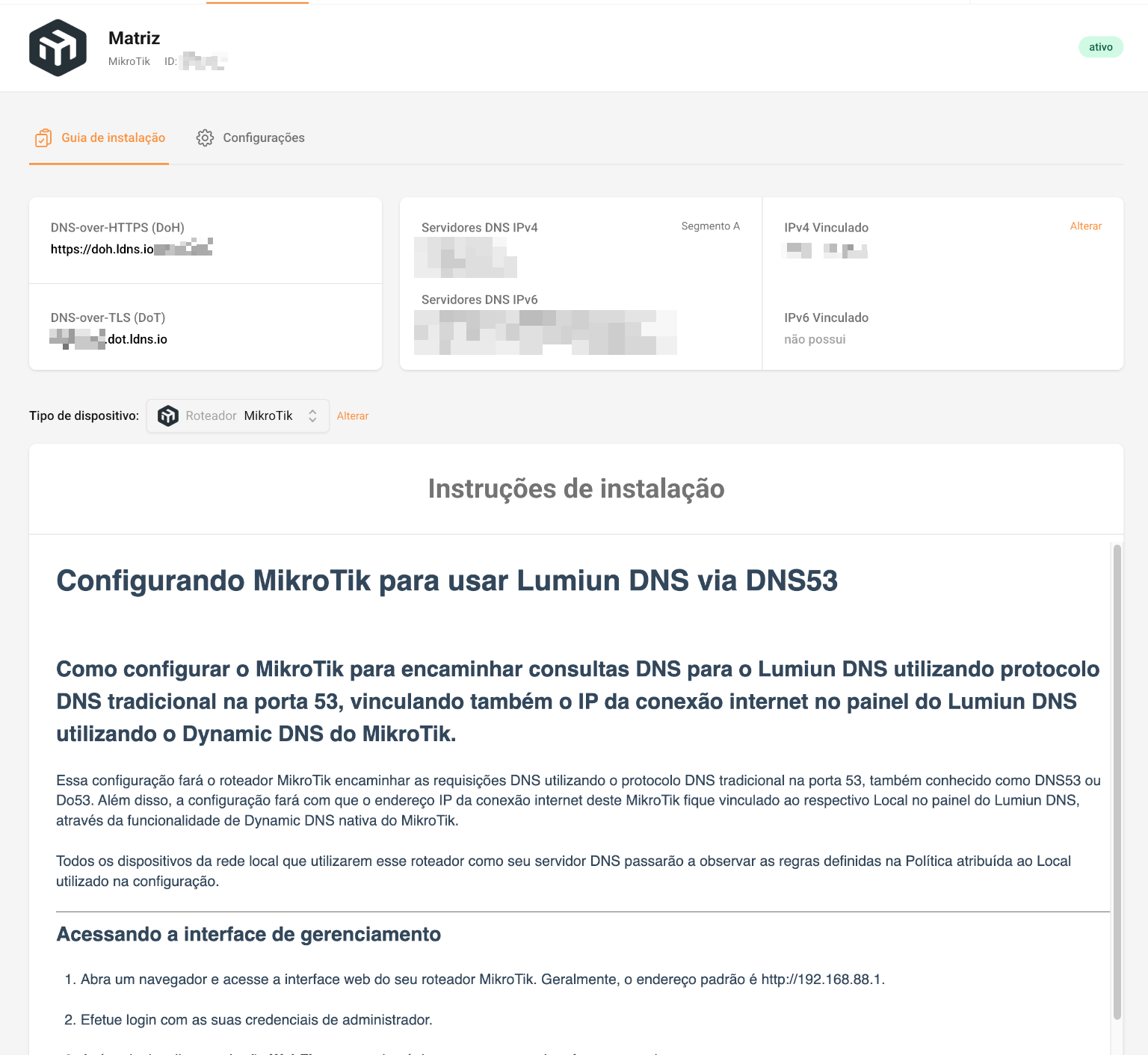
Follow the installation guide provided by the local provider (it comes pre-adapted to the device).
- Configure your router's DNS to use Lumiun Lumiun DNS servers
- Ensure that DHCP delivers these DNS servers to the computers.
- (Optional) Force DNS to prevent machines from using external DNS "on their own"
Days 3 to 6 — Exceptions and adjustments by area (without opening the gate)
Now comes the part that avoids endless complaints: releasing what's necessary per function , without reverting to "release everything".
You have two paths (choose the one that best suits your reality):
Option A) If you have VLANs: use Segment53 and create a Local VLAN for each network
If your company separates the network by VLAN/subnet , Segment53 allows you to apply different policies to DNS port 53, even if everyone uses the same public IP address.
How to apply it in practice:
- Create one Location per VLAN (e.g.:
VLAN-ADM,VLAN-COM,VLAN-MKT,VLAN-GUEST) - In each location, apply the policy (stricter on standards, more flexible on marketing, very restrictive on guest services).
- In the Local section, select the Segment (A/B/C/D) and keep everything linked to the same IP address.
Why is this good?
You can get different policies per network and separate reports by segment/VLAN, without installing anything on the computer.
For more details, see the guide .
Option B) More practical (and more granular) way: Groups and Devices + ActiveNet Agent
If you want exceptions by department/person/machine, use Groups and Devices with the ActiveNet Agent .
How to apply it in practice:
- Create groups like:
Administration / FinanceCommercialMarketingBoard of Directors
- Define the group policy (e.g., Marketing with more permissions)
- Install the ActiveNet Agent on the PCs you want to control by group
- Assign each device to the correct group
Real advantage:
You release what's needed in the smallest possible scope (by group or by device), without affecting the entire network.
Important: details in the Help Center article .
Day 7 — Reports: confirm the result and finalize the adjustments
After a few days of "calibration," here you close the analysis with data: what worked, where there is still friction, and what exceptions were missing.
The goal is to answer 3 questions:
- What is the team trying to access most often that is being blocked?
- In which location/group/device does this happen most often?
- What constitutes a proper block (distraction) and what constitutes a block that hinders work?
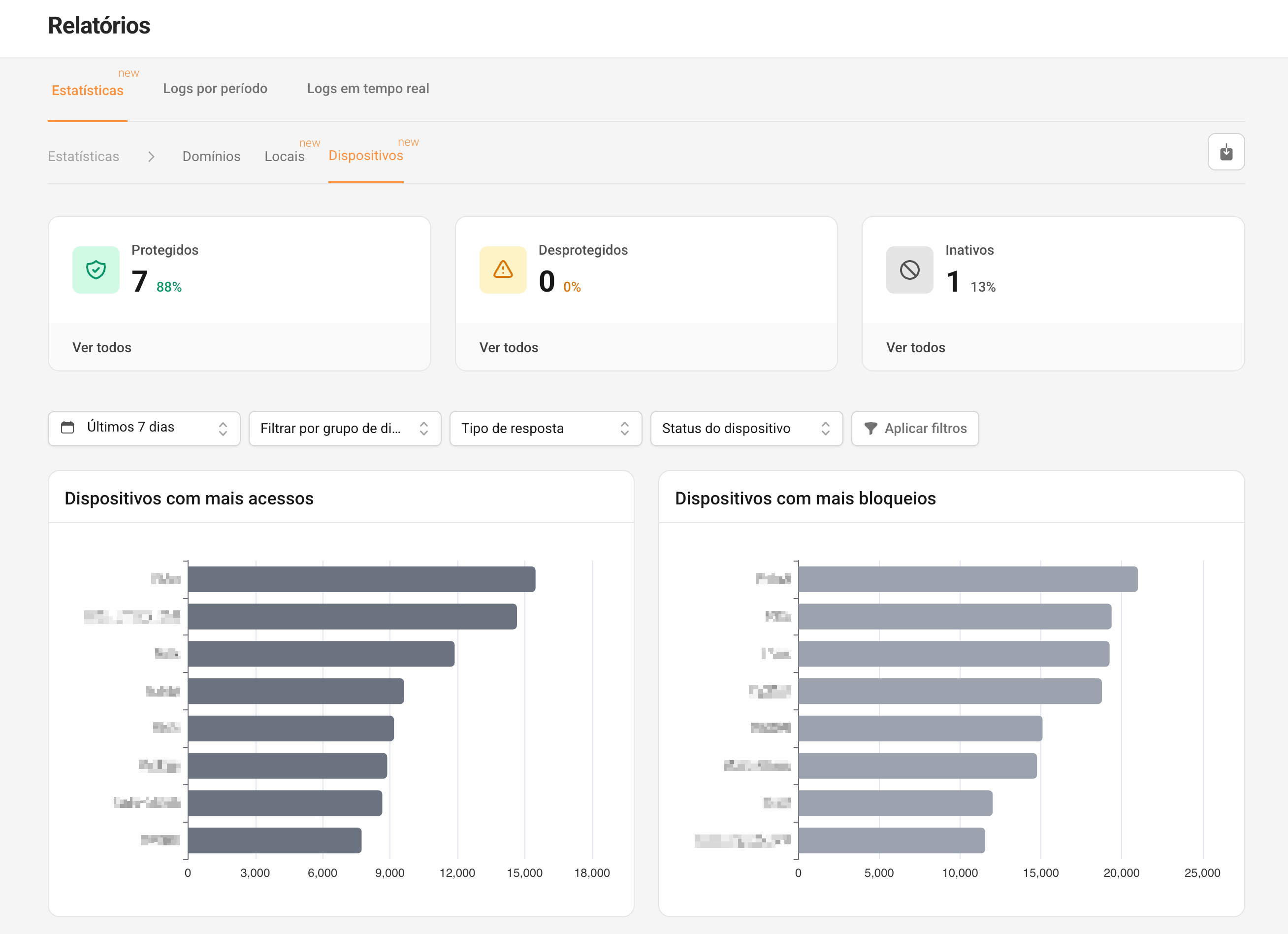
Step 1) Quick summary of accesses (Statistics)
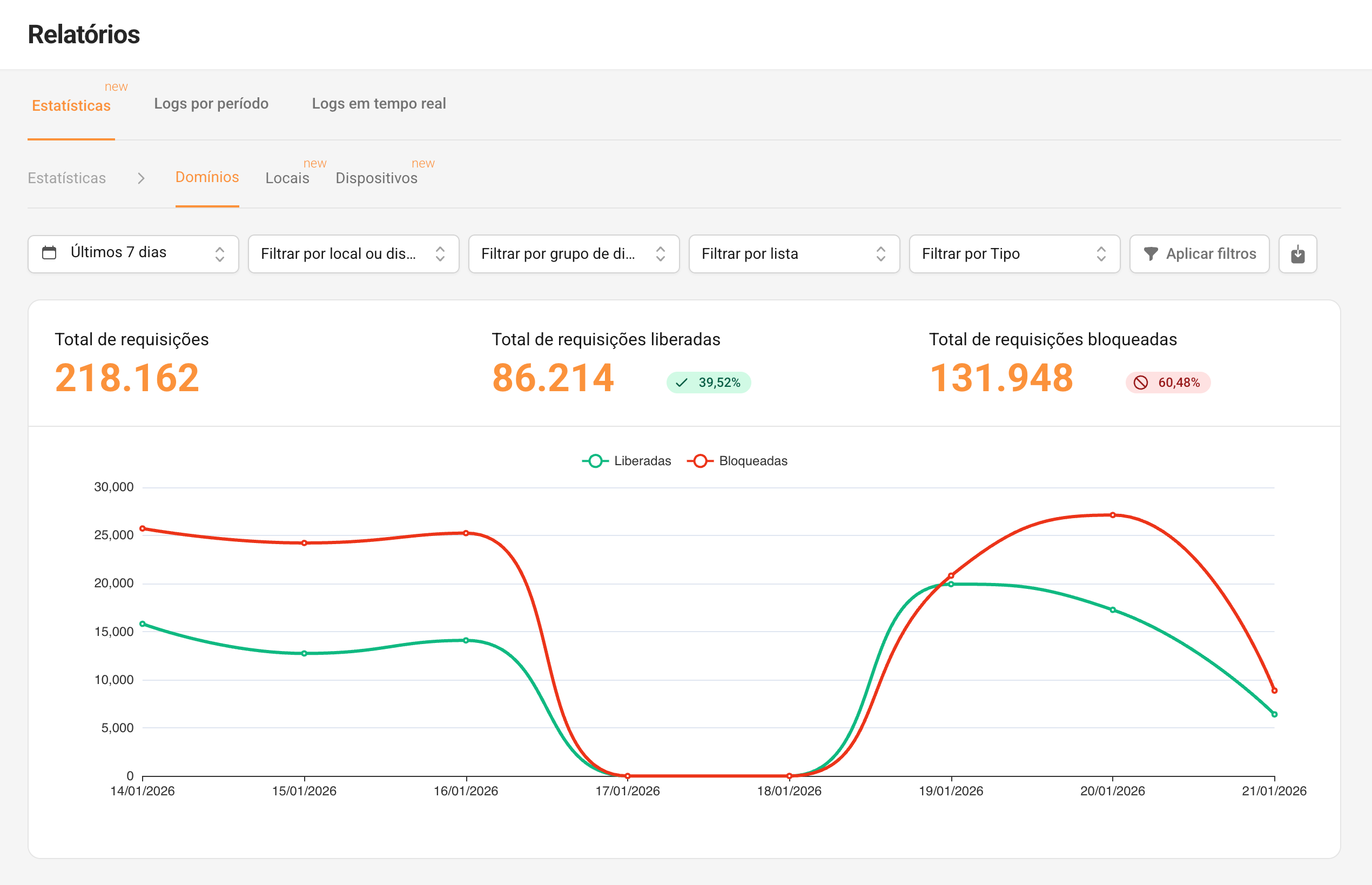
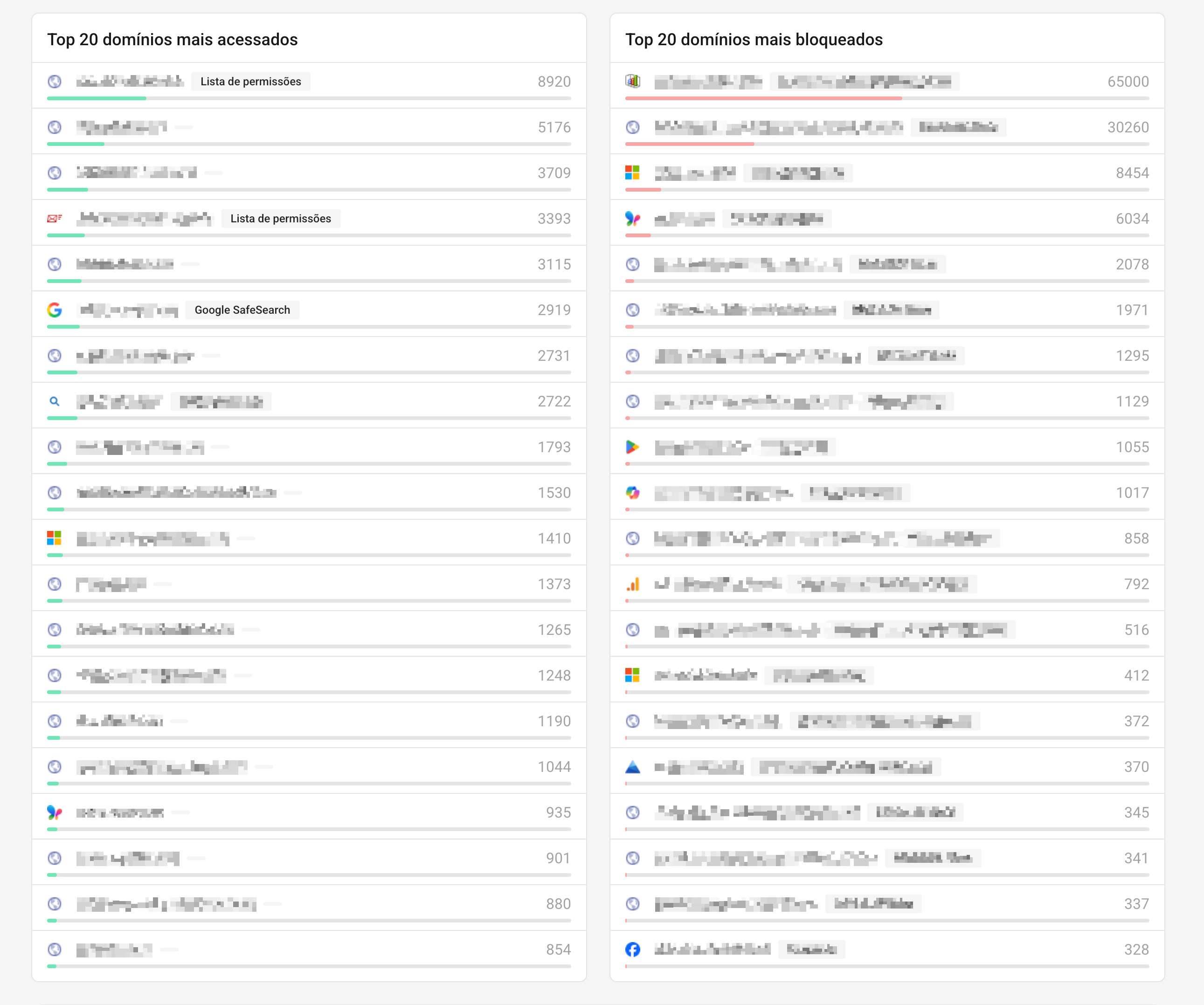
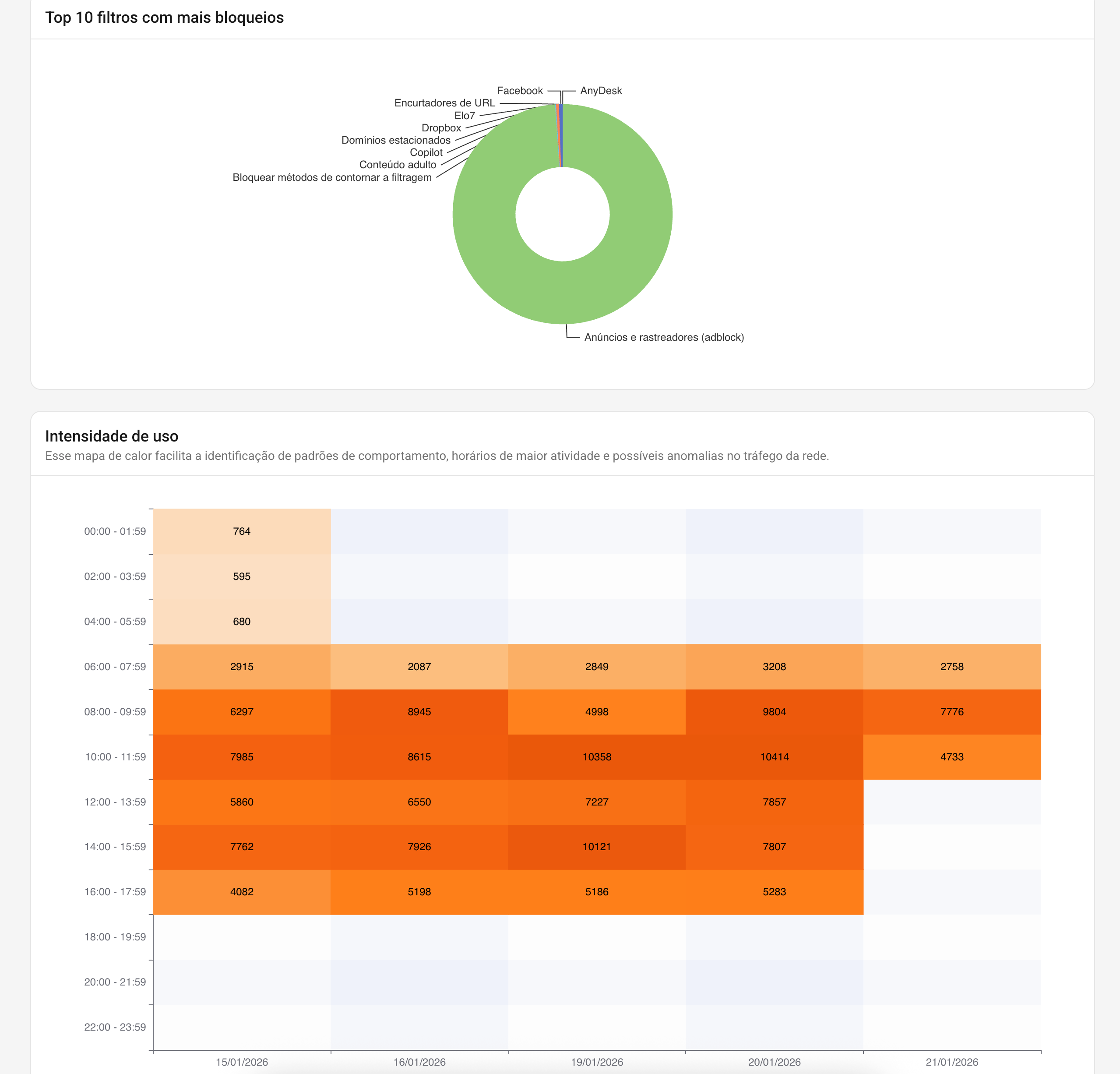
What to look for (without complicating things):
- Top most blocked domains (where distraction is hitting)
- Top filters with the most blocks (what is generating impact)
- Allowed vs. Blocked (if the policy is working without blocking the operation)
Step 2) Find out “where” it is concentrated (Locations / Devices / Groups)
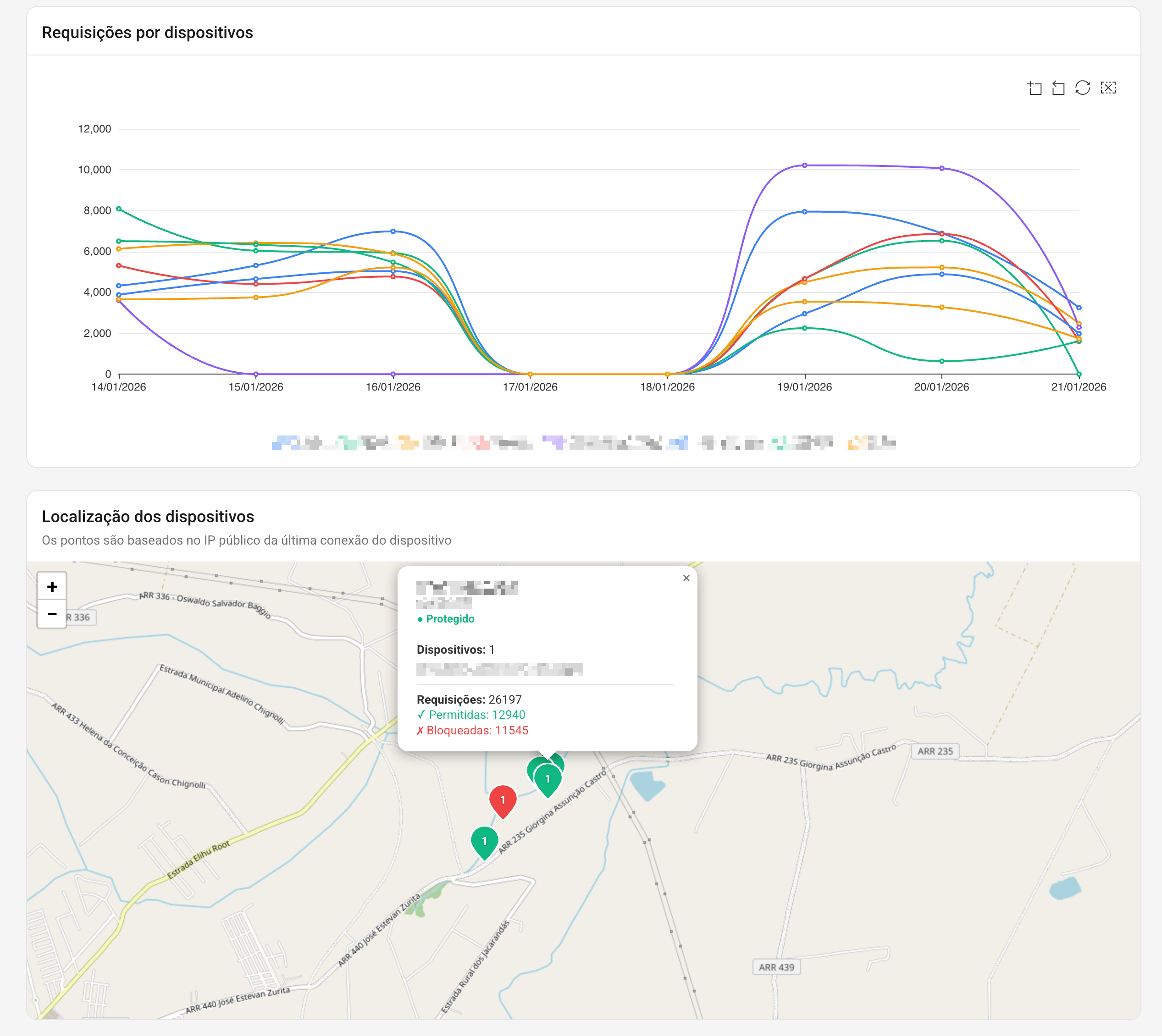
- Locations → ideal if you have separated Main Office/Branch Offices/Visitor Wi-Fi/VLANs
- Devices → ideal if you use ActiveNet Agent
- Groups → ideal for comparing by area (Marketing vs. Sales, etc.)
Simple rule: always adjust within the smallest possible scope (group/device/location). Avoid "general release".
Step 3) Use the Logs only for investigation
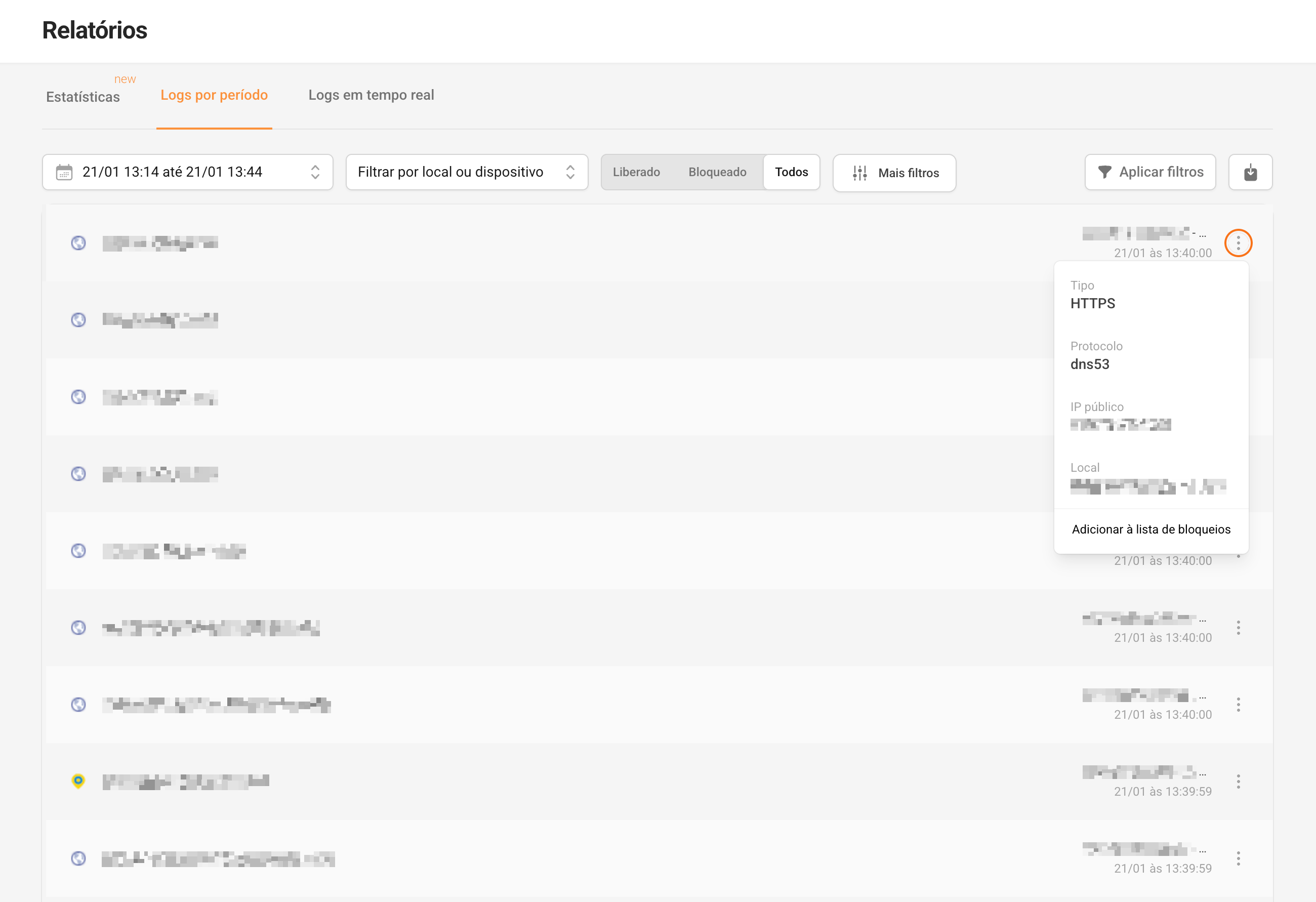
- Filter by Blocked
- Filter by Location or Group/Device
- If it's a work tool → adjust with Whitelist
- If it's a distraction → keep it blocked and continue the game
What to block first (practical list for SMEs)
Blocking is almost always "merciless"
- Betting and gambling
- Adult content
- Malicious/phishing websites
- Suspicious downloads/piracy
Blocking "with rule and exception"
- Social media (by sector and/or time)
- YouTube/streaming (by schedule or by need)
- Online shopping (generally unrelated to work; can be restricted)
- Entertainment/news (by time)
"What if the employee disagrees?" (the human side, without hypocrisy)
No system is 100%.
Even with DNS blocking, a person can:
- Use 4G on your cell phone
- use VPN,
- Use navigation outside of business hours
- or simply "pretending to be working" on anything.
So, be transparent:
1) The company defines the rules.
2) The tool enforces the rules.
3) Leadership reinforces the culture.
4) And when someone insists on not following, conversation and action are taken.
LGPD and common sense: how to do it right
You don't need to turn this into a legal lesson, but a responsible message is in order:
- Logs and browsing data may involve personal data .
- have a written policy and a clear purpose,
- Restrict access to reports and set appropriate retention levels.
Common mistakes (so you don't sabotage yourself)
1) Blocking everything at once (breaks operations and you have to revert back)
2) Not creating exceptions by function (marketing/HR/sales will freeze up)
3) Not communicating and only activating the block (bad atmosphere)
4) Turning it into persecution (people try to circumvent out of anger)
5) Never looking at reports (you don't adjust and the policy becomes unfair)
Quick FAQ (for SME owners)
Do I really need the policy before the tool?
Yes. Politics is the "agreement" that avoids noise and clarifies the objective. Tools without politics become conflict; politics without tools becomes a forgotten PDF.
Is it possible to do everything without IT?
For most SMEs, it works. Lumiun DNS makes it easy by creating policies and an installation guide per device. If you have someone with even a basic technical background (internal or a partner), the process becomes even faster.
Will this disrupt my work or take down the internet?
If you start with the essential package and calibrate exceptions between Days 3 and 6, it remains stable. If any tool is blocked, you resolve it with a whitelist .
Can I release information by department (Marketing, HR, Sales)?
Yes:
- With VLANs/subnets: Segment53 + one Local per network.
- By machine/user: Groups and Devices + ActiveNet Agent.
What if someone tries to bypass the system using a VPN/proxy?
Enable bypass blocking in the policy settings. This greatly reduces the "workarounds." The rest is policy + discussion.
Conclusion: What you should do (the fastest way)
- Day 1: Finalize the policy, define what will be blocked, and communicate it to the team (acknowledgment/signature, if applicable).
- Day 2: Configure Lumiun DNS (policy + filters) and install it on the network and/or devices.
- Days 3 to 6: Make exceptions by area and fine adjustments without opening the gate.
- Day 7: Confirm the results in the reports and finalize any last adjustments.
If you do this sensibly (and without "dictator mode"), you'll feel the difference in a week: less distraction, less access to risky things, and more clarity about what's happening.
If you want to implement this without buying equipment, without becoming a hostage to maintenance, and with simple management, Lumiun DNS is a practical way to control policies, block by category, handle exceptions, and generate reports in a web panel, with expert support via chat or WhatsApp.