


Windows has a tool called Remote Desktop that allows a remote employee to access the system from another computer.
This tool is proving to be an ally for companies that are adapting to the current scenario and encouraging their employees to work from home . Remote Desktop allows the user, even remotely, to access the company computer and use software and documents, reducing the impact on productivity.
However, despite this solution being effective in achieving this goal, it is a constant target of attempted intrusions aimed at deploying ransomware that blocks and seizes data. In fact, the FBI has already issued an alert regarding the large wave of attacks on the Remote Desktop Protocol (RDP). The alert even mentions the existence on the black market of lists of servers vulnerable to intrusion, which have unrestricted access to the standard Remote Desktop port (3389).
So how can I access Remote Desktop securely without compromising the security of the company and its employees?
To solve these problems related to security in accessing internal company network resources by remote users, many IT managers and analysts are adopting Corporate VPNs .
Tutorial for accessing Remote Desktop via Enterprise VPN
Business VPN is a great solution specifically for small and medium-sized businesses, allowing them to offer their employees secure remote access and monitor security threats.
A major advantage of Lumiun's Business VPN compared to other corporate VPN solutions is that it applies the same internet access protection and monitoring rules to employees working remotely from home as exist on the company's internal network. This maintains the organization's existing internet usage policy, aiming to improve information security and employee productivity.
To help with these adaptations due to the COVID-19 , Lumiun is offering Business VPN on all plans, for current and new customers, at no additional cost for 90 days.
With this, you can currently have a corporate VPN for your company and all the other features that Lumiun offers for R$ 97/month for up to 10 simultaneous devices.Note: The special offer to use the Business VPN on all plans ended on June 30, 2020, and is now only available on the Lumiun Enterprise Plan.
Without further ado, let's go through the step-by-step process to access Remote Desktop on your Windows 10 computer or on your Windows, Android, or iOS device to securely connect to a remote computer using Lumiun's Business VPN.
Step 1: Enable Remote Desktop on the computer that will be accessed remotely.
The first thing to do is configure the computer that will be accessed remotely by enabling Remote Desktop.
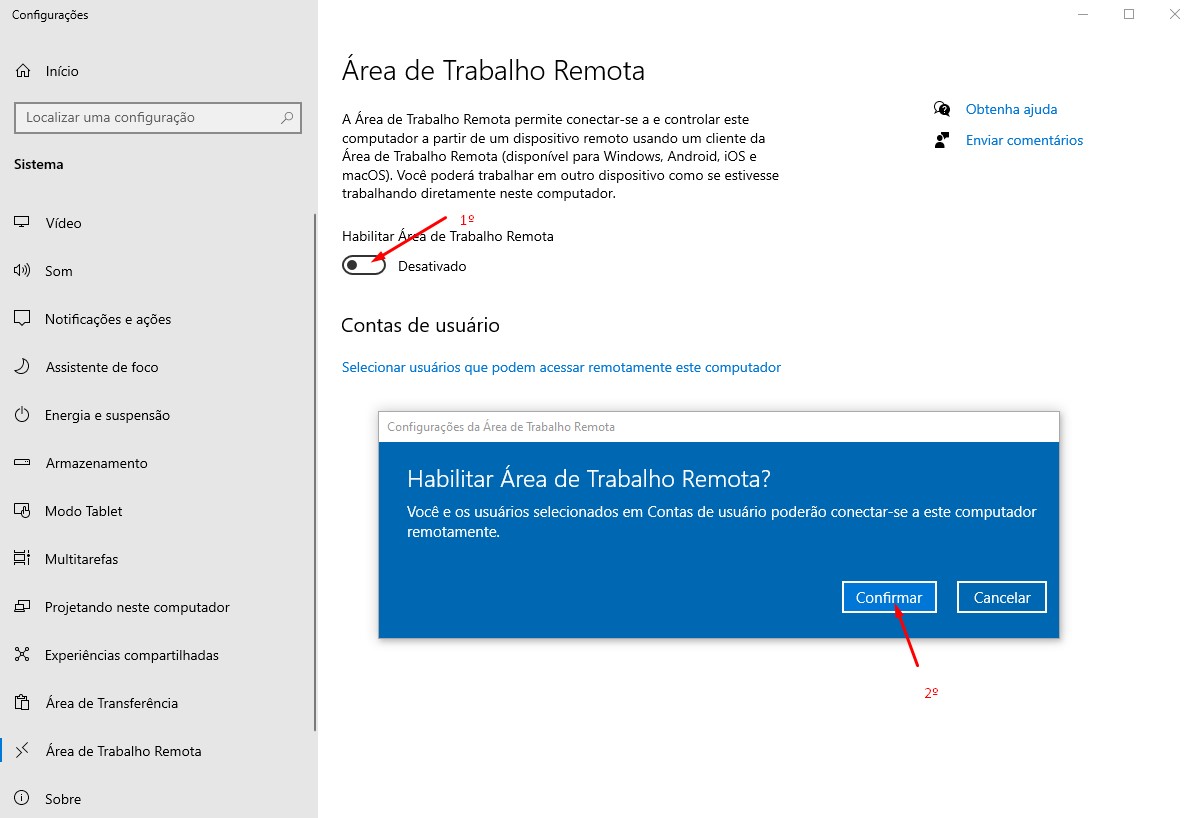
- Click Start , Settings (the gear icon), System , and finally Remote Desktop ;
- Activate the Enable Remote Desktop . Windows 10 will ask if you want to confirm the change; just click Confirm.
Step 2: Add user accounts to allow access to the computer.
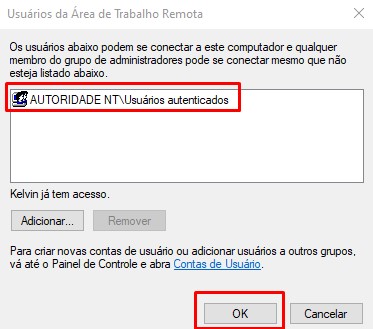
With Remote Desktop enabled, let's select users who can remotely access this computer, in addition to the system administrator .
- In the same window, in the User Accounts , click Select users who can remotely access this computer ;
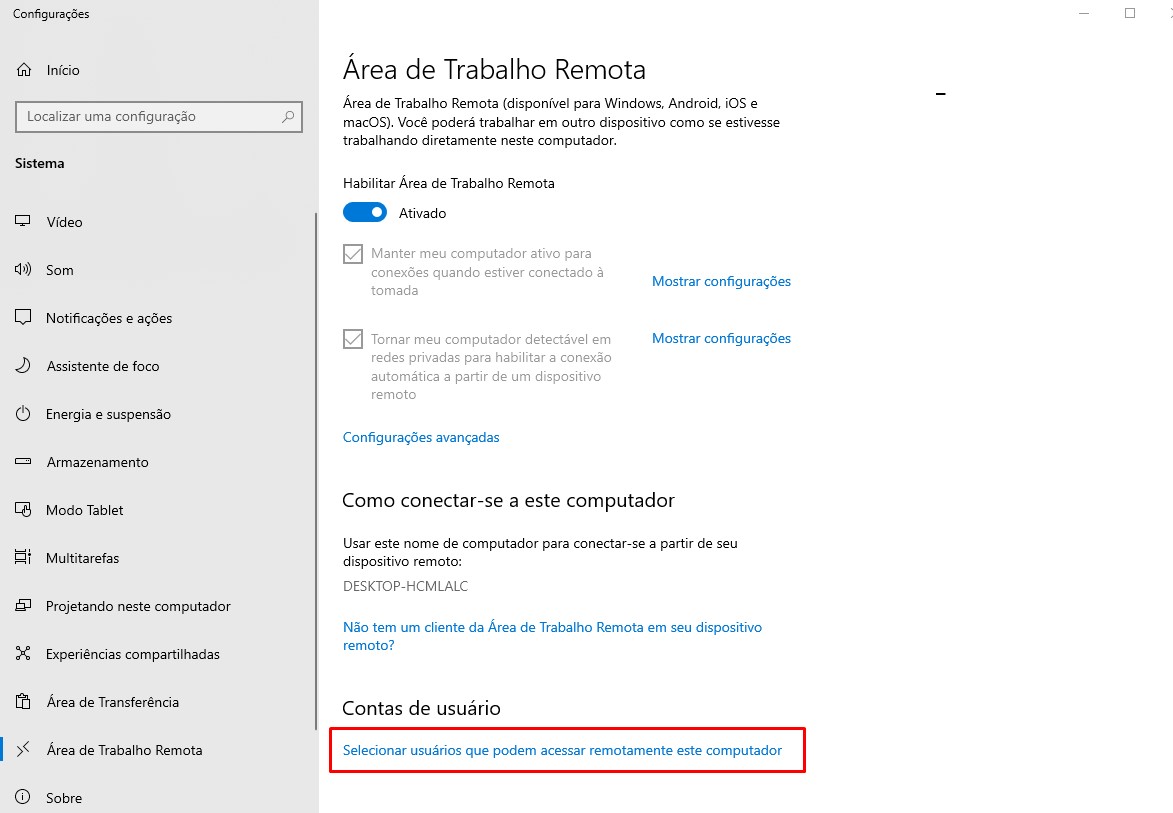
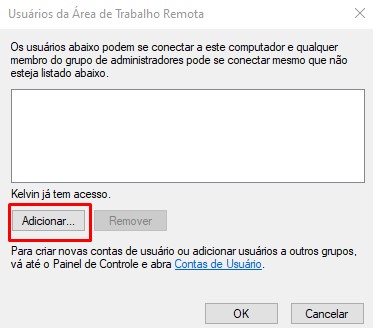
Add button ;
3. In the field "Enter the object names to be selected, " type "Authenticated Users" and click the OK ;
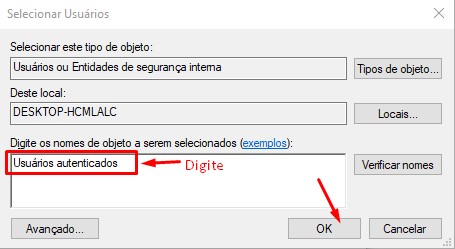
4. Click the OK and you're done! The computer that will be accessed remotely is now configured.
Step 3: Find the computer's IP address.
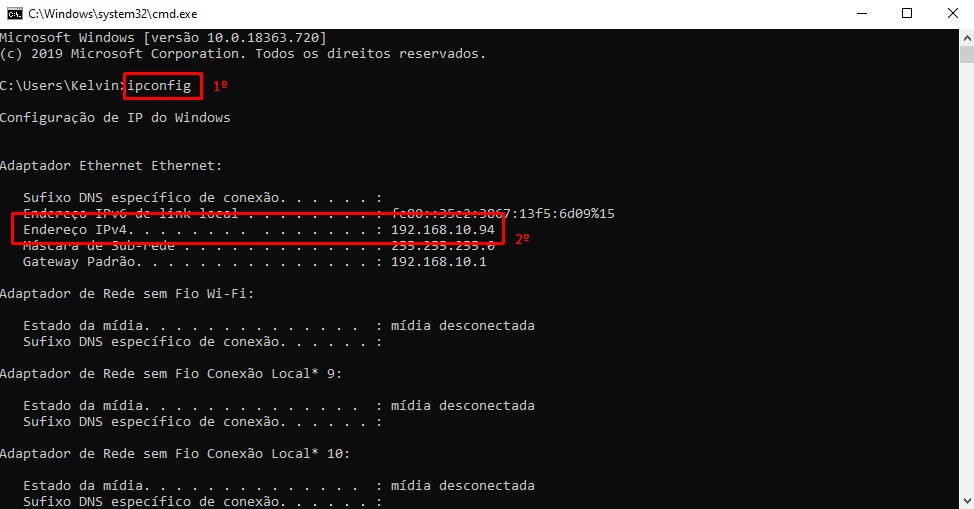
Now let's find out the IP address of the computer we're going to access remotely.
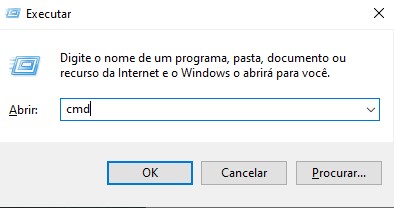
- Press the Windows key + R simultaneously ;
- Open field Run window type cmd and press Enter;
3. At the command prompt, type ipconfig , press Enter , and note the IP address from the IPv4 Address ;
Step 4: Activate Lumiun's Business VPN
Once the configuration on the computer that will be accessed remotely is complete, we will now activate the Enterprise VPN for the network and define which users can connect.
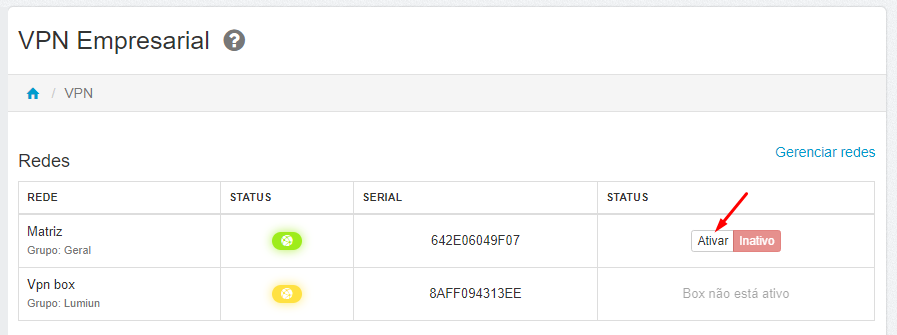
- In the Lumiun control panel, access Manage and Enterprise VPN ;
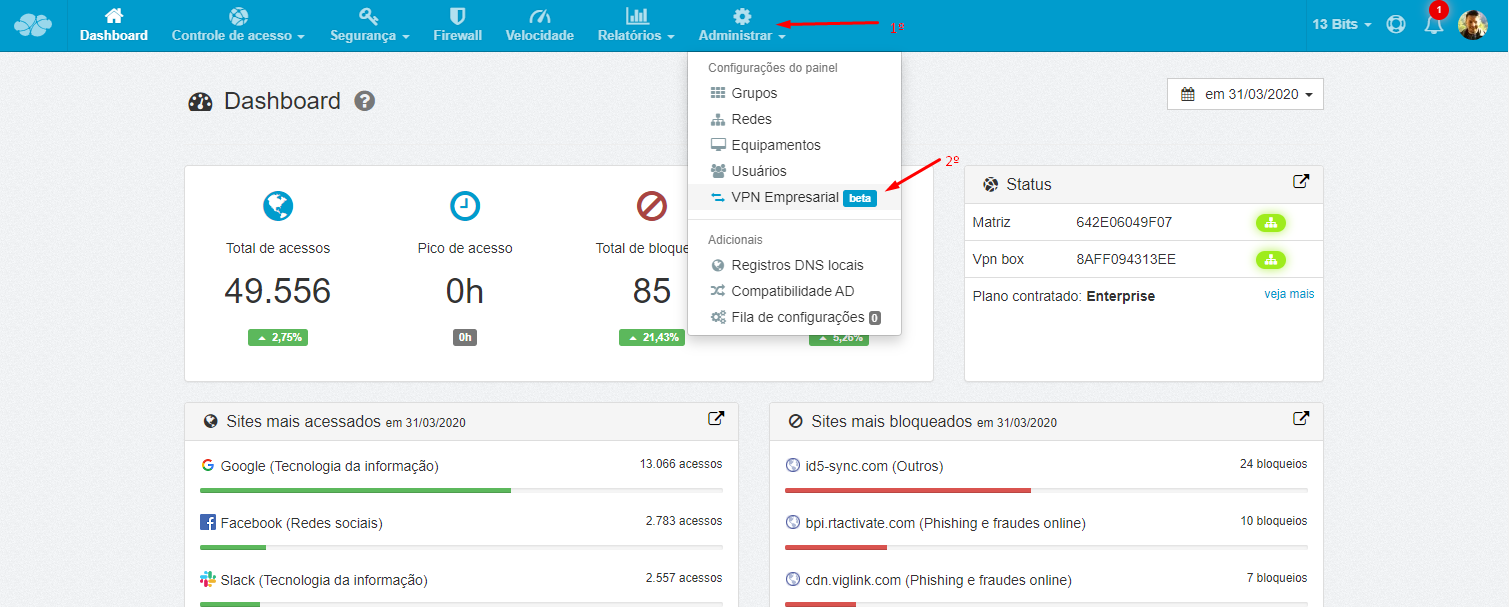
2. In the network table, click the Enable for the network you want to allow VPN access to;
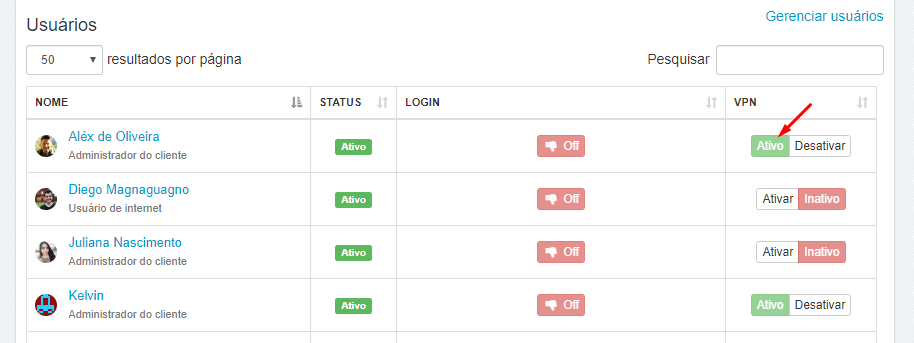
3. In the users table, enable those who can access the VPN using the Activate ;
Step 5: Install the VPN client on the device that the user will be using.
With the Business VPN active, it's time to start configuring it on the computer that the user will be using for home office or remote work.
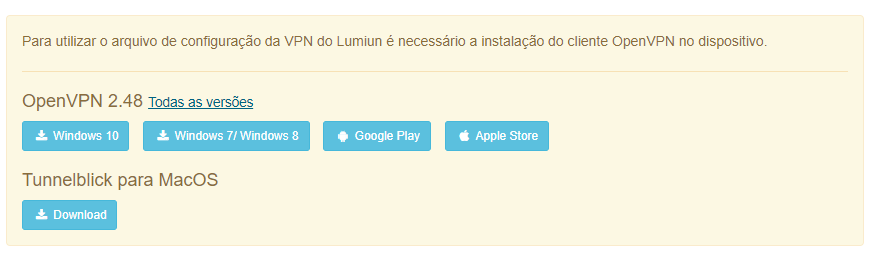
- On the same page where you activated the Business VPN, download the VPN client software and install it on the computer that will be used for home office or remote work.
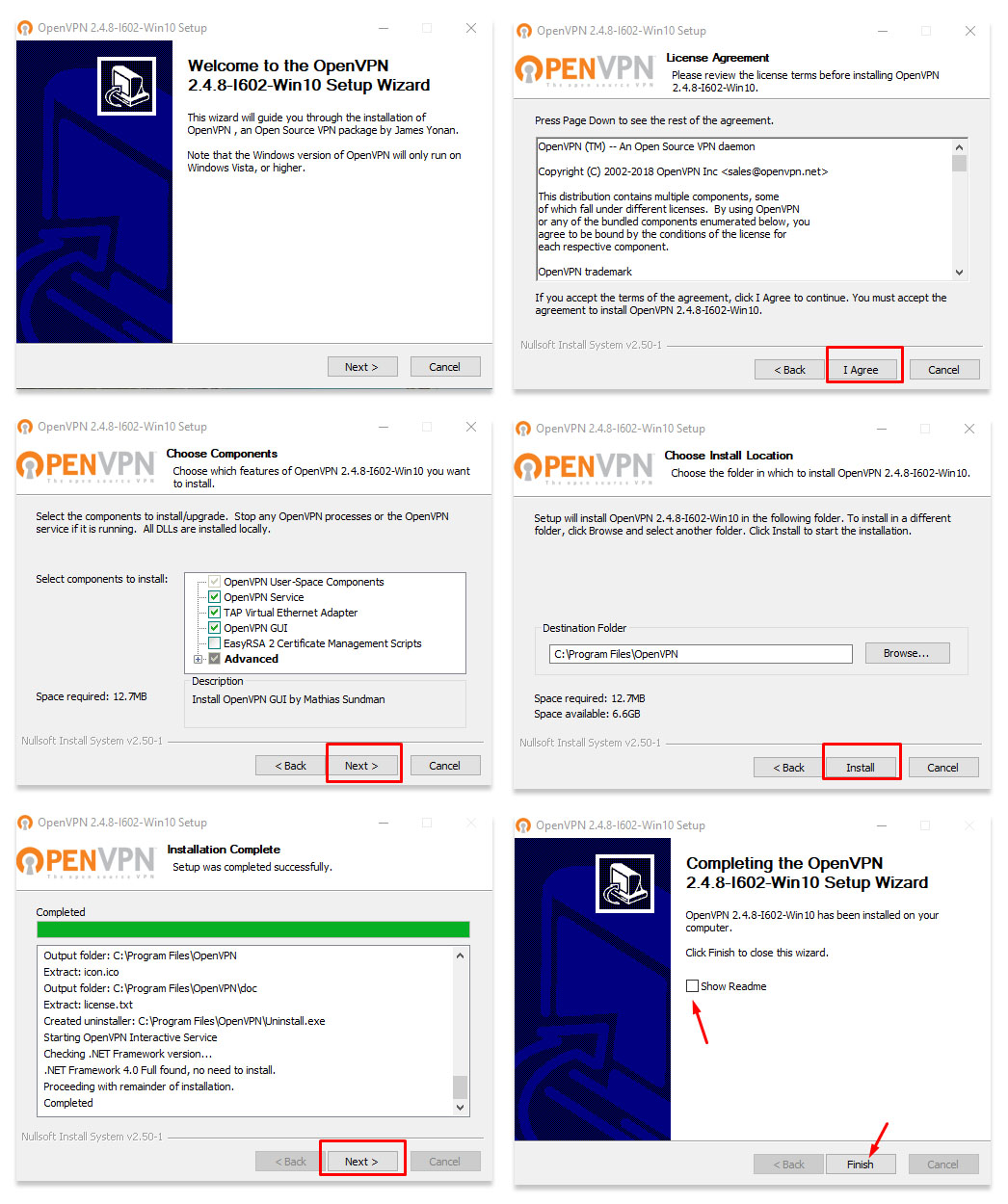
2. Install the newly downloaded software;
Step 6: Import the configuration file into the VPN Client.
With the VPN client installed, we will import the configuration file that will allow you to securely access the company network.
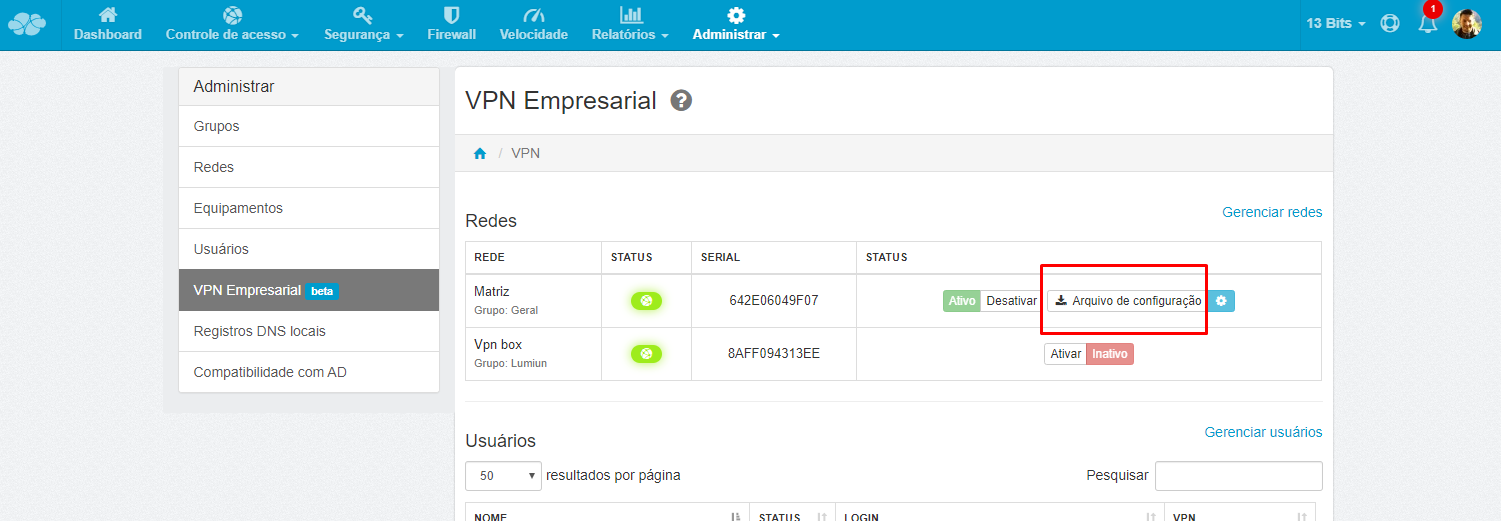
- On the Enterprise VPN page of the Lumiun control panel, download the configuration file for the network you want to connect to;
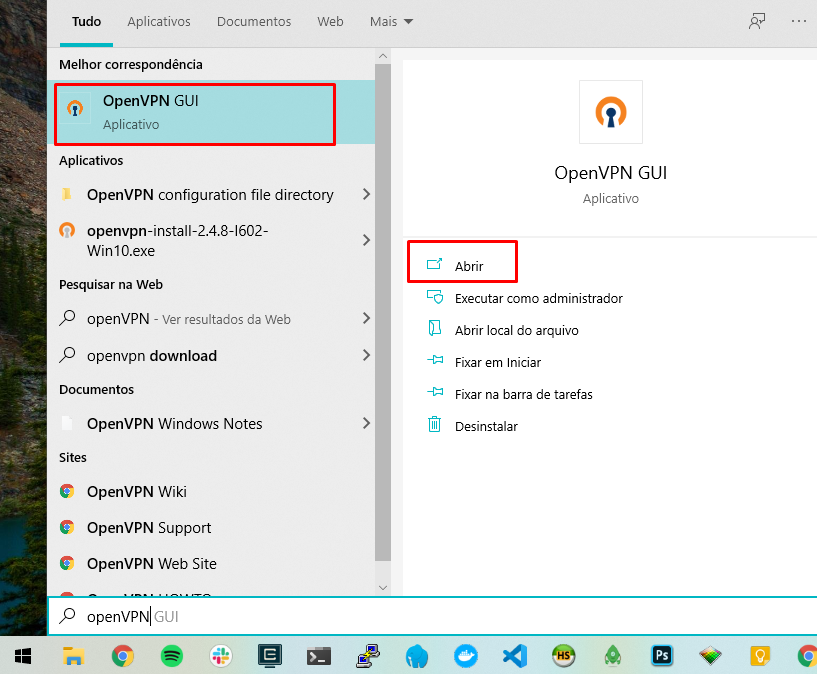
Windows Start button OpenVPN , and click the application to open it;
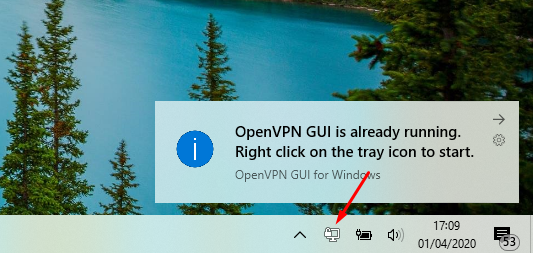
3. A message and a VPN Client icon will be displayed in the bottom right corner;
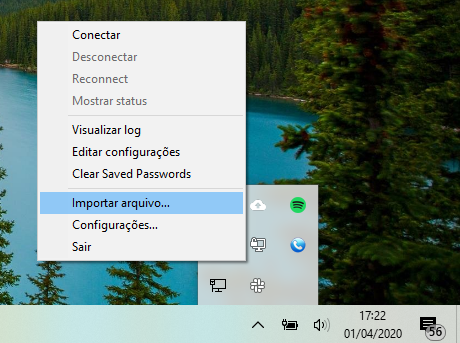
4. Right-click on the OpenVPN icon and then select the Import File ;
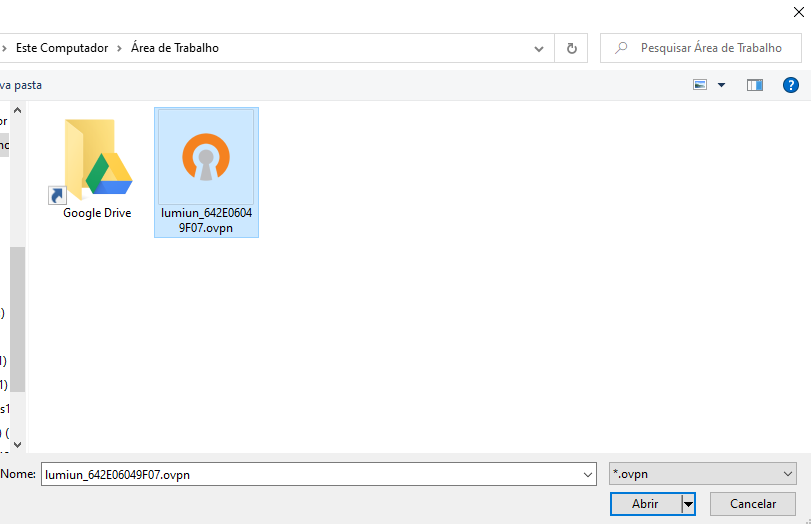
5. Select the configuration file that you downloaded from the Lumiun panel;
Step 7: Connect to the Lumiun Business VPN
We're almost done! To ensure secure remote access, let's first connect to Lumiun's Enterprise VPN.
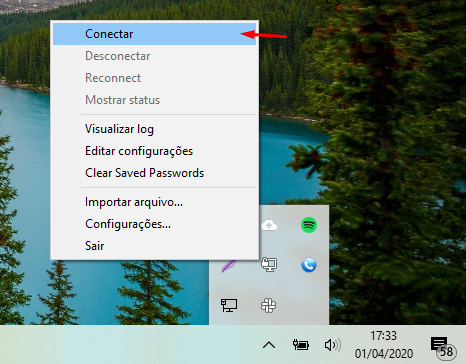
- Right- click the OpenVPN icon and then click Connect ;
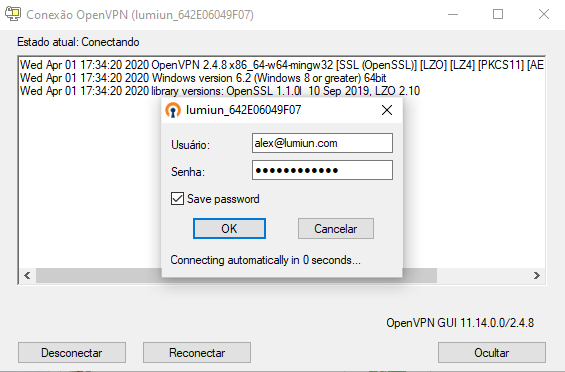
2. Enter the email and password of the user with permission in the Lumiun control panel and click the OK ;
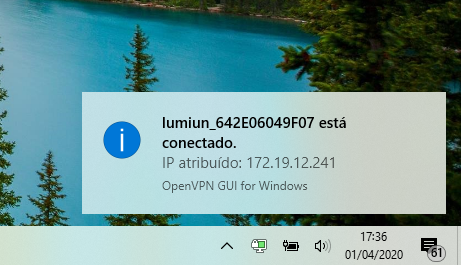
3. Wait a few seconds and that's it, you are connected via Business VPN to your company's network. Notice the message that will be displayed in the lower right corner and the green OpenVPN icon;
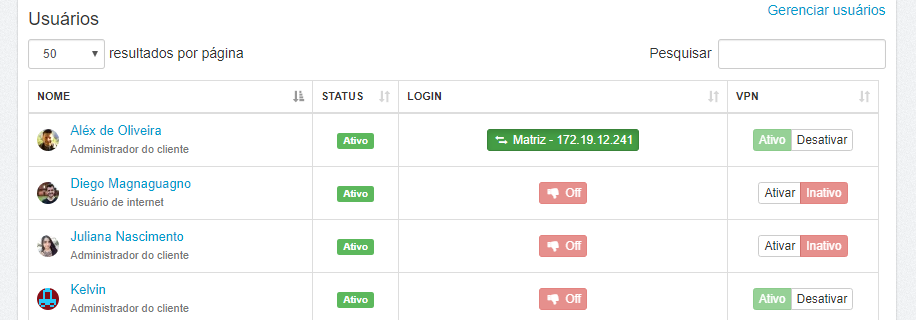
Administrator user account, you can track which users are connected via VPN and also which websites the user is accessing.
Step 8: Accessing Windows 10 Remote Desktop
Finally, we've reached the last step to accessing a company computer's Remote Desktop from your home.
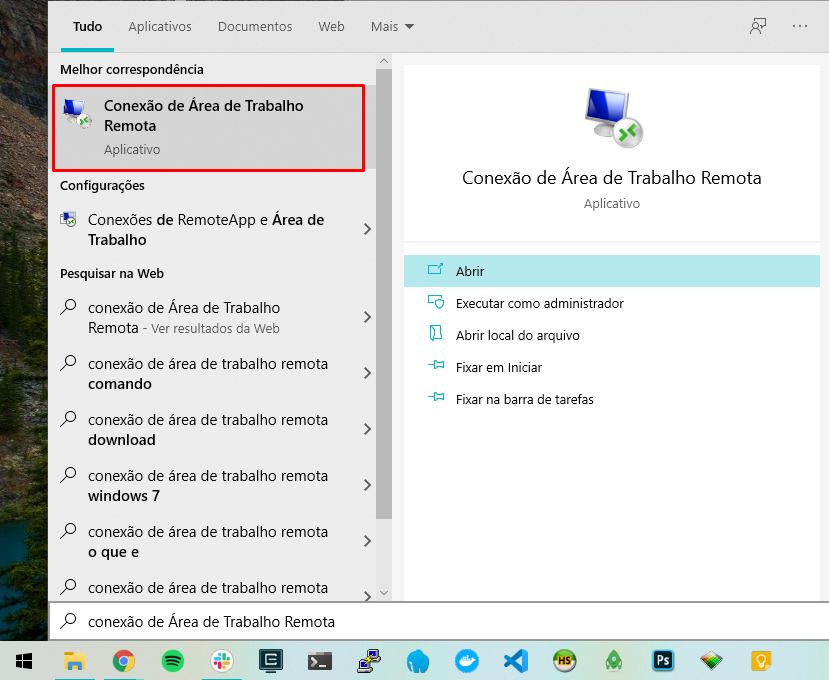
- In the Windows search field, type Remote Desktop Connection and click on the application;
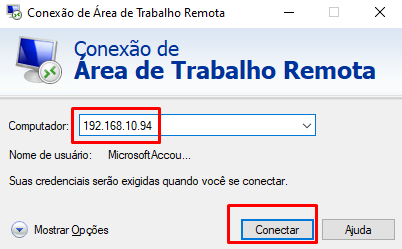
2. In Computer , type the IP address you noted in Step 3, and click Connect;
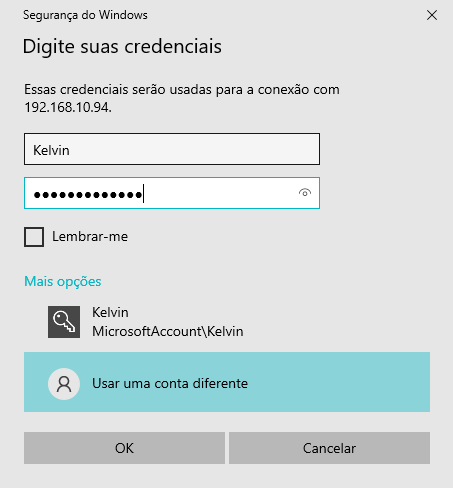
3. Enter your Windows account information and click the OK to access Remote Desktop;
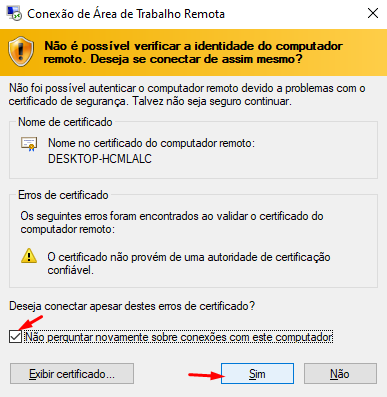
4. In the certificate alert, check the box " Don't ask again about connections to this computer" and click the "Yes" .
And that's it, you're securely connected to your company's Remote Desktop
Now, the creativity is up to you!
Download the Business VPN presentation and discover how this tool will increase the security of your company's data and also boost team productivity .
Did you like the tutorial? Then leave your comment below.



3 comments
Comments closed