


With the increased use of the internet in companies, controlling internet access becomes essential to maintain information security and employee productivity . Therefore, a growing practice is to block inappropriate, harmful, or work-related .
The significant increase in the number of cases of companies having their confidential data exposed or hijacked causes considerable damage . In most cases, simply blocking a malicious link in an email could prevent losses caused by security incidents or cyberattacks.
Employees wasting time on websites outside the scope of work is a headache for managers. It's common for employees to access the company internet for personal activities unrelated to work.
This situation can stem from various causes. These can range from accessing social media , personal email, or communication services like WhatsApp or Telegram, for example.
However, they usually occur because of access to websites related to pornography, entertainment, shopping, fashion, games, music and video streaming, news, sports, entertainment, among others .
To help managers, we've created this practical and simple guide that helps block inappropriate websites in the company without requiring technical knowledge.
Common options for blocking websites
A Google search reveals many tips and tutorials on how to block website access on computers and mobile phones. However, most of these don't apply to corporate networks. These networks have more computers and mobile phones and are therefore more easily compromised.
To help small and medium-sized businesses, we share information about the most common ways to block websites and minimize the risks of cyber threats and security incidents :
Edit the computer's Hosts file
hosts file is part of the Windows operating system. It allows you to block access to certain websites in all browsers. To access it, open " Notepad " in administrator mode, click on the " File Open submenu .
In the next window, access the " Etc " folder via the following path: " C:\Windows\System32\Drivers\Etc ". Finally, set the view to " All files " to open the " hosts " file.
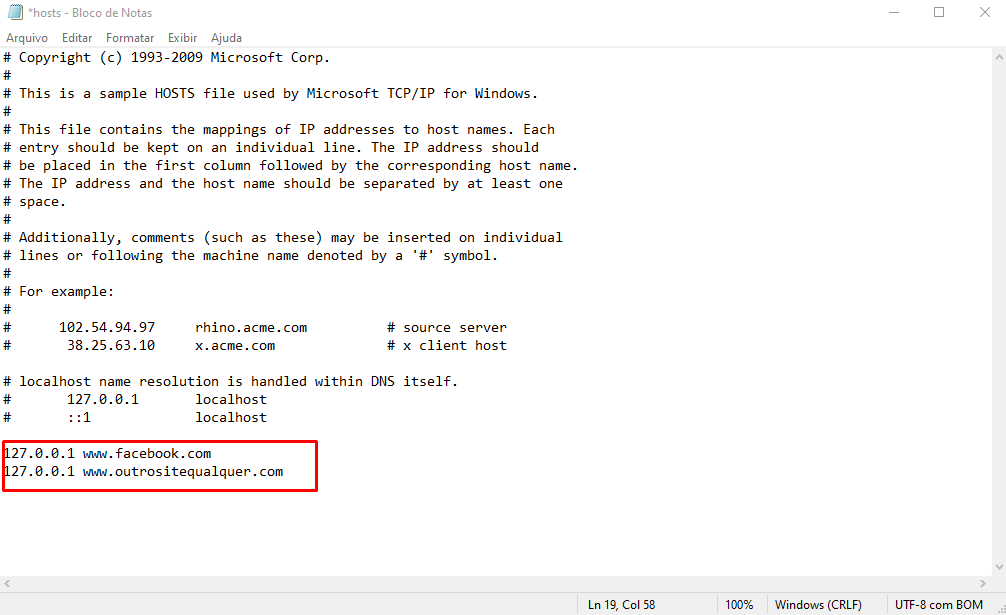
With the “ hosts ” file open, simply add the destination IP address followed by the website you want to block. For example, to block Facebook, add “127.0.0.1 www.facebook.com ”, as illustrated in the image above.
- Pros:
- Easy to set up
- No cost
- Cons:
- Manual and individual configuration for each computer
- No access reports
- Easy to cheat
- It doesn't work on mobile phones
Browser
Major browsers, such as Chrome and Firefox , offer options to block websites through their native settings. Or, through extensions such as, for example, BlockSite for Chrome.
- Pros:
- Easy to set up and install
- No cost
- Viewing reports
- Cons:
- Manual and individual configuration for each computer
- The user can disable it at any time
- Easy to cheat
Directly on the router
One option to avoid manually configuring each device on the network is to block websites on the router . To do this, open the router's administrative panel (usually accessible at 192.168.1.1) in your browser and enter the password Security option , then " URL Filter ," and add the website you want to block . However, depending on the equipment model, the path and names may vary.
- Pros:
- Blocking all devices on the network
- Against:
- There are no access reports
- It requires some technical knowledge
Best option for blocking inappropriate websites
After listing the pros and cons of the most common options for blocking websites , let's look at the best option for corporate networks .

Control internet access with Lumiun DNS
It's no secret that one of the biggest challenges for companies today is ensuring digital security and productivity when using the internet. This is precisely Lumiun DNS's specialty: offering an efficient and simplified solution for access control, protecting the networks of small and medium-sized businesses.
Furthermore, it works in a unique way: it's a cloud-based solution that's easy to implement and manage, providing more control and security without the need for physical equipment.
Here are some of the main features and advantages of Lumiun:
- Internet Access Control : Allows you to block unwanted and inappropriate websites based on categories (such as social networks, games, entertainment, etc.), helping to maintain productivity and security.
- Simplified Management : Managing internet access can be done easily, without the need for advanced technical knowledge. The system is cloud-based, which facilitates implementation and management.
- Detailed Real-Time Reports : Offers real-time internet access reports, allowing managers to monitor employee browsing and identify potential problems or excesses.
- Blocking Inappropriate Content : Uses filters to automatically block access to inappropriate content, such as pornography, violence, gambling, and others, promoting a safe work environment.
- SafeSearch Enabled : Automatically removes explicit results from search engines like Google, Bing, and YouTube, ensuring safer browsing.
- Traffic Monitoring : Monitors internet traffic by device and user, providing a detailed view of network consumption and usage.
Step 1: Create an account on Lumiun DNS
Visit https://dns.lumiun.com/register to create your free account. At the time of writing this article, it is possible to test all features for free for 14 days, with the option to extend it to another 30 days by answering a feedback questionnaire.

Step 2: Confirm registration via email.
After registering, confirm your account by clicking the “Verify your email” button in the email that was sent to you. If the email is not in your inbox, check your Spam folder and mark it as “Not Spam” to receive future emails.

Step 3: Create a new policy
After clicking the confirmation link, you will be redirected to the Lumiun DNS . To make the experience easier, a page with 3 initial steps is displayed.
The first step is to create a policy. Through the policy, it's possible to select locations, activate filters, and block applications and websites.

Step 4: Register new location
In Lumiun DNS a location identifies a network, device, or place that you want to control and protect.
To register a location, fill in the name field, select the time zone, check the policy created in the previous step, and click the "Next" button.

Step 5: Installing the new location
After creating the location, follow the steps described in the relevant documentation. Once the setup is complete, the location will become active.

Step 6: Enable blocking filters
Back in the Lumiun DNSdashboard, click on the “Policies” menu at the top of the page, select the newly created policy, and enable the “Block Adult Content” and “Block Child Sexual Abuse Content” filters.

Still on the Policies page, let's activate safe search for Google and Bing. This filter will remove adult content from the search results of these search engines.

Step 7: Test the blocking
In an incognito tab of your browser, access the website redtube.com Lumiun DNS blocking screen displayed.

Control internet access with the Lumiun Box
It's no secret that one of the biggest business problems today is low productivity and lack of data security Lumiun Box 's specialty : simplifying management and solving internet access control issues in small and medium-sized businesses.
Furthermore, it works in a unique way: it's a solution that's easy to implement and manage .
Here are some of the main features and advantages of Lumiun:
- Quick and easy installation and setup.
- No need to purchase new equipment or servers
- No need to manually configure each device on the network
- No need for equipment maintenance or software updates.
- No cost for a specialized professional for maintenance and support.
- Management through an intuitive dashboard
- Useful real-time reports to help you make the best decisions
All these advantages, plus the ease of management, make Lumiun Box the service that allows for complete and flexible management of internet access in companies .
Learn the steps to add complete control over internet access in your company.
Step 1: Sign up for a plan
Signing up for a plan with Lumiun Box is very easy. plans and pricing page , learn about the benefits and features, and evaluate which one best suits your company.
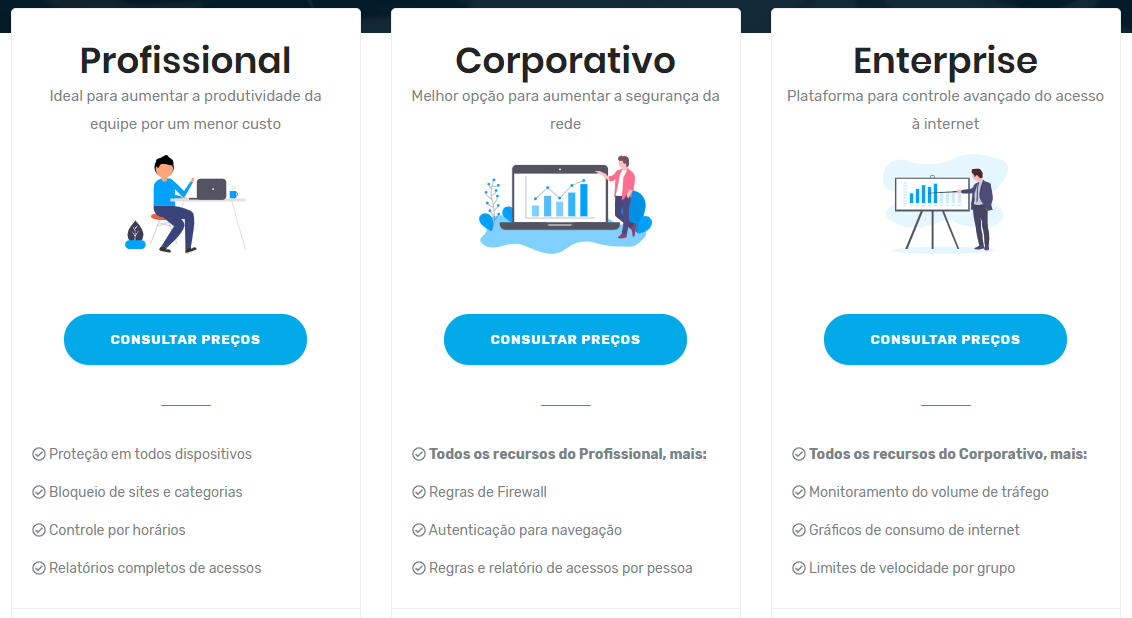
After subscribing to a plan, you will receive the Lumiun Box free of charge and on loan username and password to access the administrative panel via email .
Step 2: Install the Lumiun Box
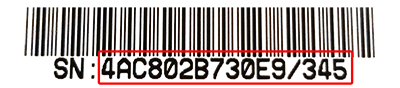
When you receive your Lumiun Box , access the control panel at https://app.lumiun.com . You will be asked for a serial number . Obtain this code from the label located on the bottom of your device .
Lumiun Box should be connected between the network gateway (usually the internet router) and the rest of the internal network equipment (usually a switch). Therefore, all data traffic between your local network and the internet will pass through the Lumiun Box .
- Connect network port #1 (labeled Internet) of the Lumiun Box to your internet router (internal network gateway).
- Connect another network port on the Lumiun Box to the internal network switch.
- Connect the Lumiun Box to the electrical power supply using the provided adapter.

From this point forward, internet access requests from your network will be queried against the Lumiun Box . This will make your network faster and more secure!
This consultation evaluates the access rules created for your network . It involves criteria such as the site category, security level, reputation, and the time of the request.
If the request is approved, access occurs normally. However, when the request is blocked, the user sees an informational page, which can be customized for their company.
Step 3: Monitor access reports
Before you start blocking websites, it's recommended to monitor access reports for a few days. This way, business owners, IT professionals, and managers can understand which websites employees access most frequently.
With Lumiun Box you can monitor internet access in real time or view graphs showing the most visited websites , as illustrated in the images:


Step 4: Configure the blocking of inappropriate websites
With the information from access reports, it is more effective to decide and block websites in a targeted manner.
In the example in Figure 6 , it is possible to identify that Facebook, Globo.com, and WhatsApp are among the most accessed websites on the network. In this case, for this "Example Company," these websites are outside the scope of work. Therefore, access should be blocked.
In Lumiun Box , blocking websites can be done in three different ways: by applications (Facebook, WhatsApp, Banco do Brasil, etc.), by specific websites , or by categories of websites (social networks, news portals, etc.).
Blocking by categories
To block websites by category , simply access the " Access Control " menu and the " Website Categories " tab. See figures 7 and 8.


By default, all categories are initially allowed. Note that in Figure 8 , we blocked the categories " Games and Betting ," " Pornography and Nudity ," and " Social Networks " with just one click each. Quick and easy, we were able to block all sites belonging to these categories.
Blocking by applications
If it's not necessary to block all websites in a category, there is the option to block by application.
In the control panel, each " Application" represents a website or internet service . Therefore, grouping your various domains and addresses not only makes configuring rules much more efficient, but also makes visualizing these accesses in reports much easier.

If you've ever used another internet access control tool, you've probably encountered the problem of needing to add multiple addresses to block or allow a website and effectively control access.
For example, behind Facebook there are many domains used for its photo, video, and sharing systems. In other tools, it would be necessary to discover and configure rules for all these addresses , such as facebook.com, facebook.net, fb.com, facebook.com.br, fbsbx.com, scontent.fria1-1.fna.fbcdn.net, etc.
With Lumiun Box , it's much easier and more dynamic to block websites or allow access to an application.
Step 5: Increasing network security
Security menu , there is an option to configure the item that will reinforce the network's security layer.
The main objective is to restrict access to potentially unsafe websites , which can threaten information security by blocking harmful sites, as we will see below.
Lumiun Lumiun Box uses third-party services to more frequently update the list of websites that may be harmful to the company's network. Blocking harmful websites is extremely important to prevent damage to equipment, loss, theft, and/or leakage of confidential data and information .

Business VPN
With Lumiun BOX's Business VPN, in addition to increasing network security and productivity, it brings external collaborators closer together, uniting everyone on a single network.
A Business VPN allows employees to access their remote desktop, documents and files on the internal network , and even the ERP system, securely and anonymously. With features such as IP address masking, data encryption, and secure browsing on public Wi-Fi networks, Lumiun Box ensures the protection of sensitive company data, making banking transactions and web browsing free from the risk of espionage or malware and phishing attacks.
Furthermore, it offers managers the power of control and protection. They can determine which employees are allowed remote access via VPN, set permitted connection times, monitor which employees are connected, and enable VPN for different networks if the company has multiple networks. All these functionalities are linked to blocking websites and content categories, with detailed reports as we will see below.
Step 6: Information Report
Finally, Lumiun Box generates reports that indicate the level of effectiveness . That is, the reports reveal whether blocking websites has had a positive and effective impact on productivity and data security within the company.
Real-time report , for example, it is possible to verify and monitor that all requests to access social networking and pornography sites are "red" .
In other words, when blocking websites through Lumiun Box , the employee only sees the warning message, which can be configured and customized .

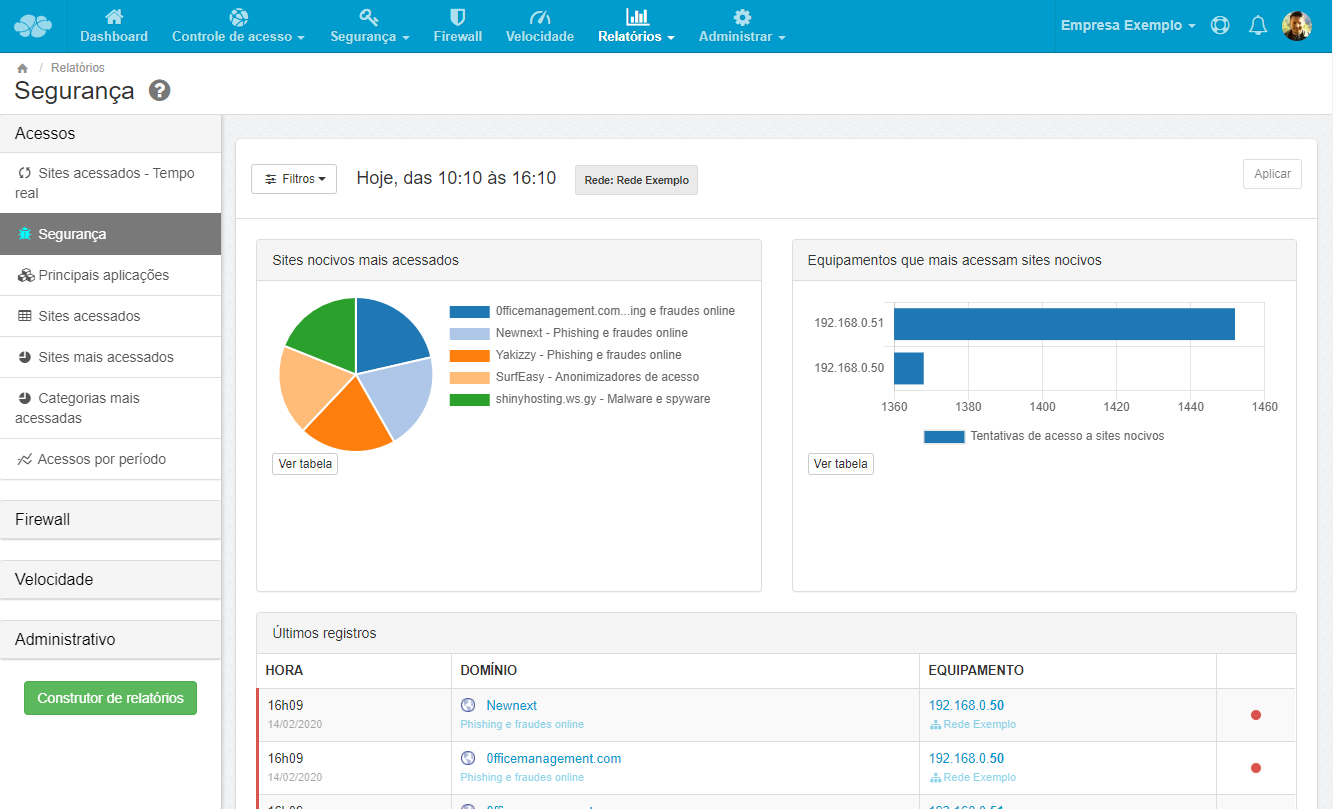
The "Security" report also reveals valuable information. With it, companies gain a precise understanding of the equipment and users who most frequently access websites that pose a threat to information security .
If a large volume of access to malicious addresses occurs on a particular device, it is recommended to analyze in detail what those addresses are .
Ultimately, this type of data indicates problems with the equipment . It is likely infected with a virus or other malware that could compromise the security of the corporate network.
Conclusion
In this guide, we demonstrate how Lumiun DNS and Lumiun Box are efficient, secure, and practical solutions for controlling internet access in businesses. Both options offer protection against malicious websites, increased productivity, and simplified management, but the ideal choice depends on your company's needs.
Lumiun Lumiun DNS is a cloud-based alternative that is easy to configure and manage, ideal for companies seeking an agile solution without the need for physical equipment. Lumiun Box , provides more comprehensive control of the local network, making it an excellent option for those who want more detailed access management and greater protection against internal and external threats.
With just a few clicks and no technical knowledge required, both solutions allow you to define access rules and view detailed reports on internet usage within your company. Our goal is to improve digital security and make businesses' daily operations more productive.
Visit our website www.lumiun.com or speak to a consultant to find the ideal solution for your business!



3 comments
Comments closed